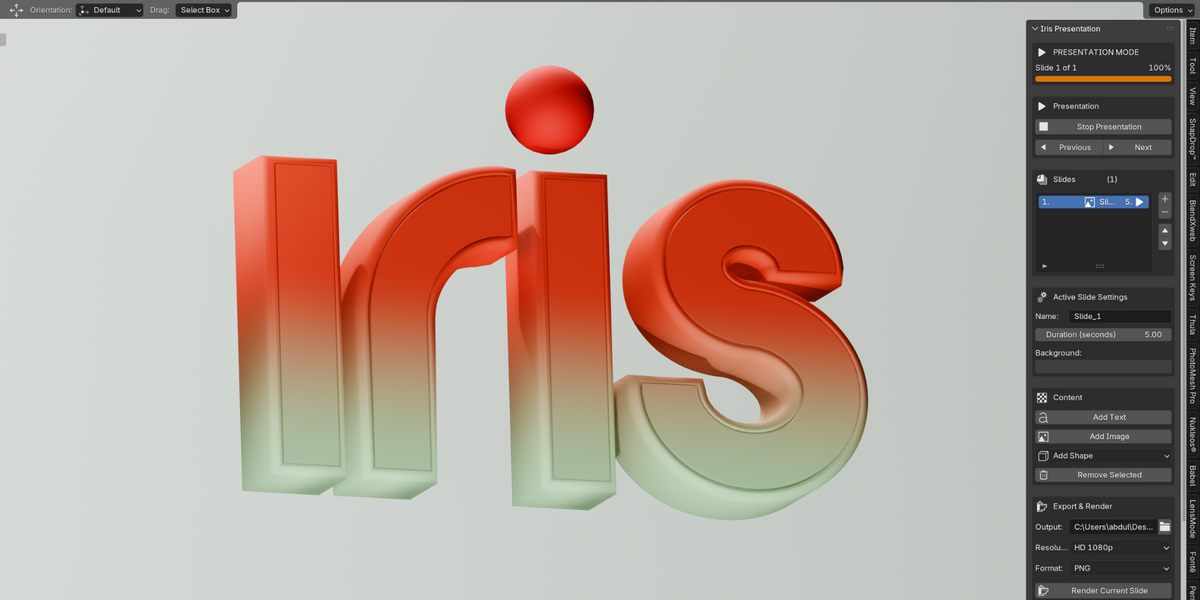
Iris: Addon turns Blender projects into slide-based 3D presentations for live playback, rendered slides, or PDF export. Each slide can have its own camera, object collection, background color, and duration, making it useful for presenting different views of a model or moving through several scenes. See the Superhive listing and the Iris documentation for product details and instructions.
Build slides from Blender content
The Iris panel is in the 3D Viewport sidebar. Create a slide, then add 3D text, images as planes, basic shapes, or objects already in your Blender project. Add more slides with the slide manager, then rename or reorder them and adjust each slide's camera and background.
This workflow suits product presentations, architecture visualizations, portfolios, client pitches, and teaching materials. You can import models with Blender's import tools and add them to slides. Slide collections can be copied between projects with Blender's Append or Link features.
Present and render slides
Start Presentation opens fullscreen mode when the 3D Viewport supports it. Use the left and right arrow keys to move between slides and Esc to exit. Auto Advance can move through slides on a timer. For rendered output, Iris can render the current slide or batch render all slides. Rendered slides can be saved as JPEG, PNG, or OpenEXR.
PDF export requires rendered slides
To make a PDF, batch render the slides as JPEG images first, then use Export to PDF. Each slide becomes a PDF page, with A4, Letter, or 16:9 sizing and optional slide titles. JPEG is recommended for PDF export, and PNG support is limited. Save the Blender project before rendering if you use a relative output path.
Compatibility and installation
The Superhive listing gives Blender 4.5, Cycles and Eevee as the render engines, and GPL as the license. Iris documentation specifies Blender 4.5.0 or later on Windows, macOS, or Linux, with 8 GB RAM minimum and 16 GB recommended. Its installation steps are to download the Iris addon folder, open Edit > Preferences > Add-ons, choose Install, select the folder, and enable “Iris - Presentation Slides for Blender.” The Iris tab then appears in the 3D Viewport sidebar; press N to open the sidebar.
Iris is a fit for Blender users who want to present 3D work from within their project, with control over each slide's camera and scene content. If the deliverable is a PDF, account for the separate render step before sharing it.