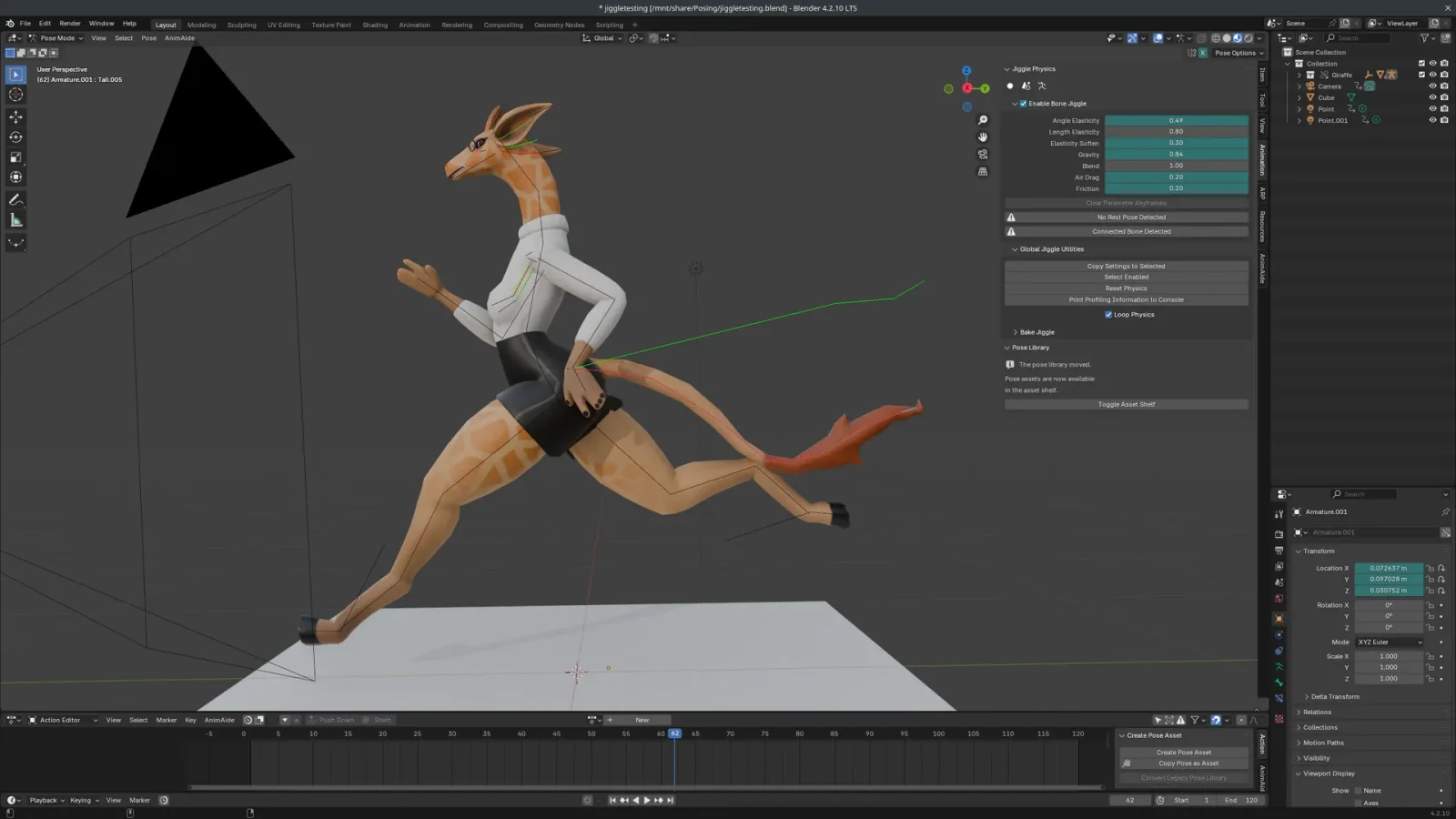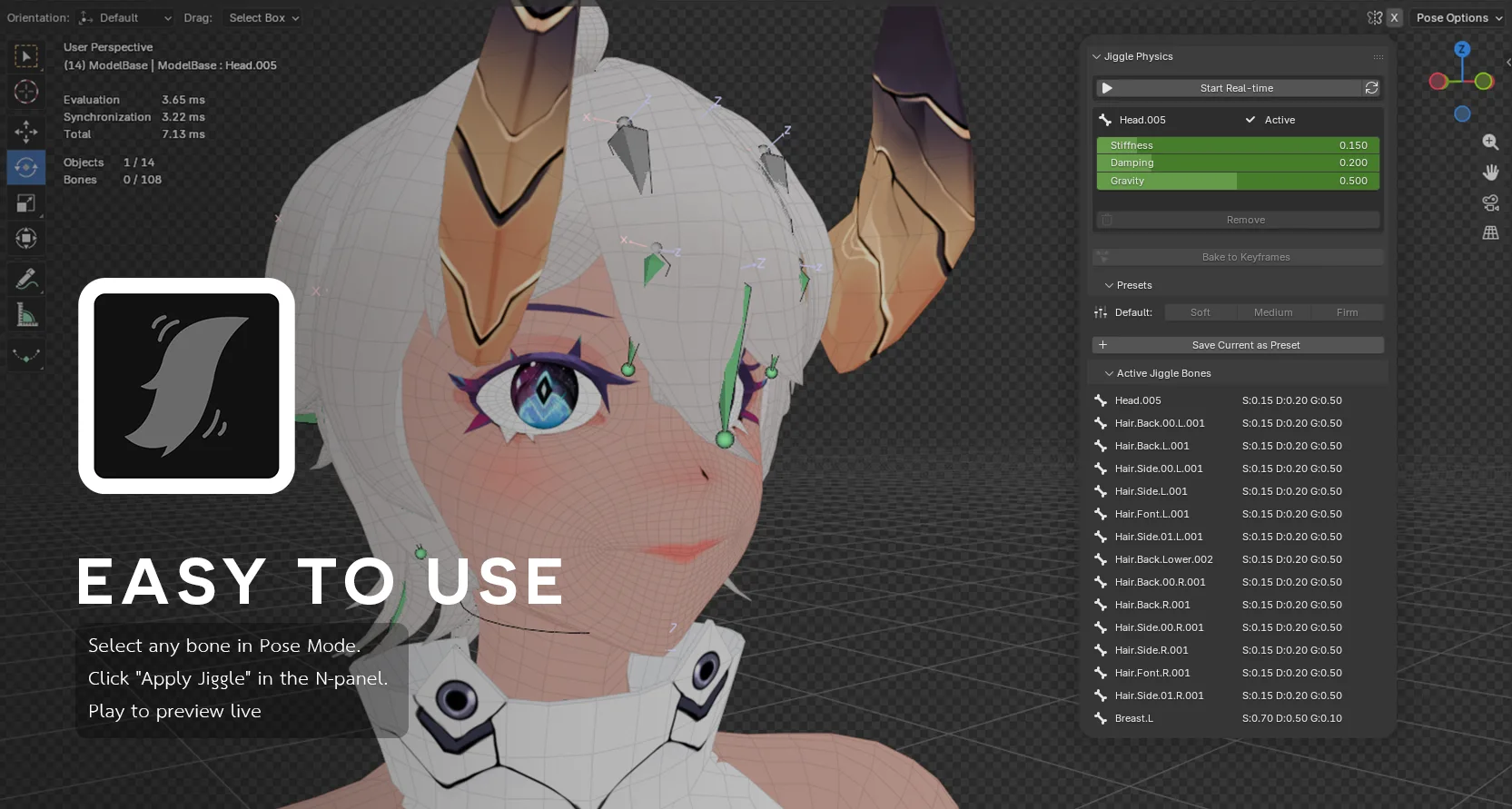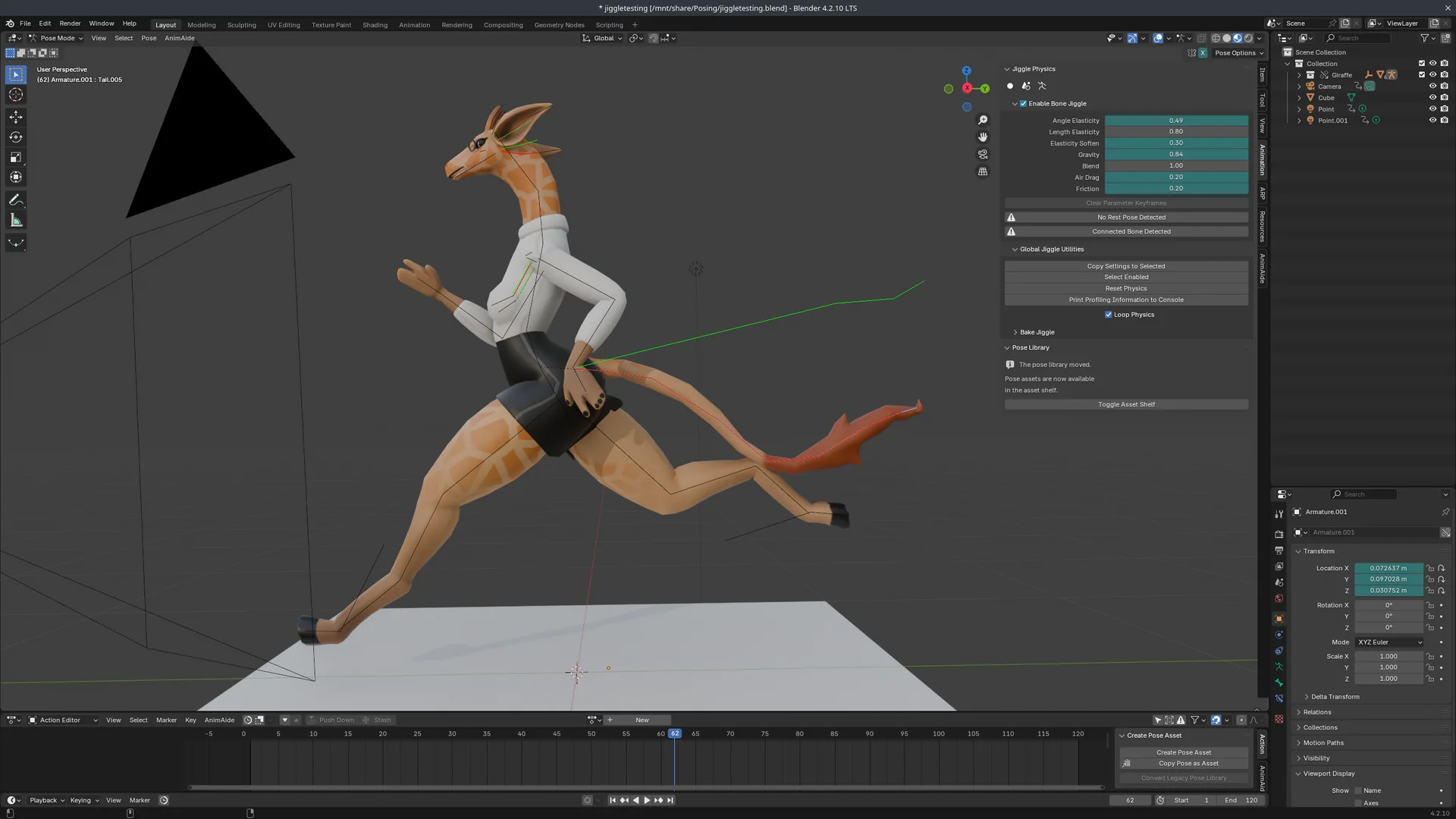
Jiggle Physics adds stretchy secondary motion to Blender armatures. Its Verlet-based solver lets you tune jiggle and bone squash and stretch while an animation plays in the viewport. The controls use a simple 0-to-1 range, from loose motion to more restrained movement.
Adjust motion while the animation plays
Overlays show the detected rest pose in green and the simulation in red. They also help you inspect a bone’s collision radius as you adjust the rig.
Set up a jiggle bone
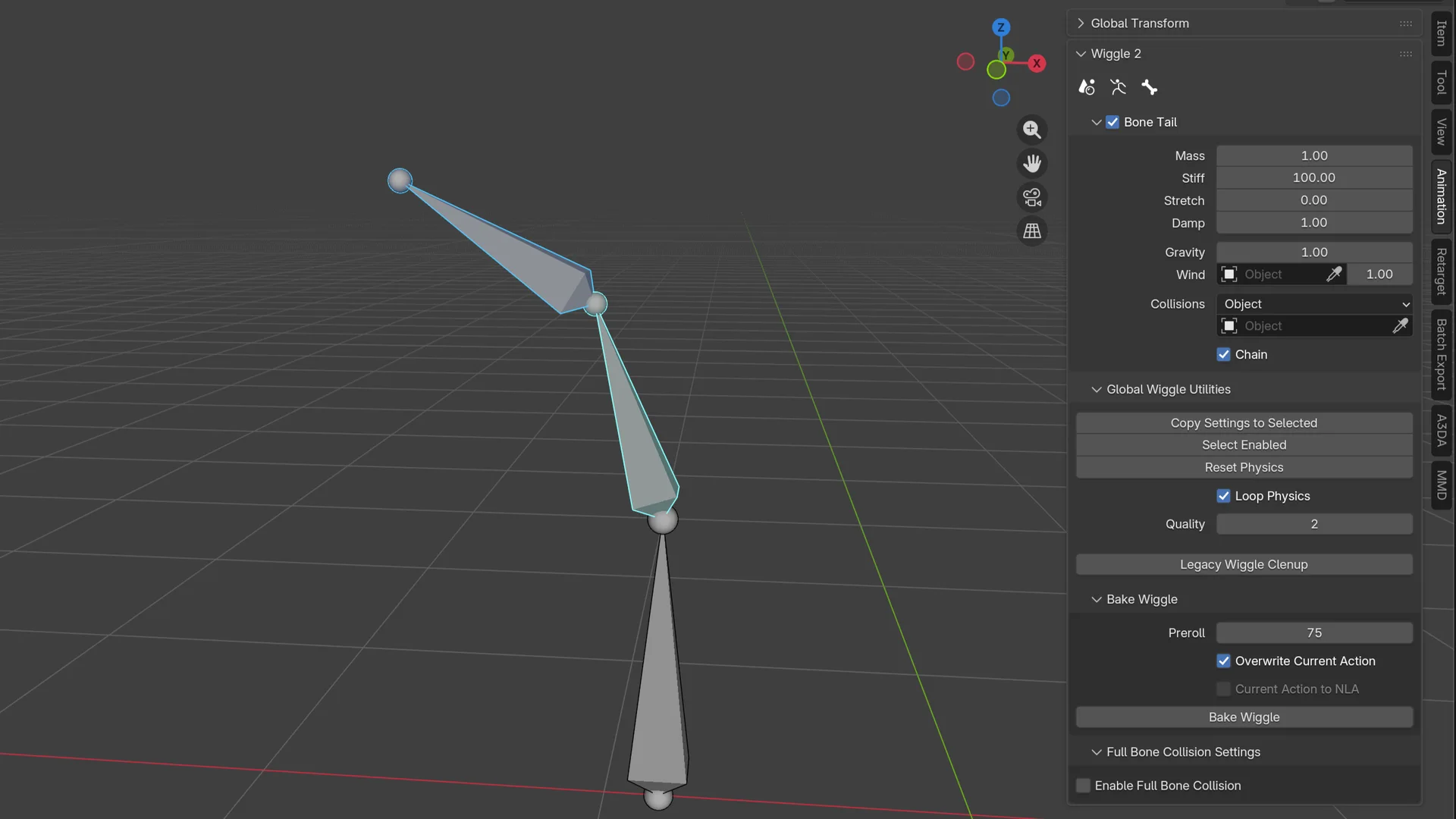
- In the 3D Viewport, press N and open the Animation tab. Enable jiggle for the scene.
- Select a bone in Pose Mode and enable Jiggle Bone for it.
- Add position and rotation keyframes to define the bone’s rest pose.
The add-on needs those keyframes to identify the rest pose. Without them, a jiggle bone can droop. Rigs with standard parenting are the best fit; the developer notes that constraints, bendy bones, and special parenting rules are not well supported. Connected bones also cannot translate, which prevents them from stretching through this simulation.
Know the collision and render limits
Scaled empties have the strongest collision support. Mesh collision is limited, and the simulation does not support bouncing or friction. For a floor, the developer recommends a large scaled empty below the feet; a flat plane may not collide reliably.
Jiggle Physics disables its simulation during rendering because Blender can render frames out of order. Bake the jiggles before rendering or sending a scene to a render farm.
For current installation steps, warning messages, and troubleshooting advice, see the developer’s README and the Blender Extensions listing.