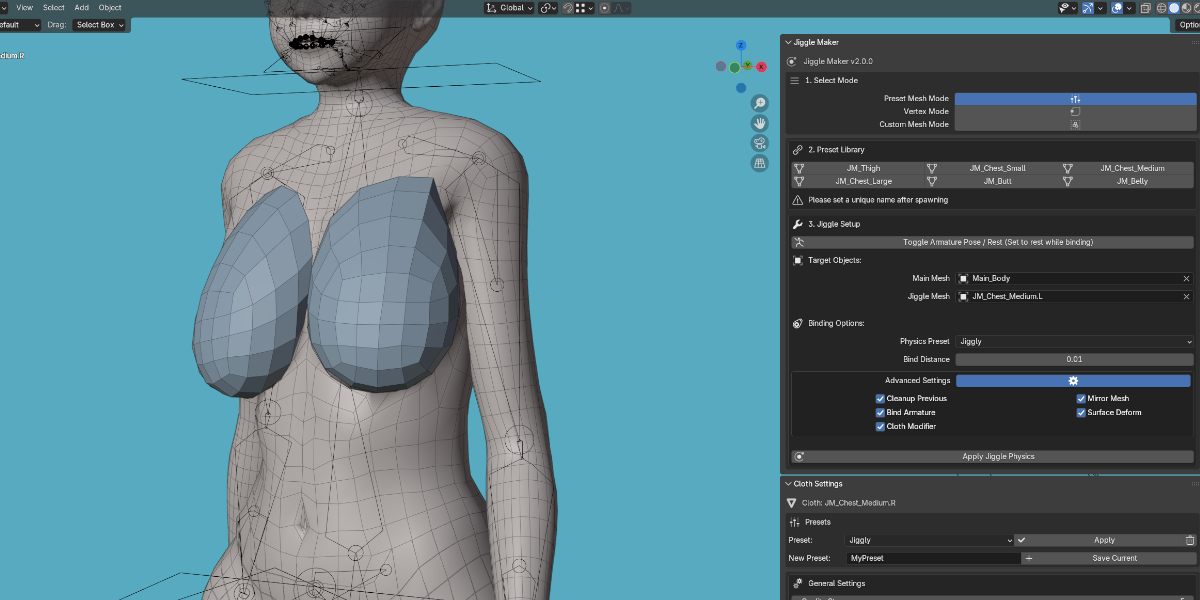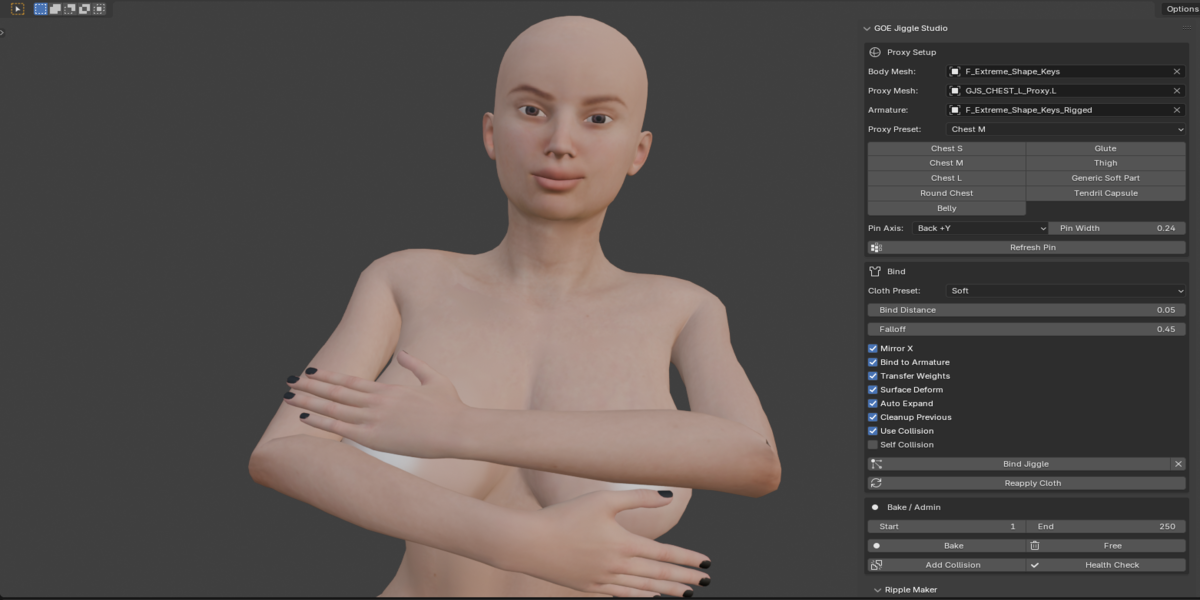
JiggleMaker is a Blender add-on for setting up cloth-based jiggle physics on character meshes. Choose a preset, vertex-based, or custom proxy mesh, then bind it to a main mesh. The add-on sets up Surface Deform and Cloth, generates an influence group by distance, and provides controls for tuning and baking the simulation.
It is aimed at Blender artists and animators who want localized secondary motion on areas such as the chest, thighs, or belly. The JiggleMaker product page also links to a free version to test with your character and rig.
Choose how to make the jiggle mesh
The proxy mesh determines where the cloth simulation affects the character. JiggleMaker supports three ways to provide it:
- Preset Mesh Mode: Append a ready-to-bind proxy from the included library, position it, and bind it. Presets cover areas such as the chest, thigh, belly, and buttocks.
- Vertex Mode: Build the jiggle mesh from existing vertex groups.
- Custom Mesh Mode: Use a modelled proxy. If it has a Pin group, JiggleMaker can pick up that group automatically.
The preset mesh library can be extended by editing the presets file through the add-on's Preferences and refreshing the list. For a custom proxy, the product documentation recommends using the tutorial for Custom Mesh Mode.
Bind, tune, and bake
Set the main mesh and jiggle mesh, select a starting physics preset, and click Bind. JiggleMaker creates a distance-based influence group on the main mesh, adds Surface Deform to it, and sets up Cloth on the proxy. The adjustable Bind Distance controls how close the proxy must be to influence the main mesh. You can refine the resulting group with weight painting when needed.
Jiggly, Firm, Thighs, and Inflated presets provide starting values. The Cloth Settings panel exposes controls such as Quality Steps, Time Scale, Mass, and structural and shear damping. You can save your own cloth presets and reuse them in other projects.
For scenes with several simulations, Cloth Bake Admin can locate cloth simulations used as Surface Deform targets and show which models use them. From there, you can enable or disable cloth in bulk, free caches, or bake a selected frame range. Its Refresh Cloth List command also finds cloth modifiers in the current scene.
Recover from unstable cloth
The Simulation Stabilizer checks a cloth mesh against its rest size and treats growth beyond a chosen Explosion Threshold as a failure. When you run Fix Cloth Explosions, it plays and replays the animation while adjusting selected settings. The recovery steps can be edited and reordered, and the Activity Log records the settings it changed. The stabilizer stops and reports the issue if it cannot settle the simulation.
Check the rig and Blender version
Before binding, apply transforms to the rig and meshes and keep the model at a sensible real-world scale. The product page says objects roughly 0.5 to 3 metres tall work best, recommends using one Armature on the main mesh, and advises switching it to Rest Position before binding. JiggleMaker also warns about unapplied transforms and unrealistic scale.
Compatibility information on the listing needs a careful read: its details panel lists Blender 4.2 through 5.2, while the overview separately says Blender 4.0+ and notes that the bundled preset.blend targets Blender 4.0. The overview warns that editing and saving that file in Blender 4.0 or later may affect Blender 4.0 compatibility. Check the current listing and test with the free version if your Blender setup is close to those version boundaries.
For a Surface Deform concavity error, the product guidance suggests trying Blender's Split Concave Polygons option. If the main mesh does not follow the proxy, check the Surface Deform bind and the proxy polygons, then bind again. For falling or unstable simulations, check scale, transforms, and the Pin group, then try another preset. The documentation and changelog include a version 2.1.0 fix for a Blender 5.0 binding error and an option to triangulate the jiggle mesh.