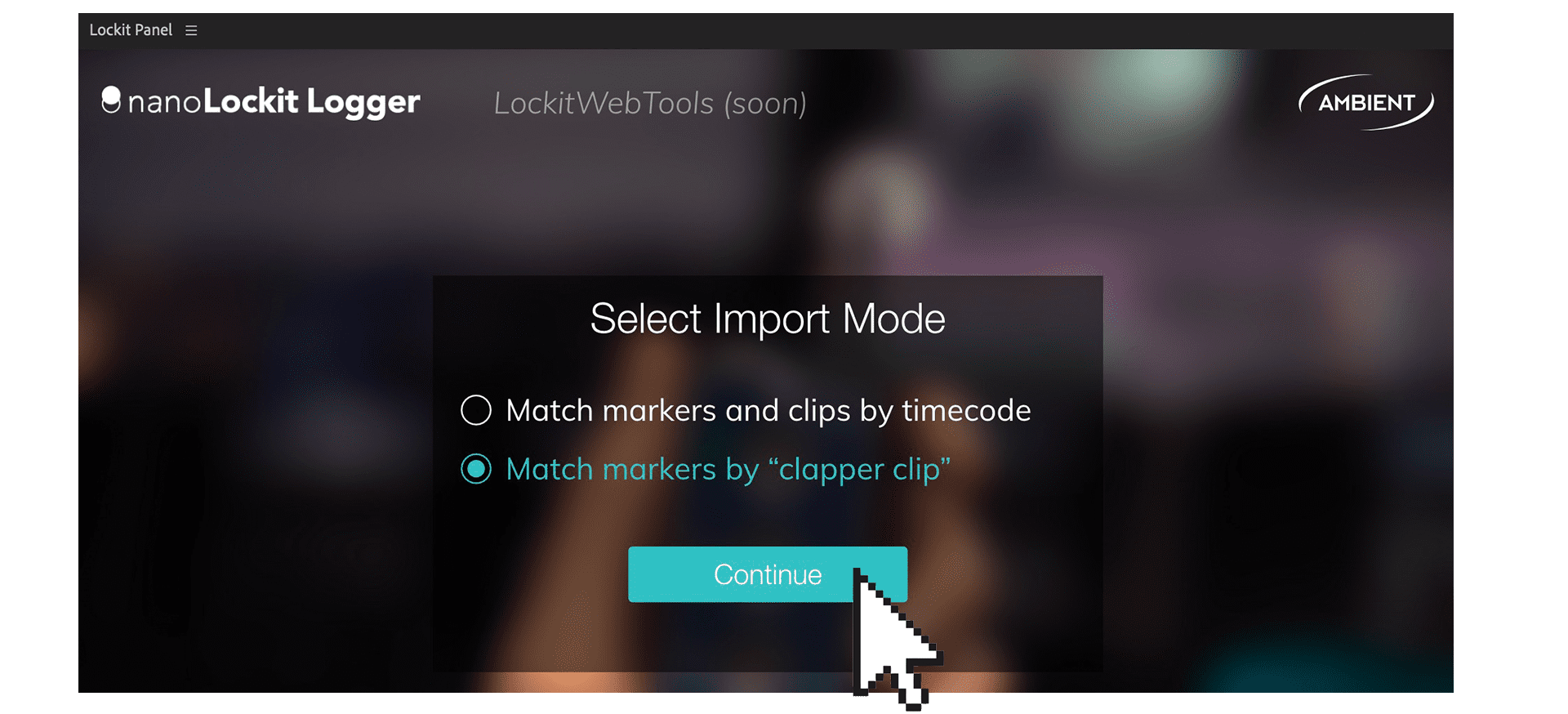
Lockit Panel is Ambient Recording's Premiere Pro extension for bringing good and bad take markers from a NanoLockit Logger into an edit. During filming, someone presses the Logger's green button for a good take or the red button for a bad one. The panel imports the recorded markers and matches them to clips, so editors can find moments logged on set.
Importing a NanoLockit log
Use Ambient's LockitToolbox to download a .markers file from the NanoLockit. In Premiere Pro, open Lockit Panel from Window > Extensions, choose a reference mode, then select Import Markers and load the saved file. Ambient's post-production guide describes the steps.
Choose a reference for matching
Creative Mode uses a clapper clip as its reference and requires Free Run; Ambient says Rec Run prevents marker matching. Triple-press the NanoLockit's green button to create the clip, then move Premiere Pro's timeline cursor to that exact event and choose Set Clapper Clip before importing markers for that camera's footage. On a multicamera shoot, all cameras must record the same triple-press, and markers must be imported separately for each camera. Sync Mode matches by timecode, so editors can select all clips from the timecode-synced cameras for one import.
Ambient recommends downloading the .markers file after each shooting day because timestamps can overlap and interfere with matching. A filename that identifies the project and shooting day also makes the exported logs easier to keep organized.
Who it fits
Lockit Panel is for Premiere Pro editors receiving NanoLockit take logs from production. It carries on-set good and bad take decisions into the edit, with a camera-by-camera workflow for clapper-based logging and a grouped workflow when the cameras share timecode.
Version and availability
Adobe Exchange lists Lockit Panel as free, with version 1.0.1 updated on November 22, 2021, and compatibility with Premiere Pro 9.0 or later. Check the Ambient downloads page and Adobe listing for current installation details and host-app support.