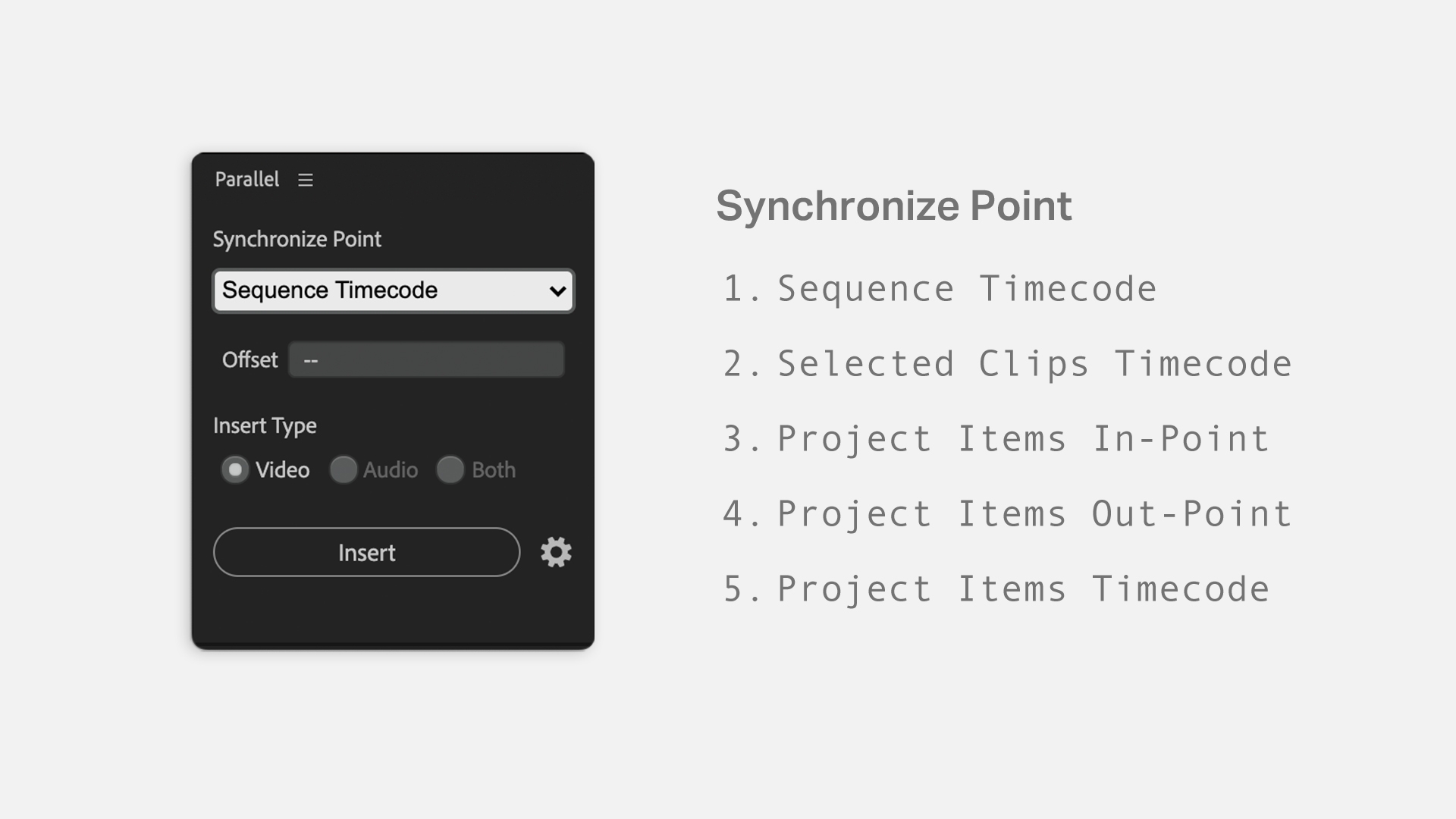
Parallel by 884tak is a Premiere Pro extension for inserting clips selected in the Project panel into the current sequence. It offers five placement methods based on sequence timecode, selected timeline clips, project item in and out points, or project item timecode.
Choose a placement reference
Each method uses a different time reference, so choose the one that matches how the clips should line up:
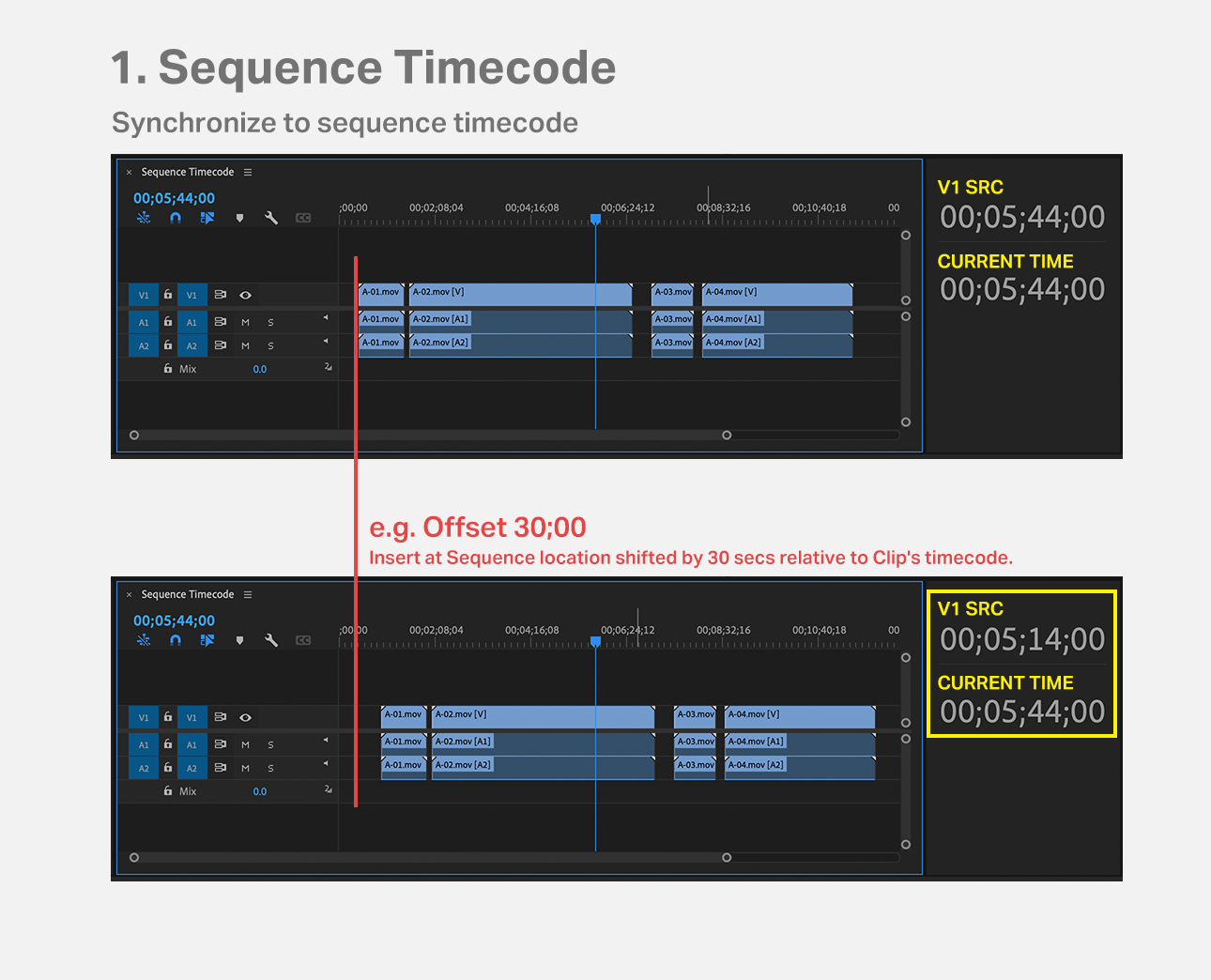
- Sequence Timecode places each selected project clip at the sequence position matching that clip's timecode. An offset shifts the insertion position.
- Selected Clips Timecode places selected project items at the timecode positions of clips selected in the sequence. You can select multiple timeline clips, but they must all be on the same track. An offset shifts the placement.
- Project Items In-Point stacks clips according to each item's In Point. With an offset, the placements step by that amount relative to each In Point.
- Project Items Out-Point stacks clips according to each item's Out Point. An offset steps the placements relative to each Out Point.
- Project Items Timecode aligns the selected items by their timecode. Its offset is entered as a timecode and sets the In Point used to stack the clips.
Set the track, offset, and media type
For the first four methods, the offset can be positive or negative. To return it to zero, double-click the Offset text area. The fifth method uses a timecode offset, which sets the In Point for the stacked clips.
For the In-Point, Out-Point, and Project Items Timecode methods, sequence In and Out points are respected. If neither is specified, Parallel places the insertion at the indicator. The chosen insertion track takes priority over the target track. If a clip is already on the target track at the insertion point, Parallel inserts the new clip on the track above it.
Insert Type lets you choose video only, audio only, or both. Inserted audio follows the clip's audio channel settings; the source patch is not reflected. In the panel settings, the Display Confirm before Insert option controls whether a confirmation screen appears before insertion.
Compatibility and version
The aescripts listing identifies version 1.1.1, dated August 1, 2024, and lists compatibility with Premiere Pro 2022, 2023, 2024, 2025, and 2026. Check the official Parallel listing for current release and compatibility details before installing.