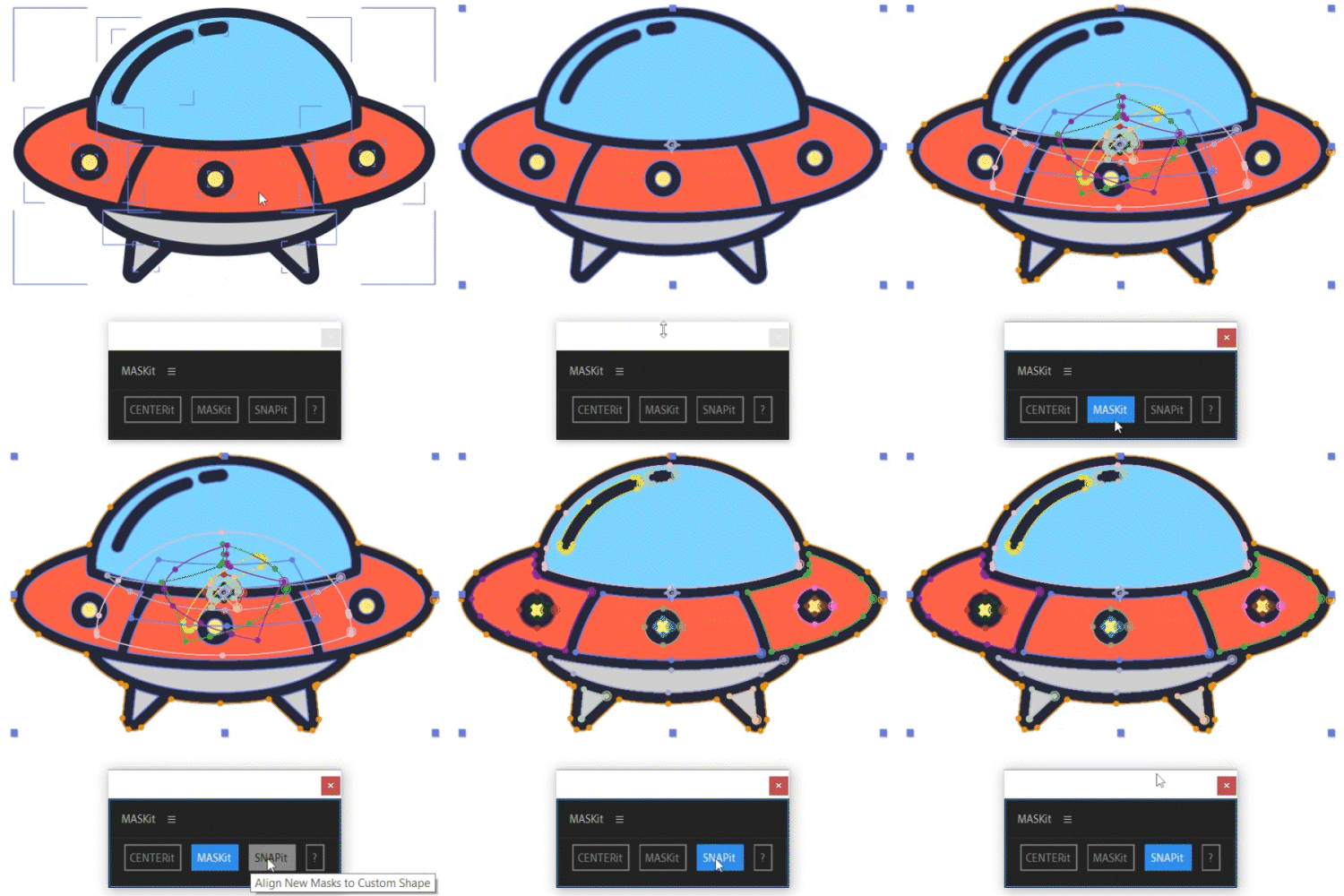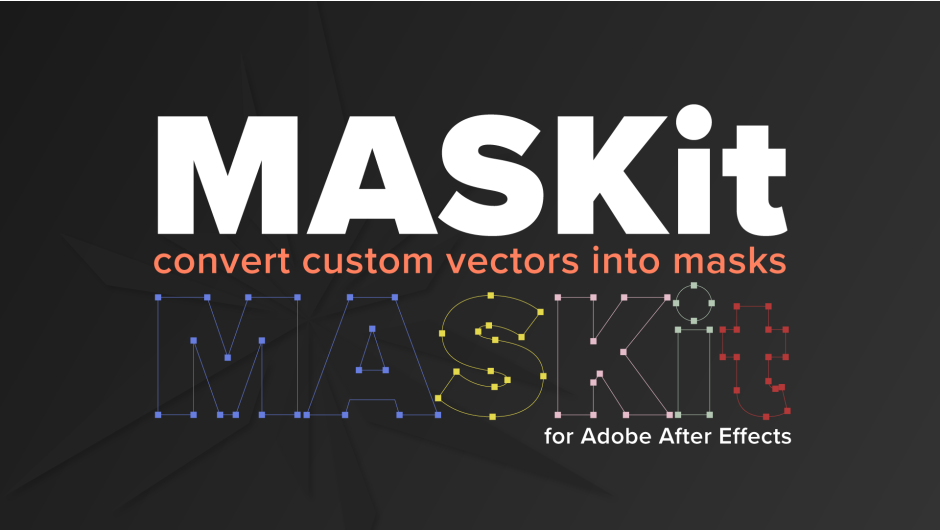
MASKit converts paths in selected After Effects shape layers into masks, naming each mask after its originating group and path. You can copy and paste the generated masks onto another layer, which can help when a vector graphic needs to act as a mask instead of a track matte.
Convert vector artwork into masks
- Import the vector file into After Effects and add it to a composition. Right-click its layer and choose Create > Create Shapes from Vector Layer.
- Select the resulting shape layer. Adjust its position, scale, or rotation if needed. If you change its position, do not use CENTERit.
- Click MASKit to generate masks for the paths in the selected layer. You can select multiple shape layers and process them at once.
- Click SNAPit if you want the masks oriented to match the structure of their source shapes.
Placement and path behavior
CENTERit moves selected shape layers to the center of the composition. It is optional and centers the layers themselves; it does not align masks. MASKit and SNAPit can still work when you reposition or scale a shape layer without using CENTERit.
MASKit creates masks from both Stroke and Fill paths, with each mask set to Add by default. Check imported artwork for duplicate paths first, since those can produce duplicate masks. It supports custom shapes made with the Pen Tool, but not After Effects Ellipse, Rectangle, or Polygon shapes.
For more precise mask placement, the vector artwork and the layer receiving the masks should match the composition resolution or each other. If you cannot resize the target element, pre-compose it in a composition matching the resolution of the shape layer where MASKit created the masks.
Limits, compatibility, and licensing
- Running MASKit more than once on the same shape layer creates duplicate masks. SNAPit is intended for one use on a set of masks; using it again may shift them further. Undo can reverse those changes.
- Using MASKit buttons on masks that MASKit did not create may shift their placement incorrectly.
- The trial allows masking one path, with CENTERit and SNAPit disabled.
- The product listing specifies After Effects 2020, 2021, 2022, 2023, and 2024.
- The EULA permits one copy for use by one user on one computer. Additional copies or users require appropriate licensing.