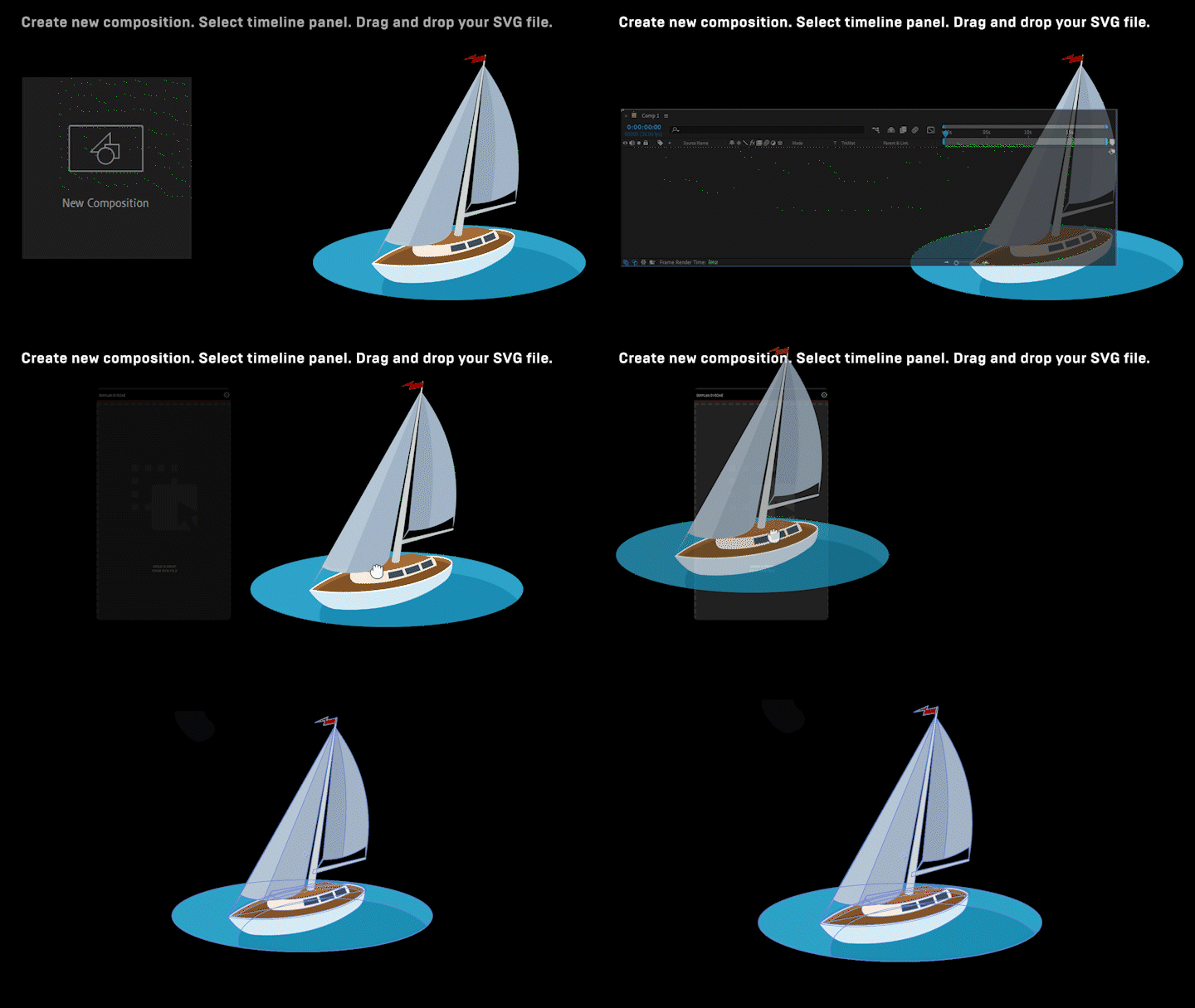
SVG2AE by GothLab imports SVG files into an After Effects composition as shape layers. Version 2.0 added multiple-file import and a click-to-select option for choosing several files.
Import SVG files into After Effects
- If you use an After Effects release earlier than CC 2018 (15), confirm compatibility with GothLab before installing. Install SVG2AE through the aescripts + aeplugins Manager App or a ZXP installer, then enable Edit > Preferences > Scripting and Expressions > Allow Scripts to Write Files and Access Network. Create a new composition and open
Window > Extensions > SVG2AE. - Select the Timeline panel, then drag one or more SVG files into the SVG2AE window. You can also use the click-to-select option to choose several files.
- SVG2AE imports each file as a shape layer.
SVG limitations and compatibility
SVG2AE supports shape graphics with closed paths. It does not support multiple-page SVGs, gradients, patterns, or fonts that have not been expanded to paths. To convert text to paths in Illustrator, select it and choose Object > Expand. SVG layer names are not preserved during import.
The compatibility list covers After Effects releases from CS3 through 2026, but the version 2.0 note says its CEP8 build requires After Effects CC 2018 (15) or later.
Version and price
Version 2.0 was released on September 25, 2025. The aescripts listing displays $29.99 as a suggested amount. It says individual users may pay any amount, while businesses and teams must pay the suggested amount to receive a valid license. Check the aescripts product page for the current price and licensing terms.