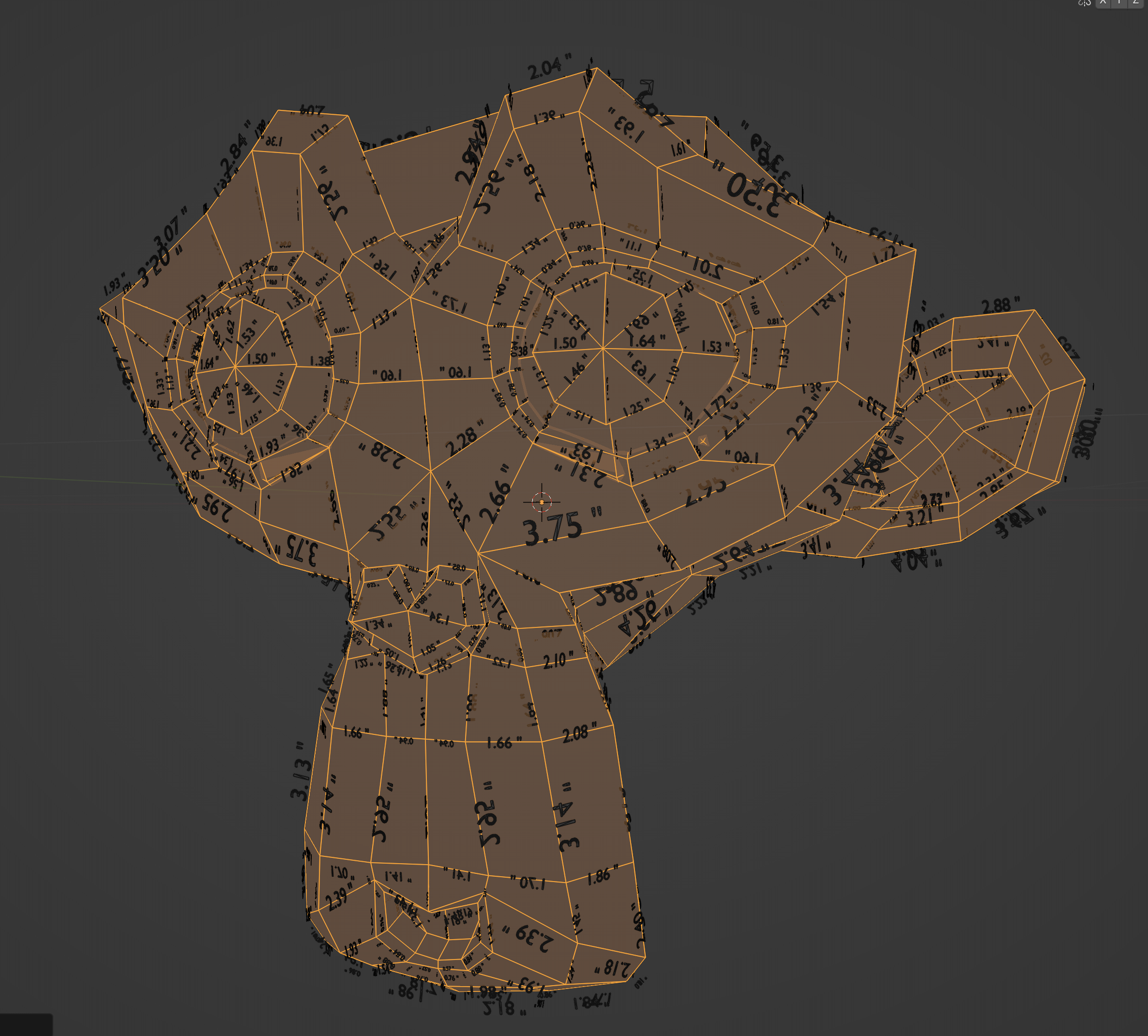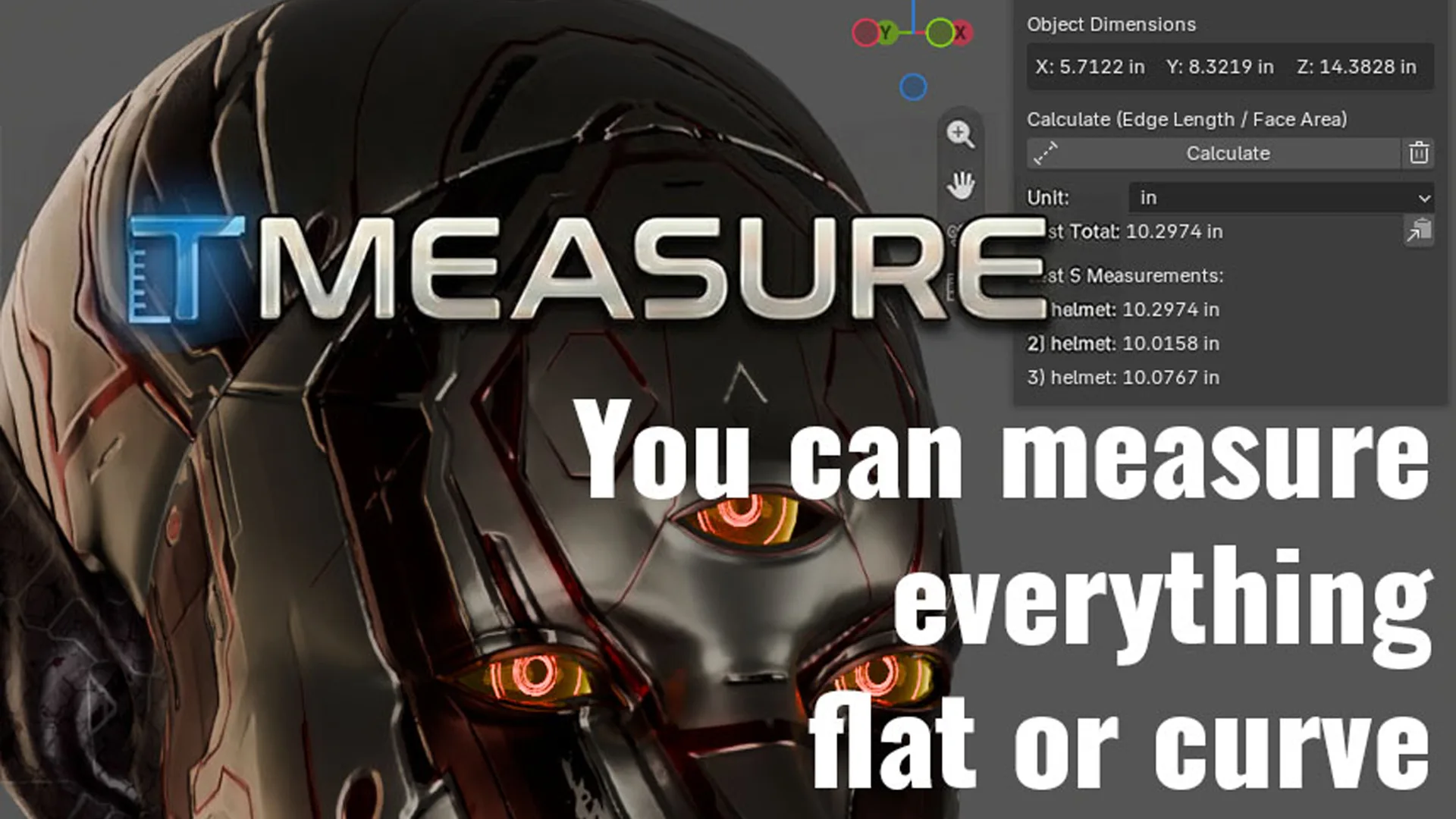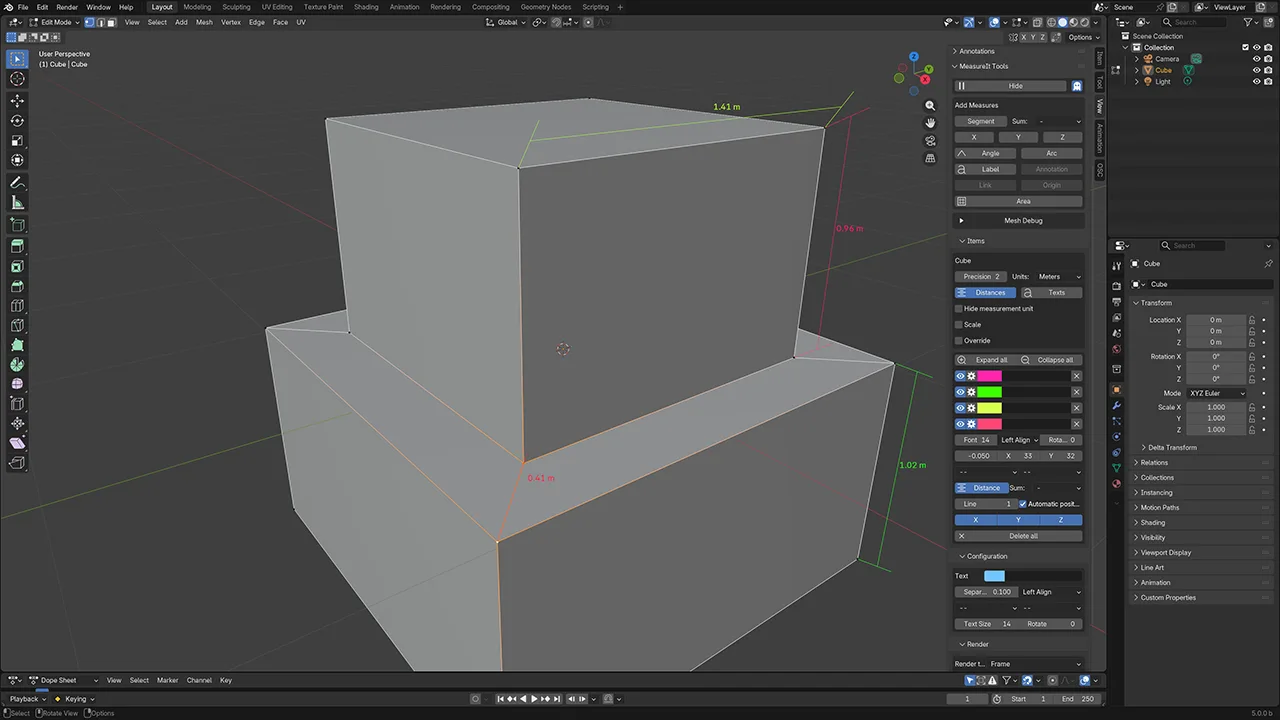
Measure Better adds a measuring workflow to Blender’s View3D sidebar. In object mode, it shows dimensions for selected objects; in edit mode, it reports the lengths of selected edges. Readings update with the selection, and the panel can also set dimensions, export measurements to CSV, and place labels in the scene.
Read measurements and set dimensions
Open the Tape panel under View3D > Sidebar. Select objects in object mode to view their dimensions, or select edges in edit mode to check their lengths. The add-on displays measurements in metric units such as meters, centimeters, and millimeters, or imperial units such as inches and feet, with automatic conversion.
To size selected objects or edges, enter a target dimension for the X, Y, or Z axis and apply it from the panel. The updated panel includes controls for individual axes or multiple axes, and supports setting dimensions for multiple objects or edges. The product listing describes this as a way to size items without editing vertices or faces individually.
Export measurements and add scene labels
Measure Better can export selected measurements to a CSV file. Use the file as a record for documentation, planning, or collaboration. The add-on can also create 3D text objects that label measurements in the scene. You can change the annotation color, show or hide unit suffixes, and toggle the annotations’ visibility when you want a clearer viewport.
Version and Blender listing
Measure Better is listed as version 2. The creator says V2 is a free update included in the product files, so existing owners do not need to buy or find a separate version. The Superhive product listing names Blender 3.5, 3.6, 4.0, 4.1, and 4.2 under its Blender Version details. Check the listing for current files and product information.