Mediaflow Studio is a Blender add-on for compressing and converting video and images, extracting video frames, and creating videos from image sequences. It runs FFmpeg from Blender and provides a queue for batch jobs, with progress and file-size information shown in the interface.
Three ways to process media
- Convert & Compress: Compress video and image files; for video, choose H.264 or H.265 (HEVC), adjust CRF from 0 to 51, set a custom bitrate, and choose from six compression levels. Encoding presets range from Ultra Fast to Placebo.
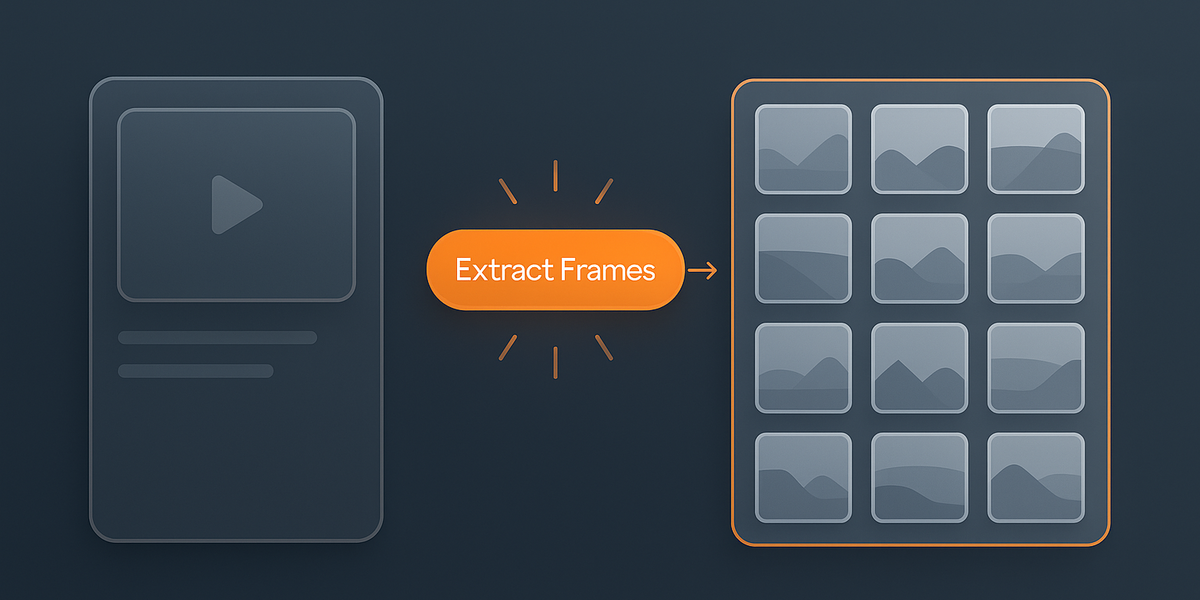
- Extract Frames: Turn video into image sequences in PNG, JPG, TIFF, or EXR. You can set frame rates and frame ranges for the extraction.
- Create Video: Combine image sequences into video files, with controls for frame rate, codecs, output formats, and encoding presets.
Batch processing and output checks
The integrated file browser lets you select multiple files and organize them in a queue. It shows file sizes and formats before processing. While jobs run, the interface reports individual and batch progress, before-and-after file sizes, compression ratios, conversion statistics, and time estimates. It also provides error messages and recovery guidance. These controls can help when preparing media for web delivery, social platforms, streaming, or Blender render exports.
Documentation lists formats including MP4, WebM, MOV, WebP, PNG, JPG, JPEG, TIFF, BMP, TGA, EXR, AVI, MKV, FLV, WMV, M4V, and 3GP. The available options depend on the processing mode and selected codecs.
Requirements and installation
The product listing specifies Blender 4.2.0 or later. FFmpeg is required for processing; Mediaflow Studio can detect existing installations and provides setup guidance. A portable FFmpeg installer is available for Windows. The product documentation describes installing the downloaded ZIP through Blender Preferences, enabling the add-on, and opening its panel in the 3D Viewport's N-panel under MediaFlow.
Check operating-system support before installing. The product listing says “Not for MAC OS,” while its requirements and documentation also list macOS and Linux. The supplied product information conflicts, so confirm compatibility with the developer for the release you plan to use.