Merge Master is a Blender add-on for creating a live, rounded join between two objects. The settings remain editable while the merge is active, and the meshes’ topology and UV maps remain unchanged until baking.
How live mesh adhesion works
Choose Object A and a target surface, Object B, then activate the merge. Merge deforms A into B to create a continuous surface with a smooth fillet. Global Merge adjusts the join as a whole; Radius, Strength and the profile provide more control. Optional material blending creates a soft transition between A’s and B’s materials, with a separate intensity control for each side. The operation does not rebuild the objects as an SDF volume or remesh them.
The setup stays editable as you move objects or adjust settings. You can add several objects to one target or chain merges, using an already merged object as the target for another. An optional Boolean setting removes the part of A hidden inside B, which can help when preparing a clean shell for 3D printing.
Editing, reversibility and baking
You can edit A while the merge is active, but the merge pauses in Edit Mode and updates again when you return to Object Mode. Remove setup to return A to its pre-merge state. Keep originals can retain hidden copies of both objects with their modifiers, and Restore original brings them back.
Merge works best when A has enough geometry for a smooth join. Optional Subdivision can add geometry when needed, but baking applies that subdivision to the final mesh. Check the resulting density before baking if the model needs to stay light. For Cycles, Bake for Cycles joins the objects and smooths the Merge boundary; it reduces the faint line that can appear on flat-lit matte surfaces, while the difference practically disappears on glossy or metallic surfaces. EEVEE shows the join as it appears in the viewport.
Merge Master and Merge Master Pro
Both editions include Merge. Merge Master Pro adds Bevel and Carve. Bevel creates a rounded join while keeping A and B’s shapes intact, so it can suit low-poly and hard-surface parts without adding subdivision to A. Follow edges can carry the bevel along A’s sharp edges for defined corners.
Carve uses an object to make live holes, cutouts or panel lines in a target. It is marked Beta. Several holes in one object can slow updates; Fast edit helps while adjusting them, and baking finished holes can keep the remaining work responsive. Carve is fastest on Blender 5.2 and later, and crossing holes work best with simple shapes.
Use cases and limitations
Merge Master is aimed at product visualization, design concepts, hard-surface or organic concepting, and look development for renders and stills. The developer advises against using Merge for low-poly game assets: it needs enough geometry on A, and any enabled subdivision is applied when baked. Use Pro’s Bevel mode when you need a rounded join on a low-poly part.
The add-on is not suitable for glass or refractive materials. With Merge, fine regular textures on B can look soft or bent along the join when Subdivision or Boolean is enabled, and textures on B without UVs can shift slightly while the merge is active. The official documentation covers these limitations and additional workflow details.
Requirements and setup
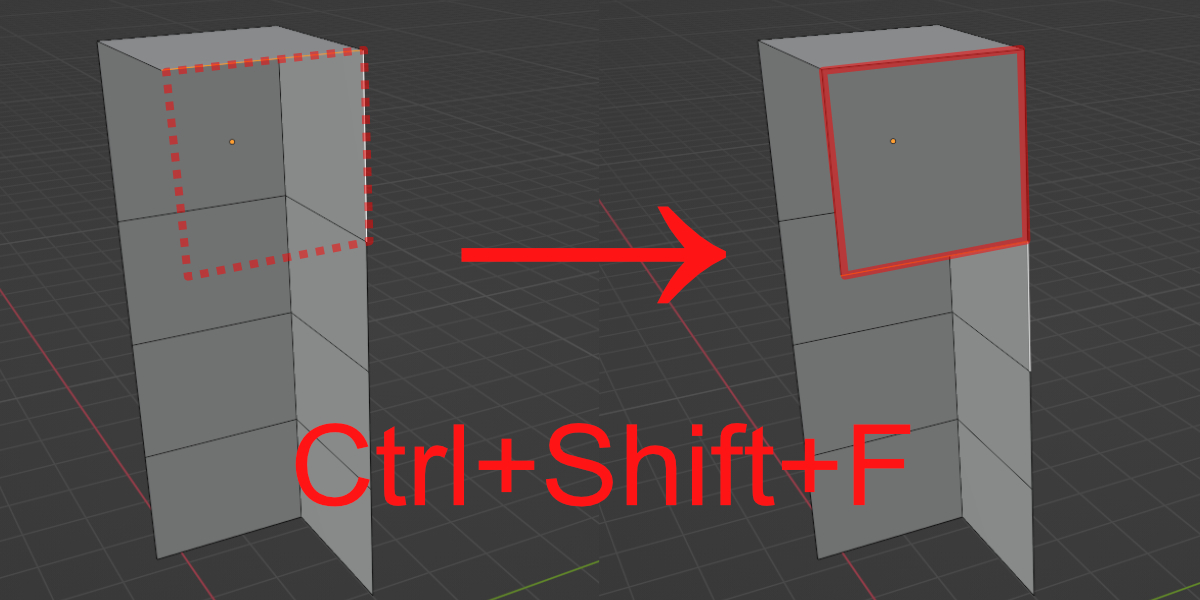
Merge Master 2.0 requires Blender 5.0 or later. Install the downloaded zip from Blender’s Edit → Preferences → Add-ons menu using Install from Disk; leave the zip compressed. For a quick merge, select two objects and press Ctrl+Shift+M. Pro also provides Ctrl+Shift+B for Bevel and Ctrl+Shift+C for Carve. See the product page for edition details and current information.