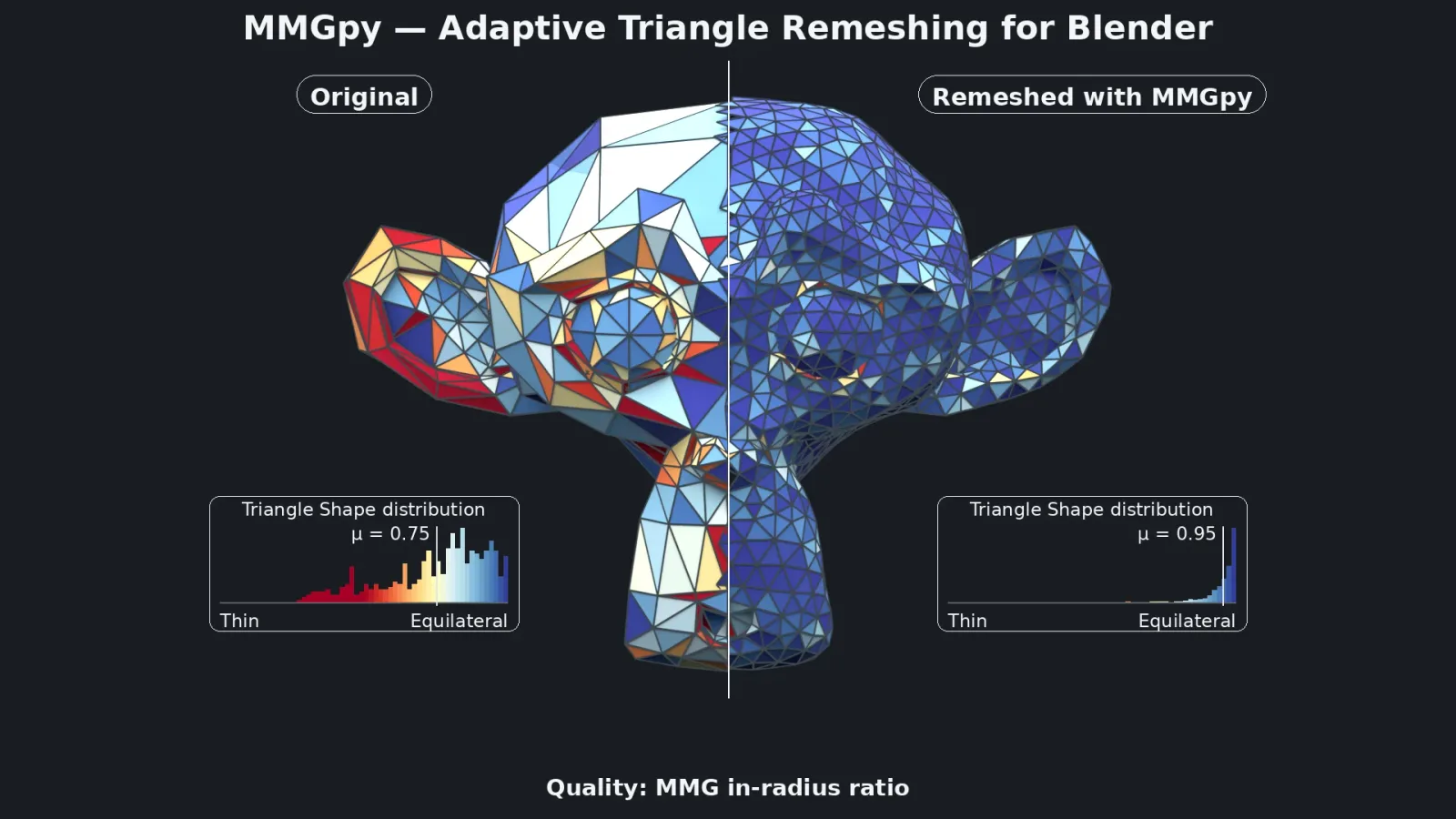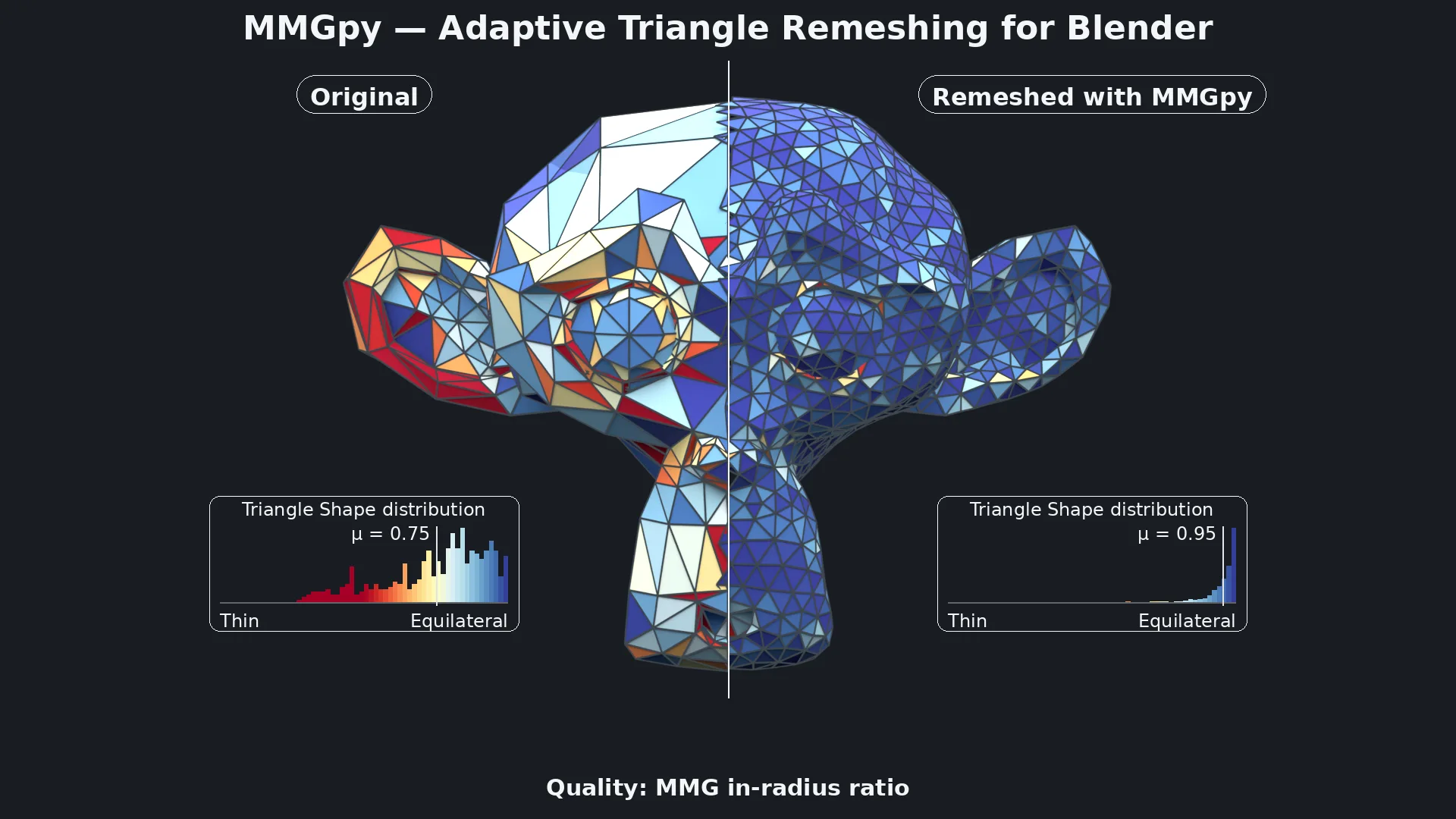
MMGpy brings adaptive surface remeshing through the MMG library into Blender. Select a mesh, set remeshing controls and run the operation from the MMGpy panel in the 3D Viewport sidebar. The active mesh is updated in place, and Blender Undo lets you revert the operation. See the Blender Extensions listing and the maintainer's Blender extension guide.
Run a remesh from the sidebar
- Select the mesh object you want to remesh.
- Open the 3D Viewport sidebar with the N key and choose the MMGpy tab.
- Choose Fine, Medium, Coarse or Custom settings, then click Remesh.
Custom controls include element size and geometry settings such as gradation and Hausdorff distance. Auto-fit can set starting values from the active mesh's bounding box.
Set detail in specific regions
Local refinement zones let you direct more or fewer triangles to part of a mesh. Add a Sphere or Box Empty, position and scale it, then set its target size. Triangles inside the zone use that target; the rest follow the global remeshing settings. This is useful when one area needs finer detail while other parts can stay coarser.
Inspect the remeshed surface
Wireframe on Surface overlays mesh edges on the shaded object. Color by Quality shades triangles using MMG's in-radius-ratio quality measure, from red for lower quality to blue for higher quality, and shows per-mesh statistics. Quality coloring requires a triangulated mesh; fresh remesh output is all triangles.
Version and compatibility
The Blender Extensions catalog lists version 0.18.0, with Blender 4.2.0 as the minimum version and packages for Windows x64, Linux x64 and macOS Apple Silicon. It lists the add-on under GPL-3.0-or-later. Check the extension listing for the available package and release details. The maintainer's guide notes that long remesh operations run synchronously and can temporarily lock Blender's interface.