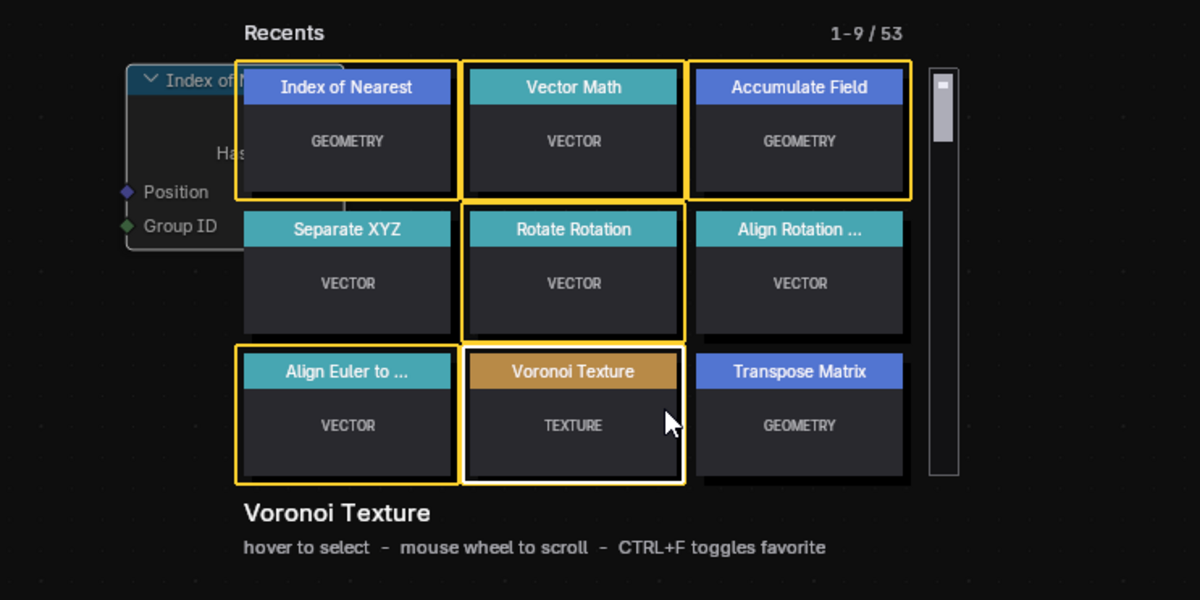
Node Deck is a visual node browser for Blender’s Geometry Nodes editor. Its palette brings node browsing, search, favorites, recents, and placement into the editor where you build node graphs. It is designed for Blender 5.1.0 or newer and suits artists and technical users who want quick access to commonly used nodes.
Browse, search, and place nodes
The catalog scans Blender for nodes that can be added to a Geometry Nodes tree, then groups them under Geometry, Input, Texture, Color, Vector, Converter, and Math. Search filters the visible nodes as you type. It checks node labels, Blender node IDs, and node group labels, and it also works within the Favorites and Recents grids.
Select a card and click to add its node to the current Geometry Nodes tree, or drag the card into the editor to place the node at that location. Favorites keep frequently used nodes close, while Recents updates automatically after placement. Use Ctrl+F to add a selected or hovered card to Favorites; press it again to remove the card.
Choose a fixed palette or popup
Fixed mode keeps the palette visible in the Node Editor. The documented default places it at the bottom, with a 40-pixel palette, tab names shown, and socket dots hidden. You can move the fixed palette to the top instead.
Popup mode opens the deck with a configurable hotkey. The documented default is Alt+D; the popup can open in the center of the editor or near the cursor. Drag-and-drop placement has an option to keep the deck open, which helps when adding several nodes in sequence.
Adjust navigation and display
Choose horizontal or vertical scrubbing and adjust the scrub step, sensitivity, and zone to control how the deck moves through cards as the cursor moves. Favorites and Recents use a grid that supports mouse-wheel scrolling and a scrollbar for direct navigation. Preferences also include palette size, tab-name display, socket-dot visibility, confirmation behavior, per-tab header colors, and an option to restore the tab colors to their shipped defaults. Settings are available in Blender’s Add-on Preferences and the Node Editor sidebar.
Compatibility and installation
Node Deck’s documentation specifies Blender 5.1.0 or newer and Geometry Nodes inside the Node Editor. To install it, download node_deck_v0_1.zip, open Blender’s Edit > Preferences > Add-ons, choose Install from Disk..., and select the ZIP file. Then search for Node Deck in the add-on list and enable it.
For the current setup steps and preference details, see the Node Deck documentation. Check the product page for the current listing details before installing.