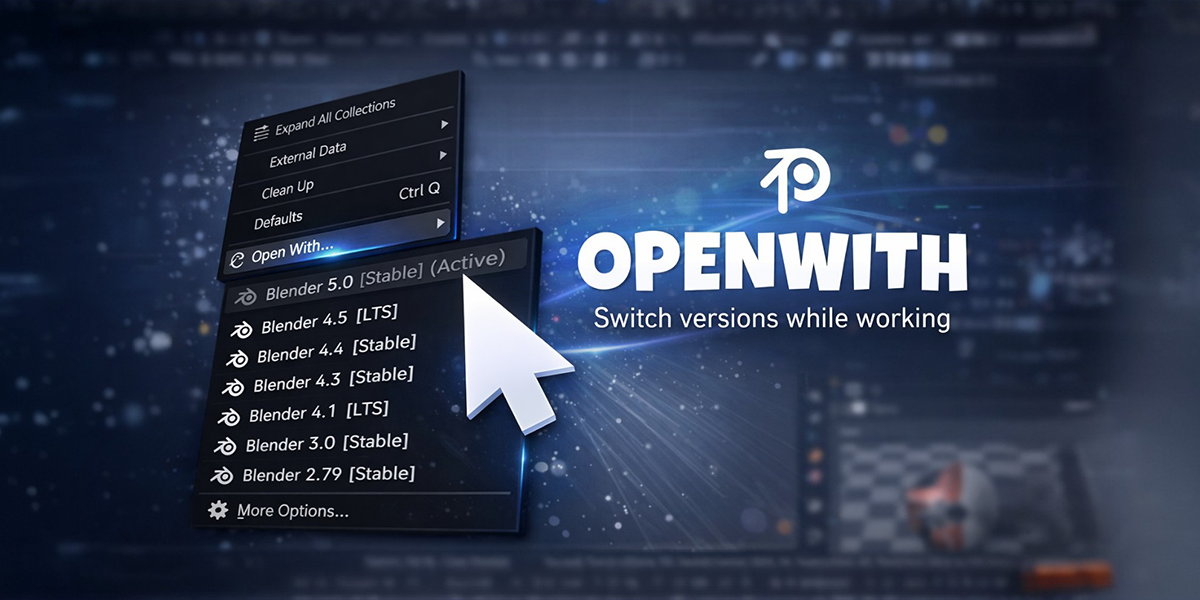
Open With lets you reopen a saved .blend file in another installed Blender version from File > Open With. It can save the current file, create a backup, compare add-ons in the target installation, and report when the target exits before its launch timeout. It is intended for Blender artists who keep multiple versions installed for different projects or compatibility needs.
Choose another Blender version from the File menu
The Open With submenu lists Blender installations it detects. It scans common locations, and you can add a custom installation path for a portable or non-standard install. When the file's saved Blender version differs from the target version, Open With displays a compatibility warning that you can accept or cancel. When switching down by more than one minor version, Open With recommends the highest real Blender version immediately below the file's saved version. These warnings help you assess the switch; they do not guarantee that every feature in a project will work in an older version.
Save, back up, and check a failed launch
Switching requires a saved .blend file. Auto-Save Before Switch is on by default and saves the current file before launching the selected version. Create Backup can make a timestamped copy before the switch; you can keep it beside the original file or choose a backup folder.
After launch, Open With watches the target Blender process for the configured crash timeout. If Blender exits before that period ends, the add-on reports an error. When switching down by more than one minor version, the timeout is raised to at least 30 seconds because older versions can take longer to load converted files.
Compare and transfer missing add-ons
Open With can identify enabled add-ons that are missing from the target Blender installation and offer a transfer. Transfer copies add-on files; it does not enable them in the target version, so you must enable transferred add-ons manually in that Blender's Preferences. The comparison excludes built-in add-ons and extension-prefixed add-ons. If Open With is not installed in the target Blender, it can copy itself there and enable itself during the switch.
Browse releases and install the add-on
The Version Manager can fetch lists of official Blender releases and daily experimental builds. Its download buttons open the official Blender download page in your browser; Open With does not download or install Blender for you. An internet connection is needed to fetch release information.
For Blender 4.2 and later, install the package through Edit > Preferences > Extensions using Install from Disk. For Blender 3.0 through 4.1, use Edit > Preferences > Add-ons > Install, then enable Open With. For the legacy add-on, restart Blender after installation; then check the File menu for the Open With submenu. The developer documentation describes the add-on as free software under GPL v3 or later. Read the Open With documentation for its installation and preference details.
Version and operating system compatibility
The Superhive product details list Blender 3.0 to 5.0: Blender 3.0 through 4.1 use the legacy add-on, and Blender 4.2 and later use the Extension format. The listing names Windows as supported. Flidoh's v1.2.0 documentation also lists macOS and Linux paths under compatibility, so confirm non-Windows support with Flidoh Animations before relying on it.