Playblast is a Blender add-on by carlosmu for making animation previews. It keeps playblast settings separate from final-render settings, so you can save choices for output, format, codecs, and resolution instead of resetting them for each timing check. The add-on uses Blender’s native Viewport OpenGL Render Animation options.
Set up the preview output
Configure the defaults in the add-on preferences, then adjust some of them with quick settings when a particular shot needs different output. You can choose the destination folder, add a named subfolder, and use either the blend file name or a custom name for the playblast. The filename can also include the frame range.
Video preferences cover the format, container, video and audio codecs, and keyframe interval. For a smaller preview than the final render, choose a resolution percentage or maximum height. You can also configure metadata stamping, overlays, and the popover’s location in Blender’s interface. The product documentation lists the available options.
Run and review a playblast
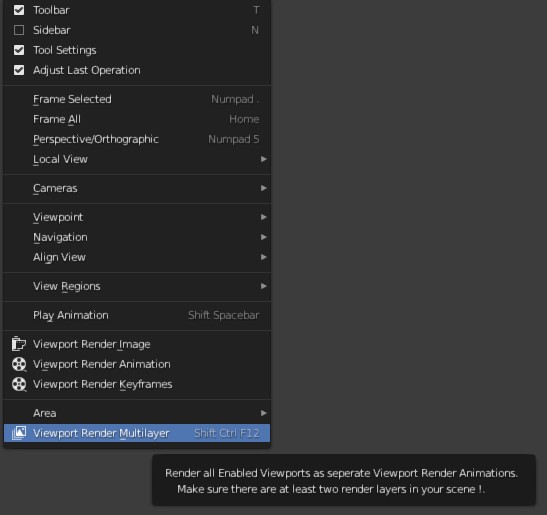
Use CTRL+SHIFT+F12 to run the Playblast operator. The add-on also has an operator for replaying the last playblast, assigned to CTRL+SHIFT+F11. If you change the add-on preferences, make a new playblast before replaying. Other operators can open the output folder in your system file browser, add version suffixes, open the preferences, or create a Turnaround-Camera.
The utilities are grouped in a popover that can appear in the context menu or the 3D View main menu. The display can use an icon without text, and autoplay can be disabled in the behavior settings.
Install and check Blender compatibility
For Blender 4.2 and newer, the product page says to drag and drop the add-on ZIP file into Blender. On older versions, download the ZIP, open Edit > Preferences > Add-ons > Install, select the file, and activate the add-on with its checkbox. Uninstall an older copy first if one is already installed, then configure and save the preferences.
The listing gives Blender 3.6–5.0 as the supported range and says version 1.3.2 added Blender 5.0 compatibility. Check the current product listing for compatibility details before installing, since release information can change.
Rendering and playback notes
The H.264 codec requires both the width and height to be divisible by two. The add-on can adjust a mismatched resolution when its resize method preference is active. Blender’s internal player may also have audio playback problems; the developer suggests configuring an external player such as VLC.
The initial version could not cancel a render; current-version behavior is unspecified. Save your blend file before starting a preview.