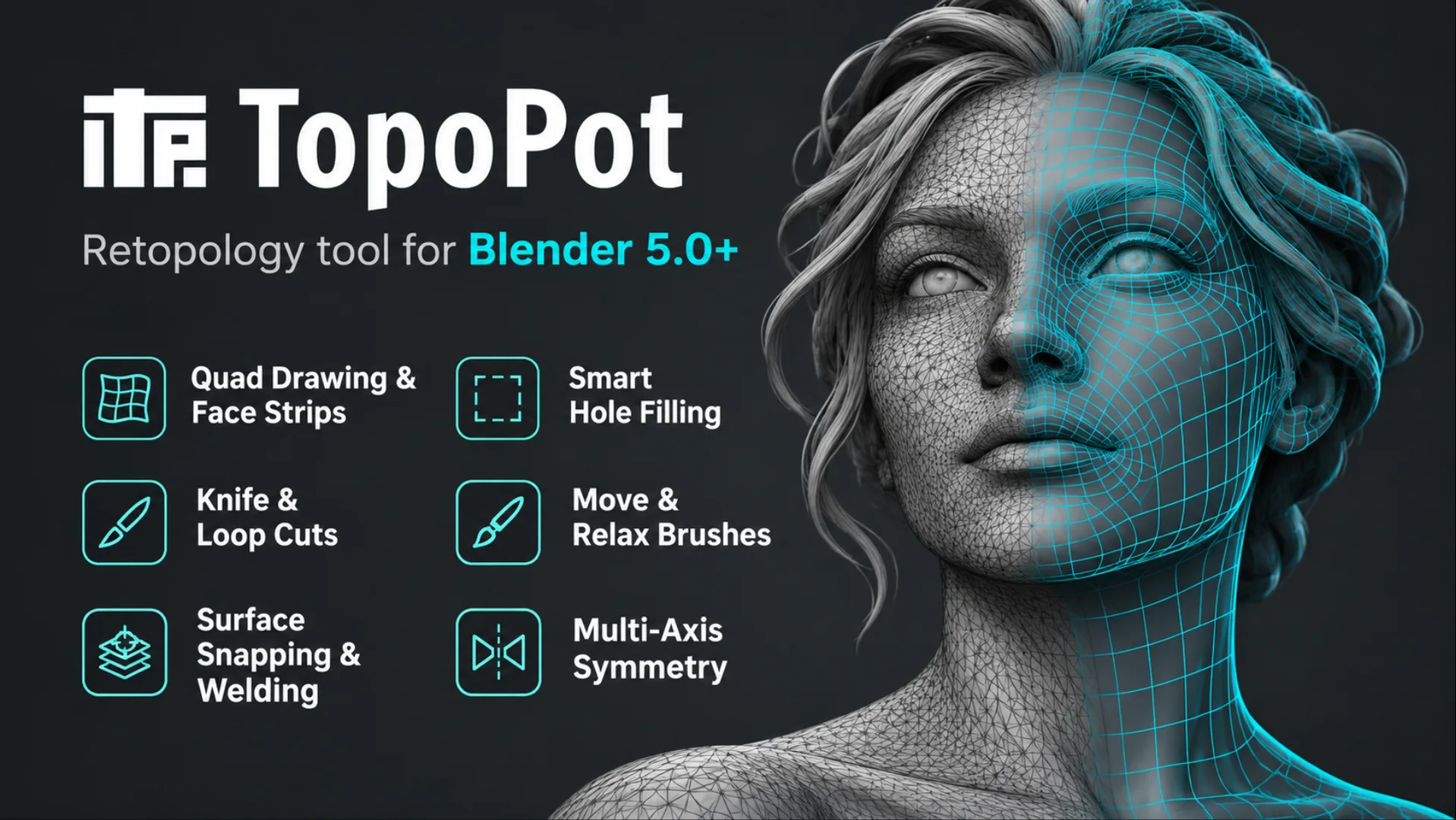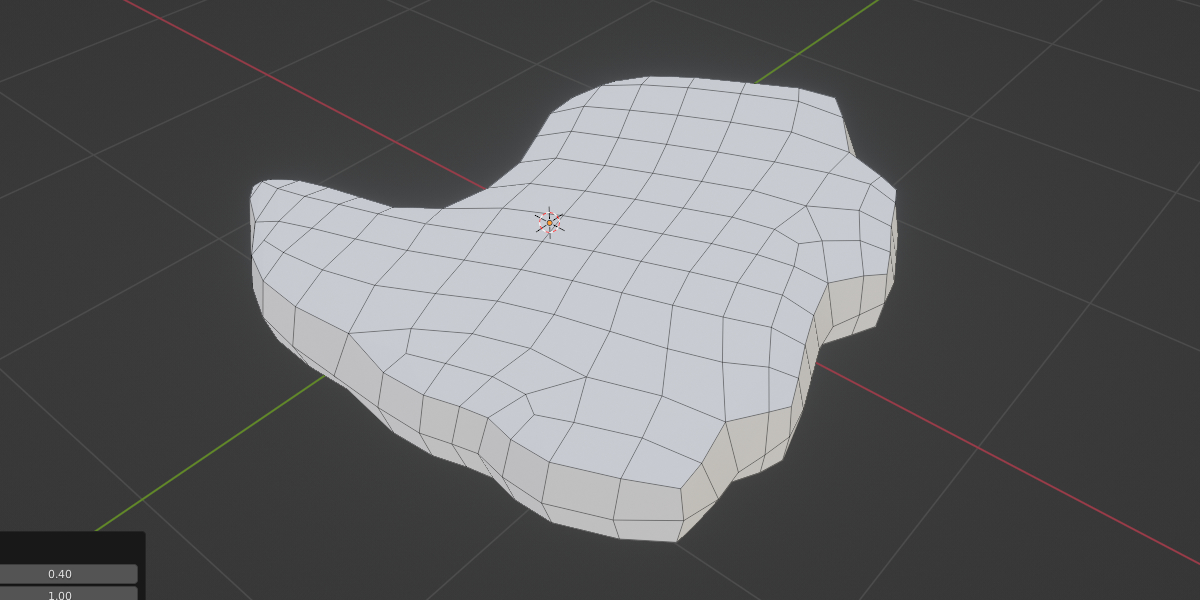
PolyTools is a Blender add-on for retopology in the 3D Viewport. It groups quad drawing, loop creation, vertex tweaking and geometry cleanup into separate modes. The workflow is intended for shaping a retopology mesh over a high-poly reference while working in the viewport.
Start a retopology mesh
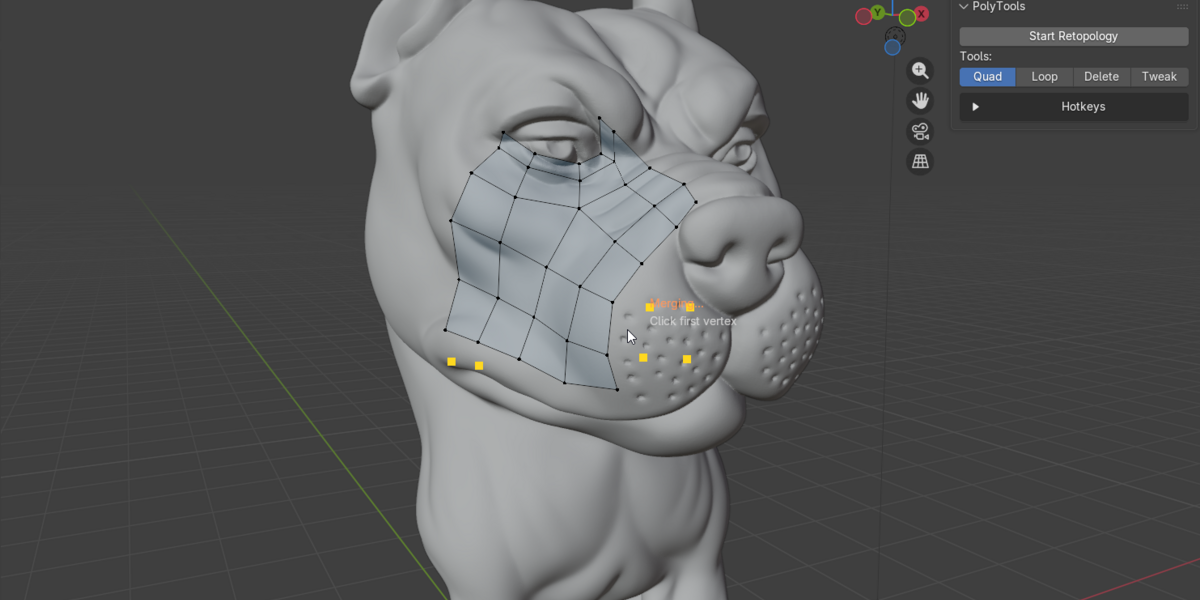
Select the high-poly reference, open the 3D Viewport Sidebar, and choose Retopology, then click Start Retopology. PolyTools creates an empty mesh named Retopo or uses an existing mesh with that name. To use an existing retopology mesh, rename it to Retopo and make the model you are working on the active object before starting. The documented operations work in Edit Mode on the retopology mesh.
Draw quad strips and loops
Quad Mode, opened with Q, previews a candidate quad with a green translucent fill. Place yellow guide points with Ctrl + left-click, remove the nearest point with right-click, and drag with the left mouse button to draw a strip. PolyTools can add quads as the pointer moves far enough from the previous one, with spacing adapted to local edge length.
Loop Mode, opened with L, creates loops on curved or cylindrical surfaces. Click to set the starting point, move to choose the endpoint, then release to create the loop. Hold S and move the mouse left or right to adjust the segment count. The documentation says the tool can snap to a nearby existing boundary loop. The source listing describes uses such as limbs, pipes and openings.
Tweak and clean the mesh
Tweak Mode lets you move a vertex or guide point by dragging it; the documented move follows the surface. Press Esc during a drag to cancel and restore the original position. In Delete Mode (X), choose faces with F, vertices with V, or edge loops with E, then brush over the geometry and release to delete the highlighted targets. Hold Shift while hovering to merge nearby vertices and close gaps. The documentation lists Z for Blender undo.
Install and check Blender compatibility
The installation guide says to keep the downloaded ZIP compressed, then use Edit → Preferences → Add-ons → Install from Disk and enable PolyTools. After enabling it, find the add-on in the 3D Viewport Sidebar under Retopology. Compatibility details differ across the supplied documents: the marketplace listing shows Blender 5.0–5.2, while version 0.1 of the documentation says Blender 5.1+ and its installation section recommends Blender 5.0 or newer. Check the current package details for your Blender release before installing. The marketplace listing identifies the license as GPL. See the PolyTools documentation and marketplace listing.