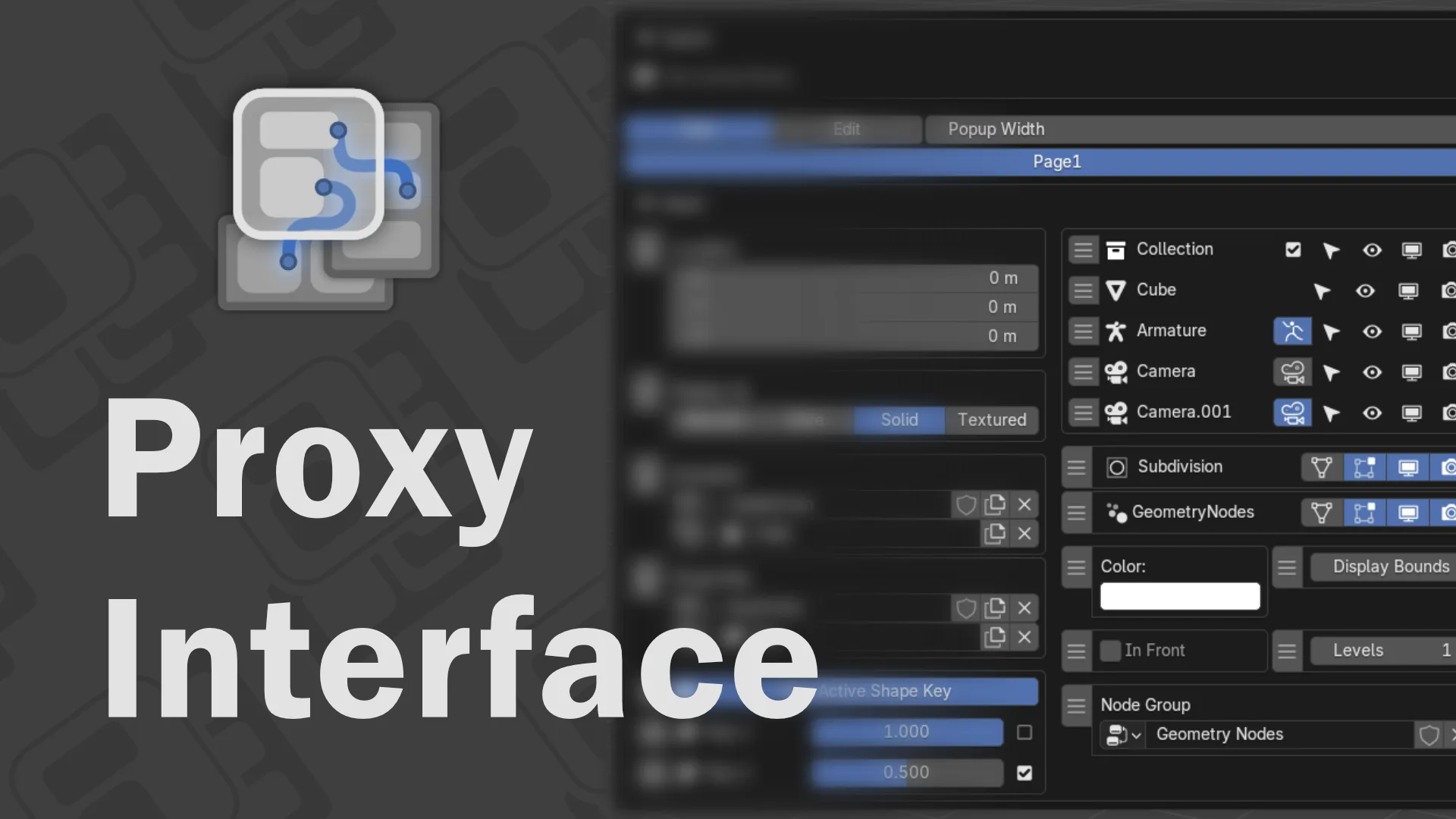
Proxy Interface is a Blender add-on by LingQS for arranging supported native controls into reusable layouts. You can collect controls from Blender's interface, organize them for a task, and use them through a dedicated workspace or popup.
Build a layout from Blender controls
Right-click a supported control and choose Copy as Proxy. Open Proxy Interface from the 3D View sidebar or use its configured popup shortcut, Alt+Q. The captured control first appears in a cache area; move it into a page, then edit the popup to arrange the layout.
Organize controls for different tasks
Layouts can contain pages, areas, groups, and cells. Groups support horizontal, compact horizontal, vertical, and compact vertical arrangements, with optional automatic wrapping. You can add labels or blank cells, adjust cell widths, and set editor restrictions or visibility conditions based on interaction mode.
The add-on also supports specialized proxies for eligible objects, collections, modifiers, shape keys, vertex groups, animation data, and node-editor controls. The exact controls available depend on Blender's UI context and whether the source is supported.
Save and exchange layouts
Layout data is stored with the scene in the .blend file. You can also import or export a complete layout as a JSON file by choosing its path through Blender's file browser. The extension listing says the add-on does not access the network or run external programs.
Version notes and limitations
The listing identifies version 0.4.3. Its release notes describe per-cell Auto, Show, and Hide menu visibility, and removal of unavailable keyframe actions from properties that cannot be animated.
The supplied listing gives conflicting Blender requirements: its API record says Blender 4.5.0 or newer, the compatibility display says Blender 4.5 LTS and newer, and the Requirements section says Blender 5.2 or newer. Confirm the applicable requirement with the extension developer before installing.
Some controls cannot be copied from their creation button. For a data-block field such as a Material or Action, first create or assign the data-block, then right-click the field itself and choose Copy as Proxy. To copy a vertex-group proxy, right-click its lock button; for a shape-key proxy, right-click its value slider or mute button. Controls without a stable RNA path, supported operator, or supported source context are reported as unsupported.