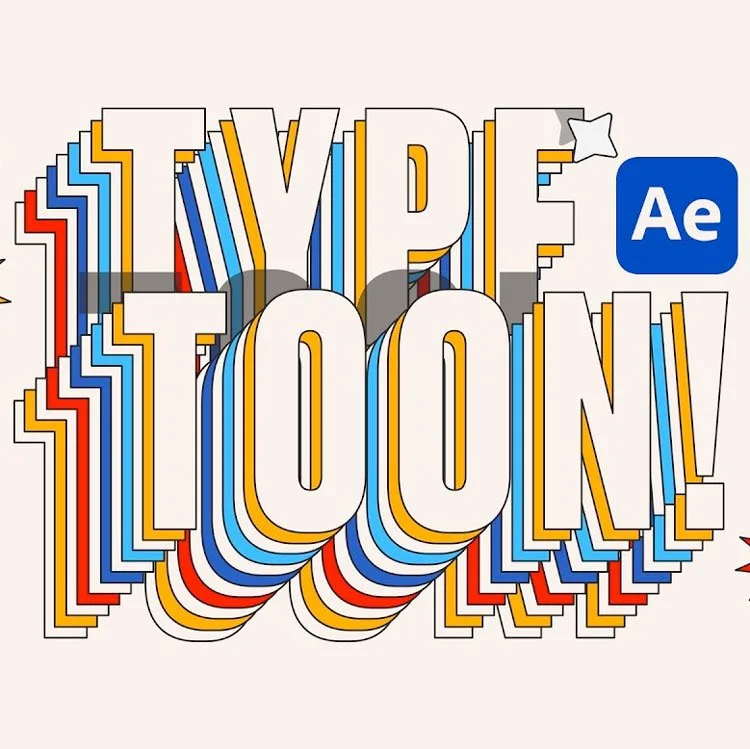
PX-Kinetype is a free text animation plugin from Pixflow for Adobe After Effects. It applies kinetic typography to animated text scenes and titles. Pixflow’s guide describes 64 kinetic typography elements, while Adobe Exchange lists a live preview for its templates.
It may suit an After Effects project where you want to apply and adjust a text animation from a preset. Adobe Exchange describes one-click application and adjustable speed and effect intensity. Pixflow’s usage guide documents controls for speed, timing, and transparency.
Choose and adjust a text animation
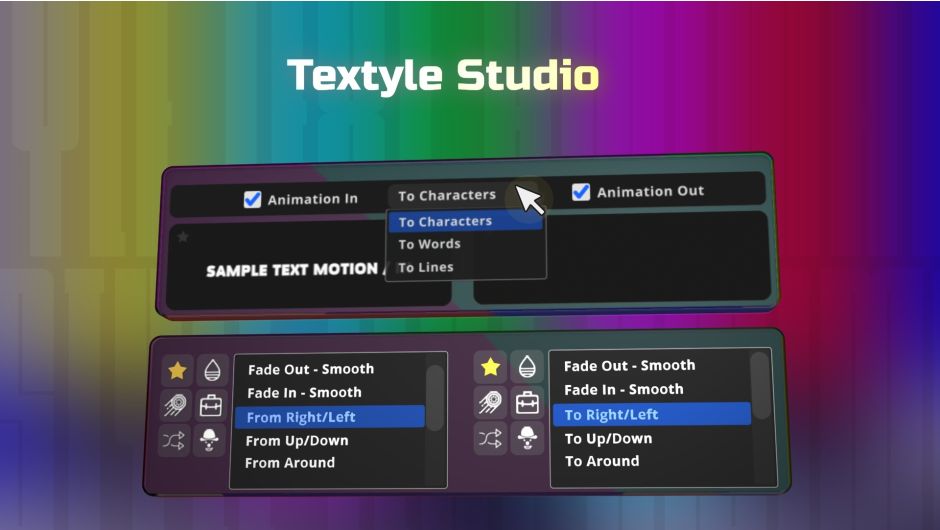
Pixflow’s guide starts with an After Effects text layer: select the layer, choose an element in the PX-Kinetype panel, then select an In, Out, or In&Out transition. Use Customize Your Preset to adjust the settings. The Adobe Exchange listing says Fluent Live Preview is available for all templates, so you can preview an animation before applying it.
Check compatibility and installation details
The catalog record lists After Effects 13.0 and later, but Pixflow’s usage and installation guides list After Effects CC 2021 and later for macOS and Windows. Since those requirements differ, check Pixflow’s installation guide for the version you use. The Adobe Exchange entry identifies version 1.0.1 as the initial release, dated November 14, 2022.
Pixflow’s installation instructions say to install the ZXP package with aescripts ZXP Installer, restart After Effects, and open PX-Kinetype from Window > Extensions. The guide also says panel access requires an activation code sent to an email address. Adobe Exchange lists the plugin as free; review the Pixflow usage guide for its documented controls and workflow.