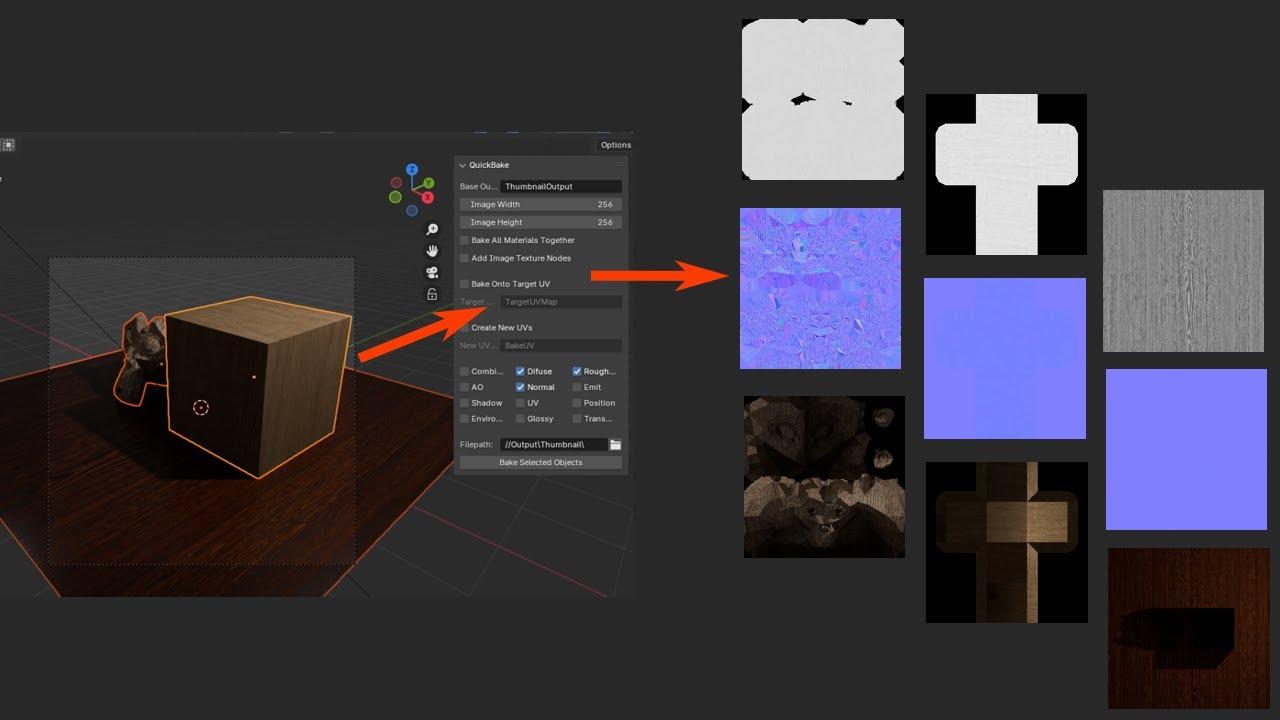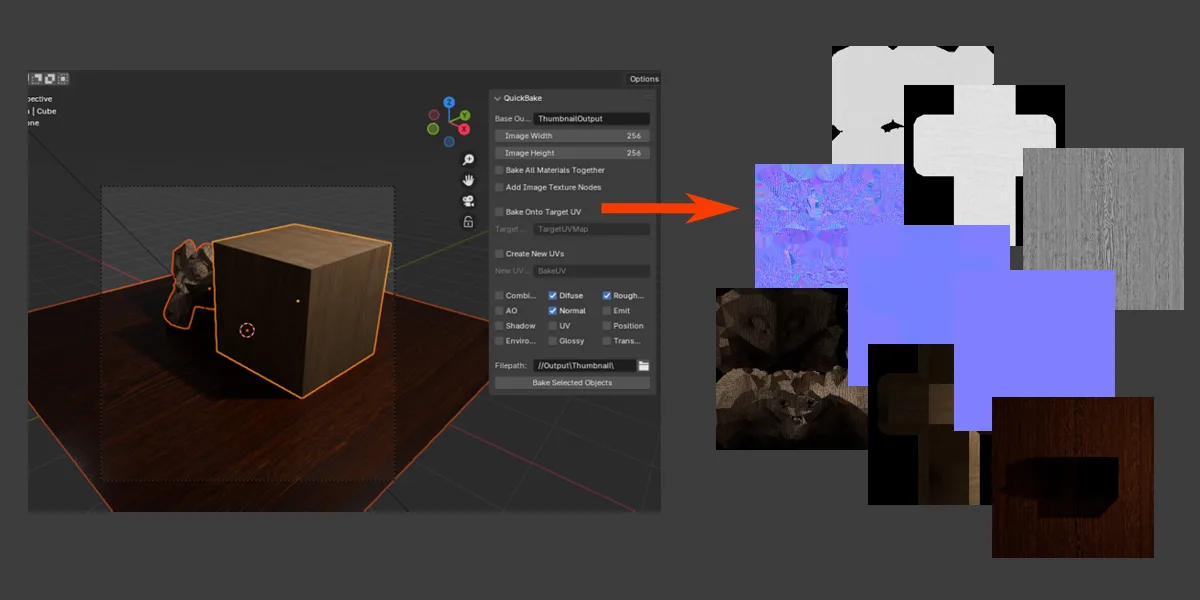
Quickbake is a Blender add-on that prepares texture-baking tasks for Blender’s Cycles renderer. It handles setup before handing the bake to Blender, which can reduce the material preparation needed for jobs involving several objects or texture modes. The Superhive listing describes it as a way to make those bakes easier to repeat when settings need to change.
What Quickbake can bake
You can select multiple baking modes, such as diffuse and roughness, and bake several objects into one texture. When you bake multiple modes, Quickbake can create separate textures for them. It also marks the resulting images as fake users, so they are retained in the Blender file without needing to save each image externally. Automatic external saving is available when you want separate image files.
UVs and material setup
Quickbake can create new UVs from the UVs it would normally use for baking. It scales those UVs and packs their islands with Blender’s Pack Islands function. The generated UV map is separate from the original, which remains available in the object’s UV Maps list. The listing recommends making UVs yourself when you need greater control over the layout.
Version 1.1 adds material creation. After a bake, Quickbake copies the material selected as Base Material to each baked object and assigns the baked textures to Image Texture nodes according to the selected baking mode. You can load a default Base Material from a .blend file through the add-on’s properties. If you have not set one, Quickbake creates a basic material with diffuse, roughness, and normal setup.
Requirements and workflow
Quickbake uses Blender’s existing baking system and requires Cycles. Before baking, select at least one mesh object and one baking mode. Its controls appear in the 3D Viewport side tab; it also uses the usual bake settings in the Render tab, except for the baking modes that Quickbake controls. Select “Bake Selected Objects” to run the bake. Results appear in the Image Editor, with names prefixed by the Base Output Name. The Superhive listing names Blender 4.2 and 4.3.
To install it, open Blender’s Edit menu, choose Preferences, then Add-ons. Use the menu arrow in the upper-right corner to select the downloaded add-on ZIP file. For an image-buffer error reading “Save failed to load image buffer,” the listing recommends retrying with a different Base Output Name.