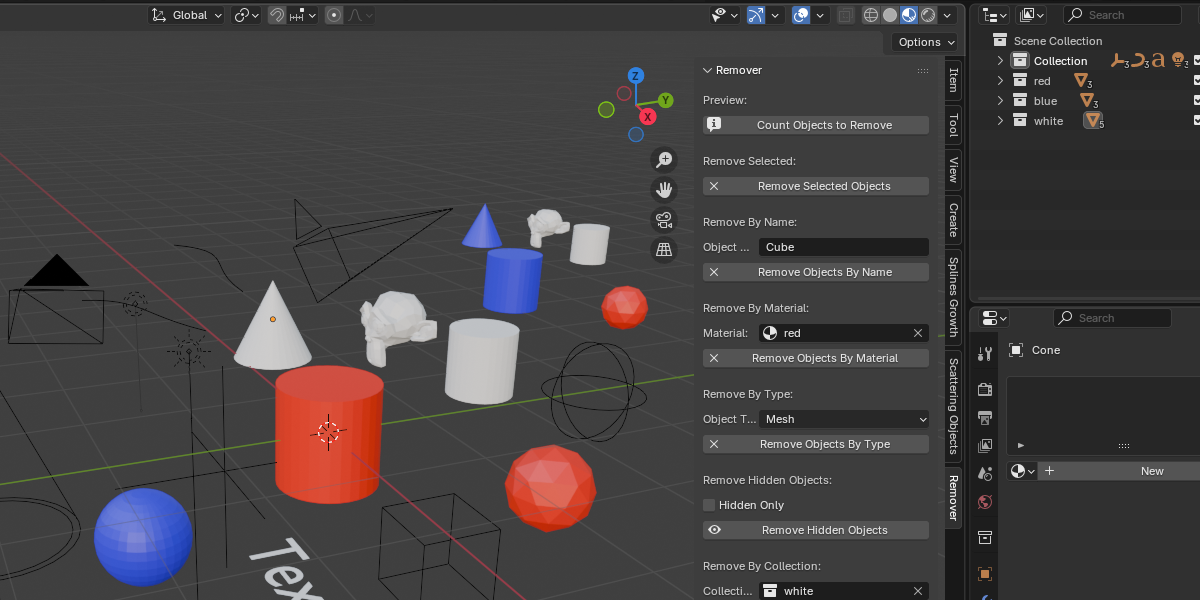
Remover is a Blender add-on by Mergim Sahiti for removing objects from a scene. Its sidebar panel lets you target objects by selection, name, material, type, hidden status, or collection. A count preview shows how many objects match before you run a removal.
Choose objects by their scene details
Use the criterion that fits the cleanup you need:
- Selection: remove the objects currently selected in Blender.
- Name: match objects by a full or partial name.
- Material: target objects that use a selected material.
- Type: filter by Mesh, Curve, Light, Camera, Empty, or Other.
- Hidden status: remove objects hidden in the viewport.
- Collection: target objects in a selected collection.
You can combine filters. Remover applies all the selected criteria, so an object must meet each one to be included. For example, the documentation describes combining hidden-object and material filters.
Check the count before removal
Click Count Objects to Remove to see how many objects match the current filters. Check that number before running a broad cleanup, especially when working with several criteria. Remover also has a one-click option to remove every object in the scene.
Removal deletes objects from the scene. Each removal action supports Blender's Undo system, so you can press Ctrl+Z to undo an action immediately if it removed more than you intended.
Install and open Remover
- Download the add-on's ZIP file from its Superhive product listing.
- In Blender, open Edit > Preferences > Add-ons, then choose Install.
- Select the downloaded ZIP file, install it, and enable Remover in the add-on list.
- Open the Sidebar (N-panel) and choose the Remover tab.
Compatibility and license
The Superhive listing's compatibility field names Blender 4.0 to 4.5; its description says Blender 4.0 and later. The listing identifies the license as GPL. Check the Remover documentation for the installation and panel instructions, and the product listing for its posted details.