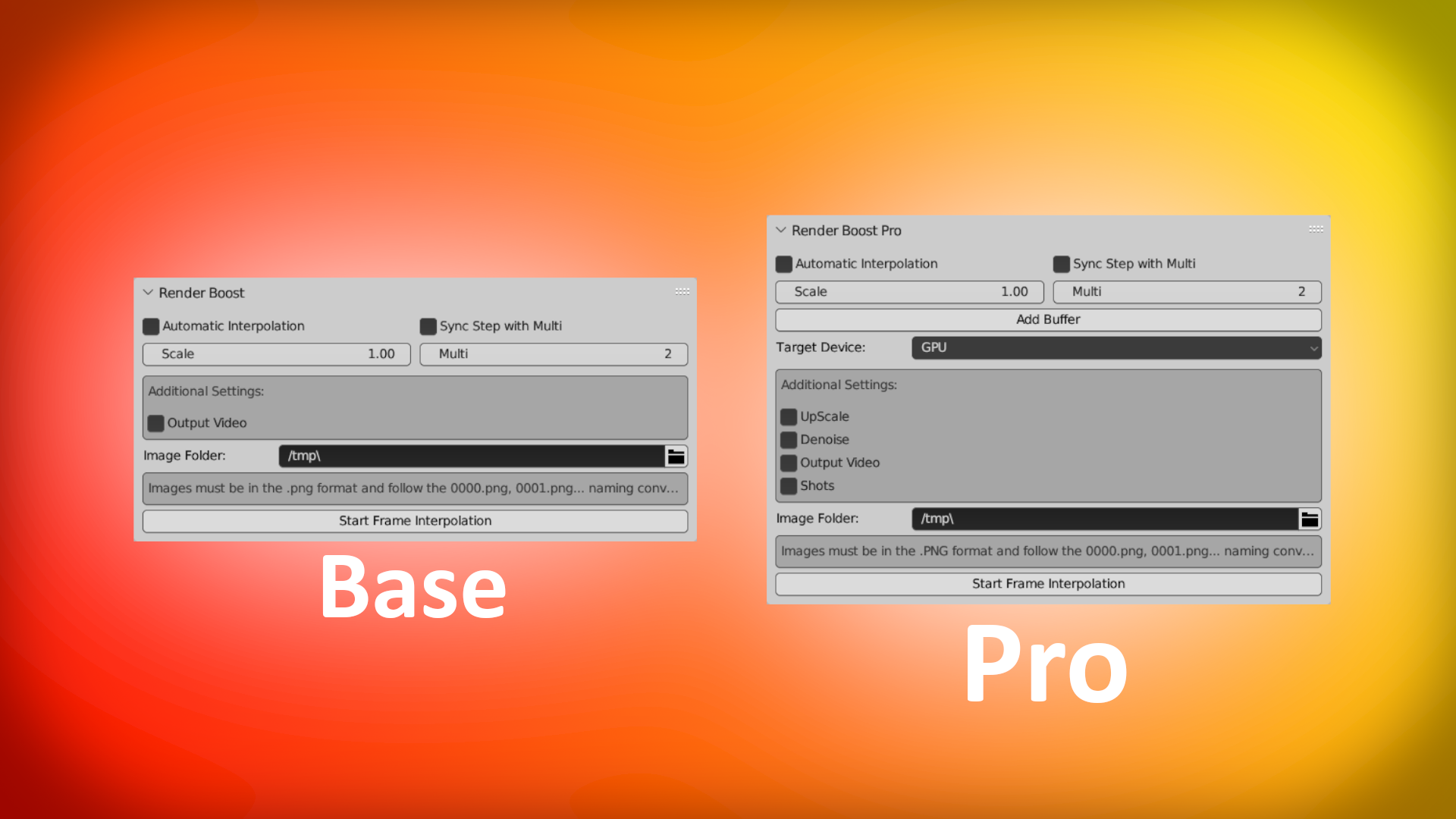
Renderboost Addon is a Blender add-on that uses frame interpolation to reduce the number of frames you render directly for an animation. It generates additional frames from an existing image sequence. You can adjust how many frames it interpolates to balance smoother motion against processing cost.
How frame interpolation fits an animation workflow
After you create an image sequence, RenderBoost estimates frames between the images. The add-on can also create a video automatically, and it includes command-line support. Omega VFX describes it as a way to speed up animation iteration and meet tight deadlines.
Interpolation can be useful when you want to review motion or make changes sooner. The generated frames are estimates, so inspect the result around fast movement and fine details before relying on it for a final render.
What the base version and Pro include
The base version includes frame interpolation and automatic video creation. RenderBoost Pro adds GPU acceleration for interpolation, plus advanced denoising and upscaling. Omega VFX also says users can upgrade from the base version later. The product listing does not establish current pricing for either option, so check the developer’s page for current terms.
Blender versions and render engines
The product’s FAQ lists Eevee, Cycles and Octane as supported render engines. Superhive’s product details list Blender versions 3.0 through 4.3. If you use a newer Blender release, check the current product details and documentation before installing.
Performance and motion limits
Omega VFX advertises animated render-time reductions of up to 80% and says results vary with hardware. The product page names a test system with an NVIDIA GeForce RTX 3070 Ti, AMD Ryzen 7 3700X and 32 GB of DDR4 memory. Treat the percentage as a developer claim, not a predicted saving for every scene.
The developer notes that multiple fast-moving objects and heavy motion blur can sometimes produce artifacts. Try a representative section of your animation and check the interpolated frames, especially where multiple objects move quickly or motion blur is heavy.
If the add-on is missing from Output Properties
Omega VFX’s product notes say to use the “install dependencies” button in the RenderBoost dropdown in Blender Preferences if the add-on is enabled but does not appear in Output Properties. The dependency installation may take some time depending on your internet connection.