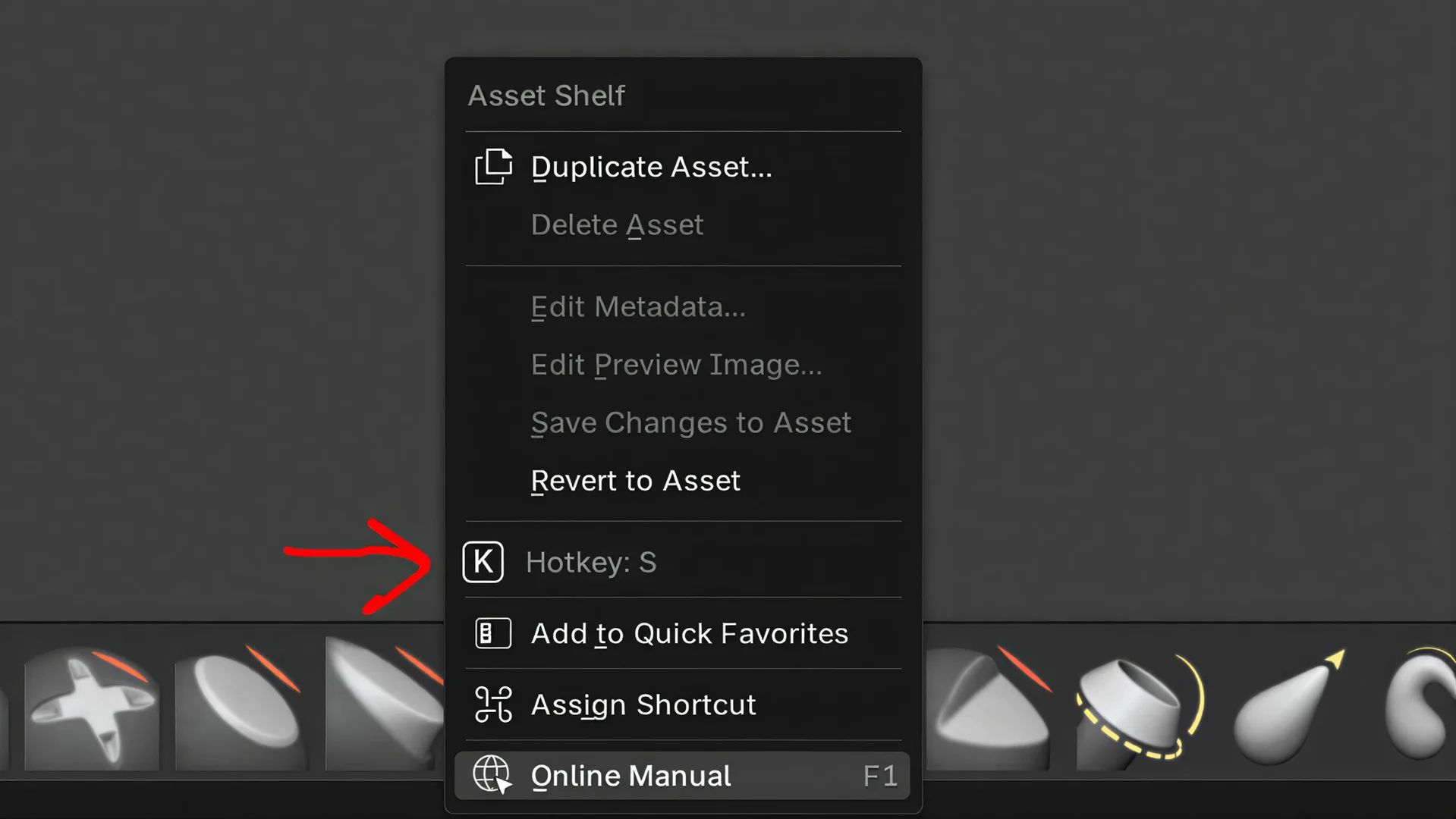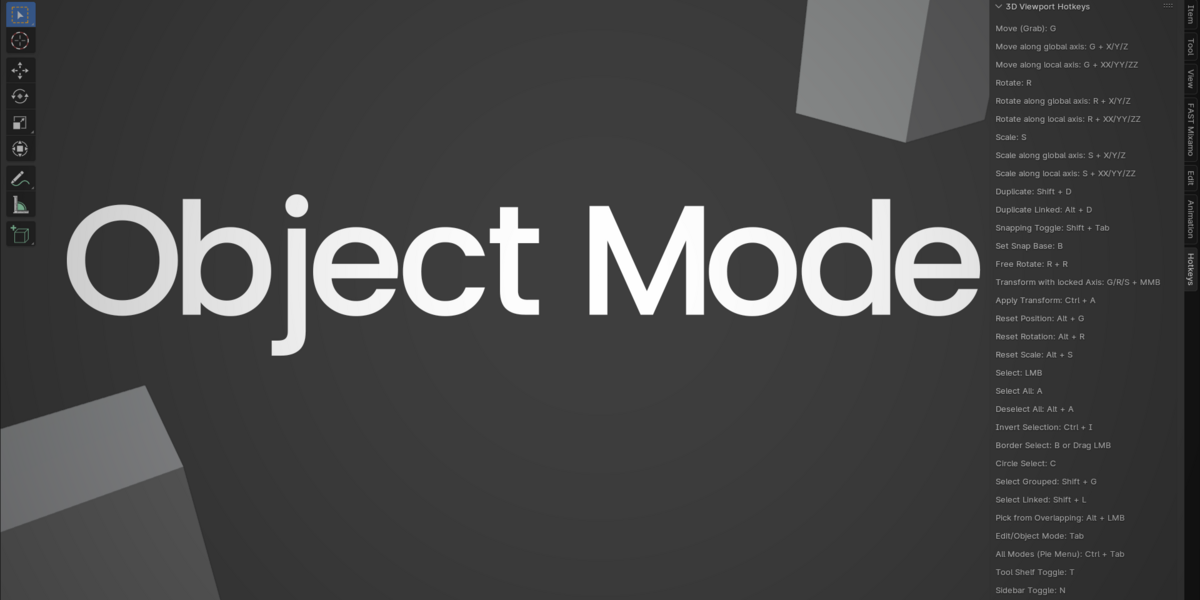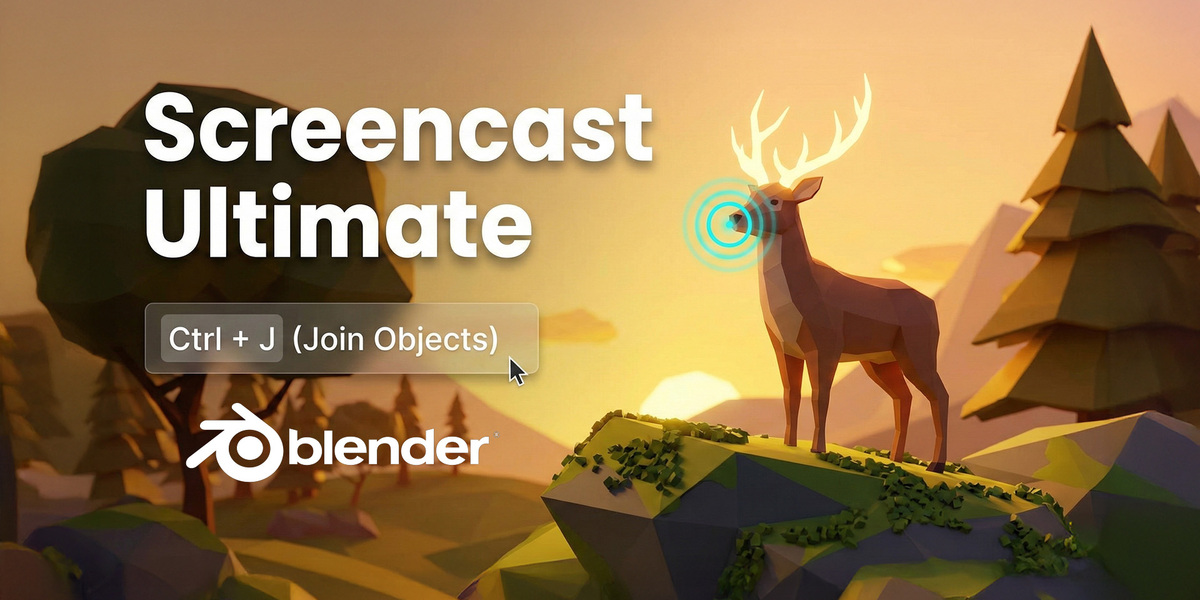
Screencast Ultimate: Visual Keys & Mouse Ripples is a Blender add-on for showing the actions behind a screen recording. It can pair a pressed shortcut with a tool name, mark where a click lands in the 3D Viewport, and keep recent commands visible. For example, the product listing shows “Shift+A - Add Menu”; context detection can display G as “Move” in Object Mode and “Grab Brush” in Sculpt Mode.
Show keys, names, and recent commands
With Show Descriptions enabled, the display pairs a shortcut with its name. Turn it off to show the raw key alone. You can also replace mouse-button labels such as LMB, RMB, and MMB with an icon that lights up the button being pressed. History Lines ranges from 0 to 10: zero keeps only the active command on screen, while higher settings stack earlier commands and fade them over time. Font Size changes the size of text and icons, and Fade Time sets how long a keystroke stays visible.
Make mouse actions visible
Show Click Ripples draws a ring at the cursor when you click the left, right, or middle mouse button. The Accent color controls the ring color. Follow Mouse moves the text display beside the cursor, with X and Y offsets to keep it clear of a brush or tool. When Follow Mouse is off, the display uses a fixed position, with the 3D Viewport’s bottom-right corner as the documented default.
Add a chapter marker
For a live stream or longer recording, enter a title in the Chapter Marker field and press F5. A large banner appears in the center of the viewport for three seconds. The banner can mark a transition, such as the start of a texturing section.
Version 1.8 and setup notes
The product listing describes a version 1.8 update that restored more than 50 shortcuts across transforms, views, and Edit Mode. It also added Smart Edit Mode labels for the 1, 2, and 3 keys, introduced a combined key-and-name format, and fixed installation and registration errors. The panel reference says the Start Lesson control enables or disables the on-screen display. If the display disappears after changing workspaces, its instructions say to toggle that control off and on again.
Compatibility, package, and license
The Superhive product listing specifies Blender 4.2 to 5.0 and lists Cycles and Eevee. Its separate FAQ page says Blender 3.6 and 4.0+, so the supplied pages disagree about version support. Check the current listing or ask Shift4cube before installing on an older Blender version. The listing describes a .zip add-on, PDF documentation, a shortcut guide, free updates within the 1.x line, and an MIT license. AnyPlugins lists it as free; confirm current price and availability on the marketplace.
The panel reference covers the display controls, click effects, offsets, colors, and chapter markers.