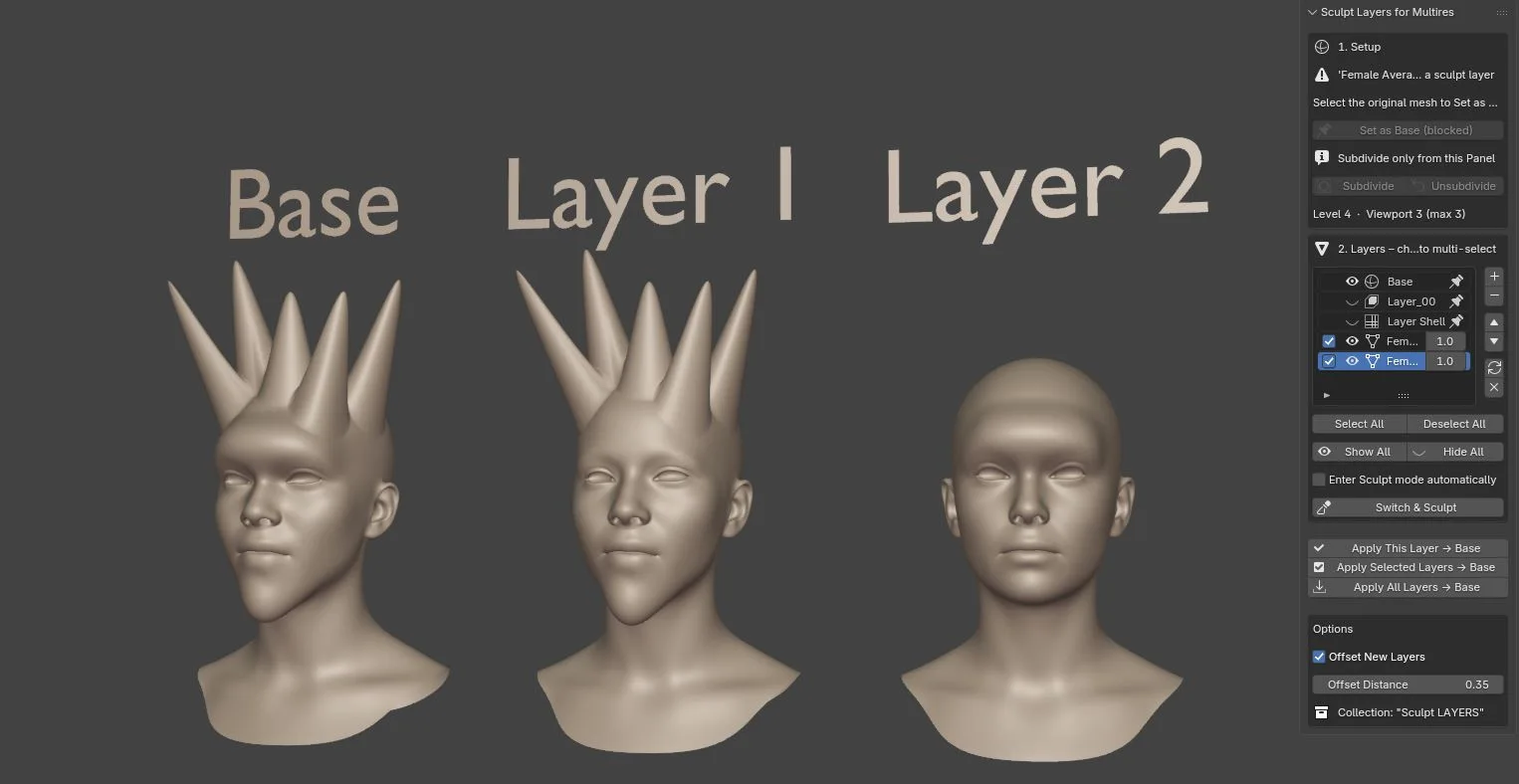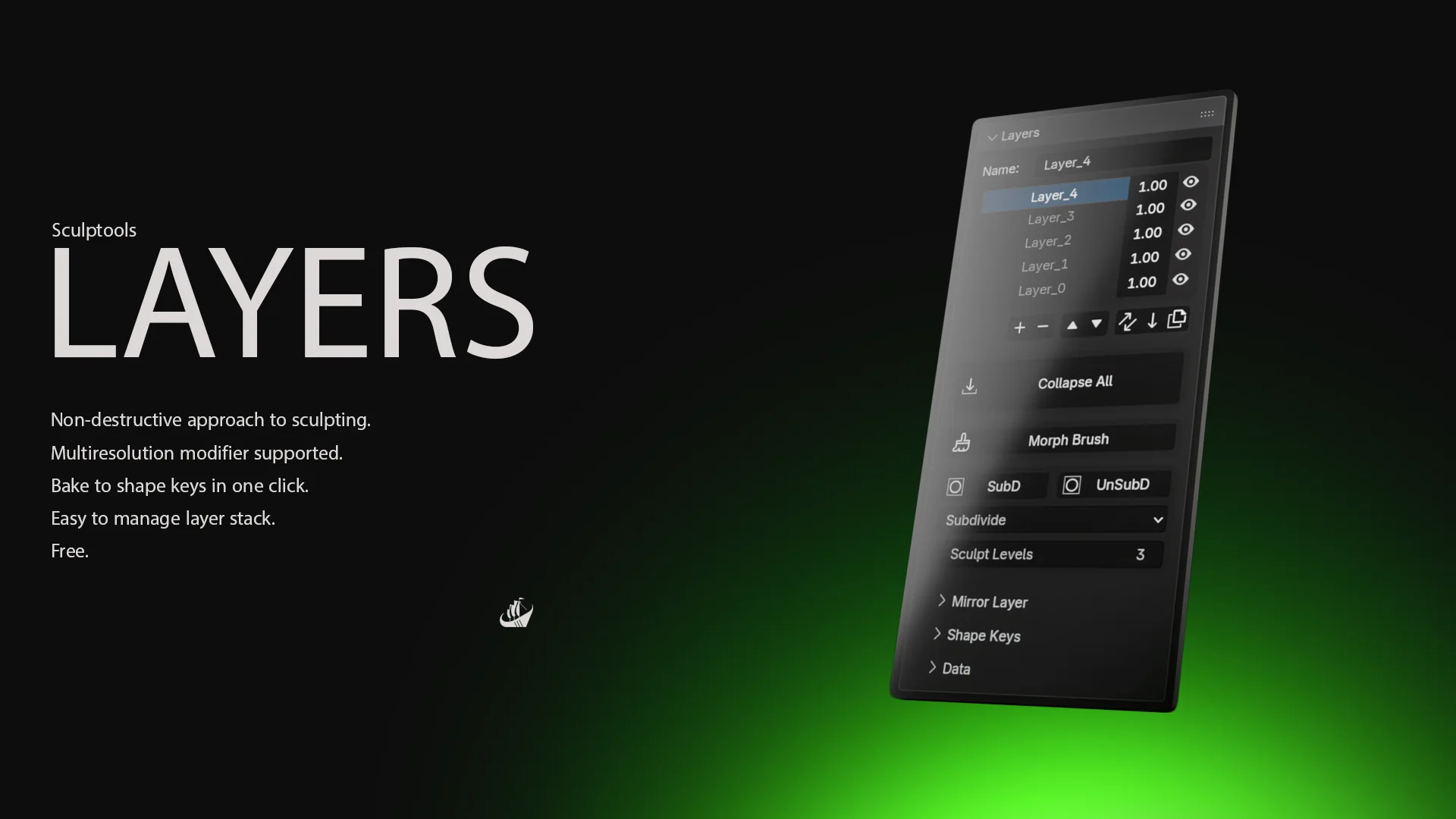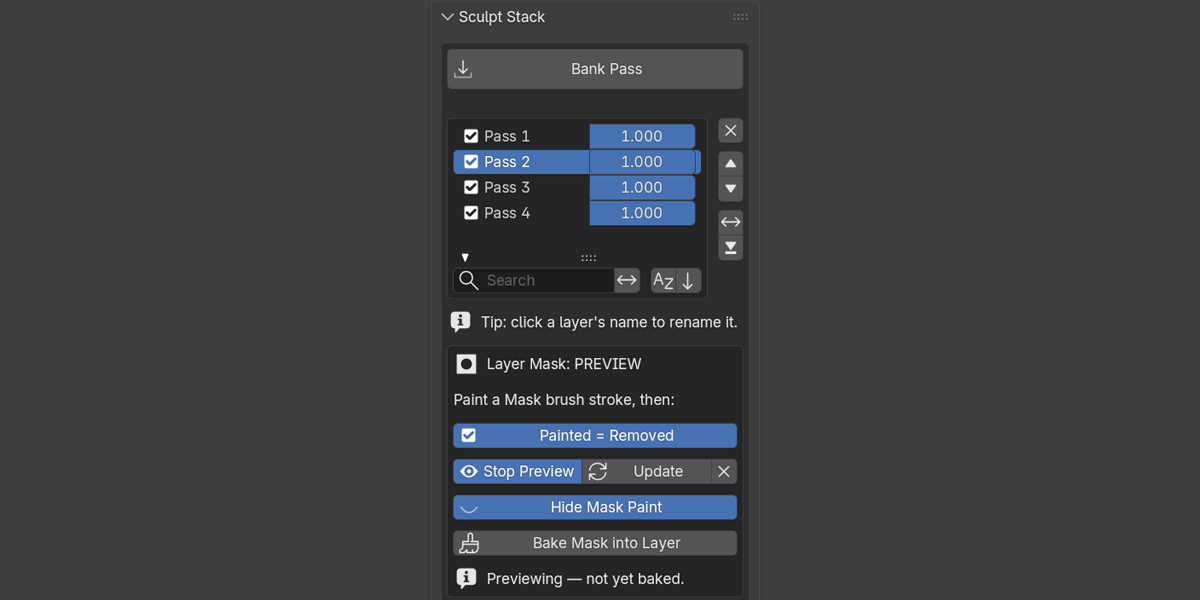
Sculpt Stack adds adjustable sculpt passes to Blender’s sculpt mode. Activate it on a mesh, sculpt as usual, then bank a pass as its own layer. Each layer has a weight control, so you can soften or hide that pass later without repeating the sculpt work.
How sculpt layers work
- Select a mesh and activate Sculpt Stack. It uses the current mesh as the base, whether the mesh is clean or already has sculpted detail.
- Sculpt with a standard brush, then select
Bank Passor pressCtrl+Shift+B, the default shortcut. Continue sculpting and banking passes to build the stack. - Adjust a layer’s weight to blend its contribution. Master Opacity scales the whole stack; setting it to zero reveals the base.
The product page describes vectorized evaluation to keep blending responsive on dense sculpts. Subdivision and Mirror modifiers display over the layered result.
Mask and manage passes
For a pass that should affect only part of the mesh, paint with Blender’s Mask brush, then use Preview Mask. The mask paint hides during the preview; use Update after painting more, then choose Bake Mask into Layer when the result is ready. The “Painted = Removed / Kept” control sets how the painted area affects the layer.
You can reorder, rename, invert, or merge layers. To finish, Flatten Selected bakes one layer into the base, Flatten All bakes the stack, and Commit finalizes everything into the mesh. These steps are optional until you choose to bake or commit.
Topology requirements and compatibility
Sculpt Stack expects the vertex count to stay constant while layers are active. Dyntopo, Remesh, and Multiresolution are not supported during layering, so make topology and resolution decisions first. The add-on warns if the topology changes. Standard brushes such as Clay, Crease, Grab, and Smooth are supported.
The documentation specifies Blender 4.2 or newer and says the add-on was built and tested with Blender 5.1. It ships in Blender’s extension format and uses the Python and NumPy included with Blender, with no separate dependencies to install.
Install the extension
Download the extension ZIP, then in Blender open Edit → Preferences → Add-ons or Get Extensions. Choose Install from Disk, select the ZIP, and enable Sculpt Stack if needed. Open the 3D Viewport’s N-panel and select the Sculpt Stack tab.