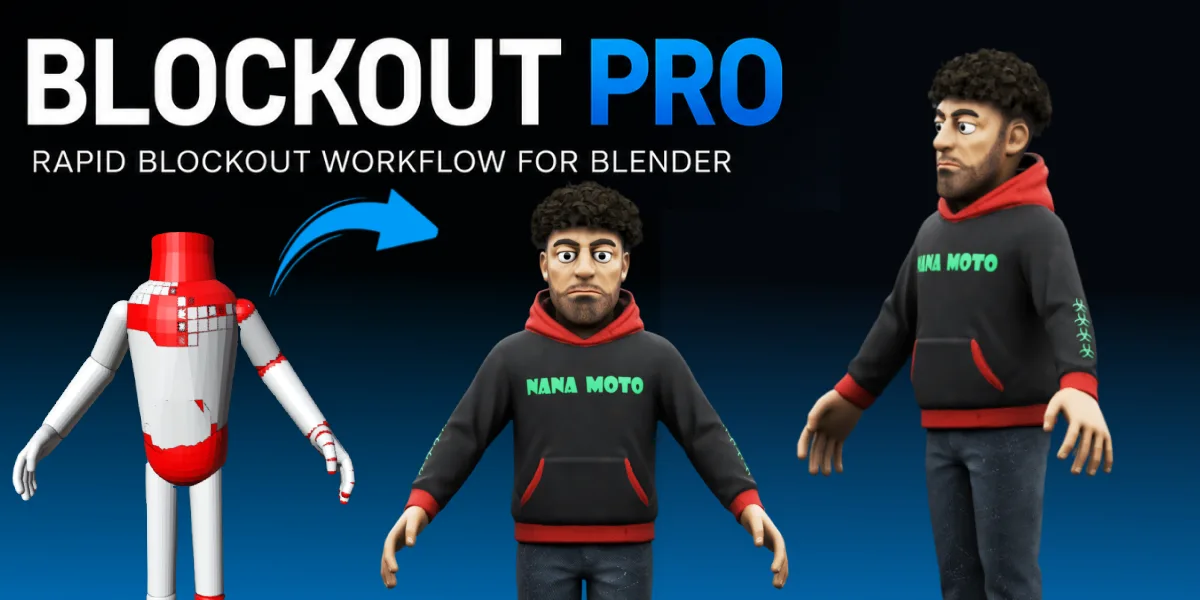
BlockOut Pro is a Blender add-on for building forms during the blockout stage of sculpting, listed for Blender versions 4.5 through 5.1. It creates shapes between objects that you can edit, sculpt and reshape while maintaining smooth transitions. Start with primitives such as cubes or spheres to establish a character or structure before detailed sculpting.
Build connected shapes and poses
Start a named collection from the BlockOut Pro tab in Blender’s 3D Viewport sidebar, also called the N-panel. The documentation says the default shape is a cube. Press E to add or extrude a connected shape. You can branch from a middle object in a chain, which helps build forms such as fingers, wings or tree-like structures.
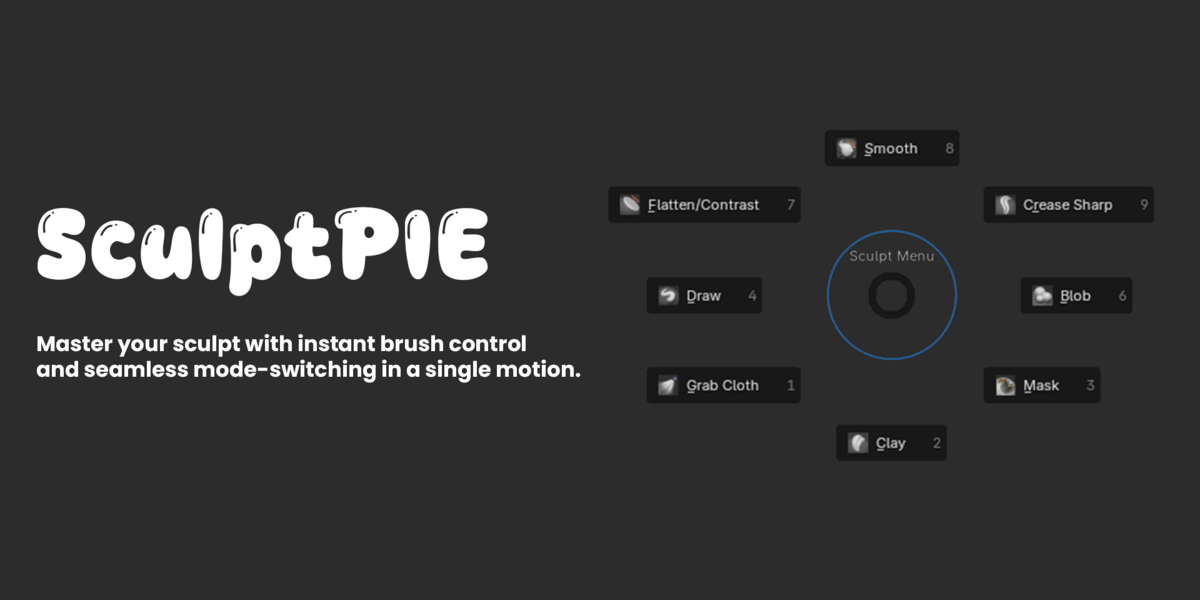
The Alt + F pie menu includes options to convert a primitive, join or separate objects, duplicate a shape and select objects. Use D to delete a shape. The documentation warns that Blender’s usual X or Delete keys can break the add-on’s tracking scripts. It also says that, as of V2, you can reassign the shortcuts in Blender’s add-on preferences. See the BlockOut Pro documentation for the full controls.
For character work, the Pose Mode module lets you manipulate, pivot and rotate the structure. Click Apply Pose after adjusting it to lock in the pose.
Finalize, mirror and reuse blockout shapes
When the proportions and pose are ready, use Build to finalize the shapes into a single solid mesh wrapper. The documentation describes moving from there into Sculpt Mode to blend transitions and add detail. BlockOut Pro also includes mirror controls for reflecting a layout across coordinates.
The V2 documentation describes an asset workflow for reusing body parts. Put a part in its own named collection and mark it as an asset library item. You can bring saved parts into another scene with Blender’s Asset Browser or File > Append.
Compatibility and installation
The Superhive product listing specifies Blender versions 4.5 through 5.1 and a GPL license. To install, download the provided ZIP from the Superhive listing, open Blender, drag the ZIP into the Blender interface and confirm. The add-on’s controls appear in the 3D Viewport sidebar under the BlockOut Pro tab.