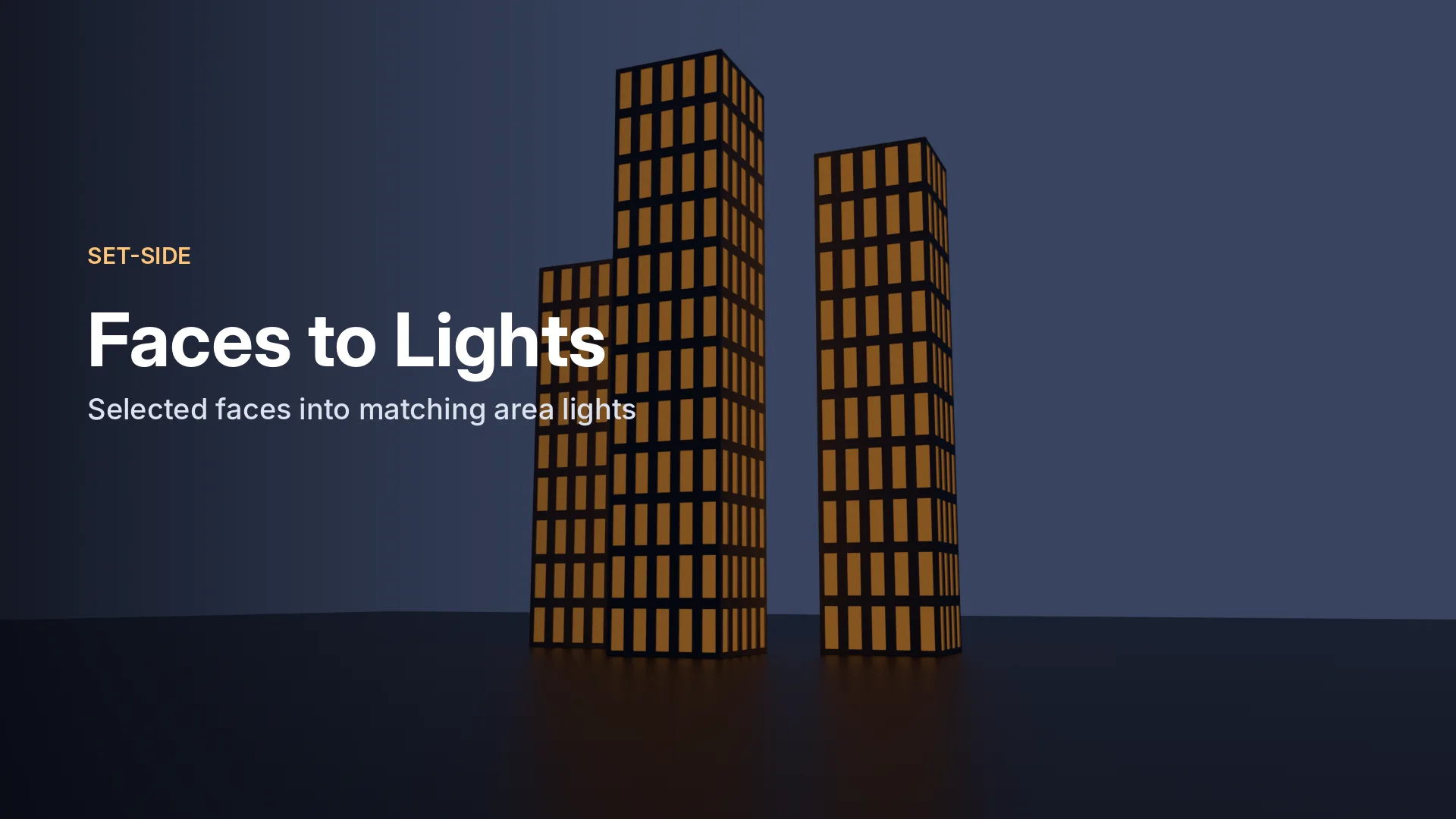
Set-Side Faces to Lights converts selected mesh faces into Blender area lights matched to their position, direction and size. The faces glow for the camera and reflections; in version 1.0.1, they no longer light the scene themselves, so illumination comes from the area lights.
The add-on is intended for modeled windows, light panels, screens and signs. It works in Cycles and EEVEE. Cycles area lights can illuminate a scene with far less noise than emission materials, while emission in EEVEE does not reliably light other objects.
Turn selected faces into area lights
Select the mesh, press Tab to enter Edit Mode, then select the faces to light. Run Faces to Lights from the N-panel under Set-Side, or open the Face menu with Ctrl+F and choose Faces to Lights. Adjust power, colour and size in the options panel at the bottom left.
Merge Similar Faces combines a flat panel made from many faces into one light. Turn it off when you want separate lights, such as one for each window in a building. Power per m² makes a larger window brighter than a smaller one and helps keep lighting consistent across scene scales.
Edit lights and update the mesh
Edit Lights changes power, colour, colour temperature in kelvin, spread and glow for a mesh's lights and faces together. Each mesh keeps its own settings. The Don't Light Source Mesh option uses Blender light linking to prevent the mesh from being lit by its own lights.
After moving, scaling or editing the mesh, use Update Lights to refit its existing lights. Running Faces to Lights again on the same faces replaces the previous lights instead of doubling them. Remove Lights restores the selected faces' original materials. Light Shapes can hide or show the light outlines in the viewport while leaving the lights in the scene.
Compatibility and limitations
The Blender Extensions listing specifies Blender 4.2 LTS and newer, with testing on Blender 4.2, 4.5, 5.0 and 5.2. The add-on supports Windows, macOS and Linux, and works in both Cycles and EEVEE. Light portals are available only in Cycles.
Very curved or non-flat faces receive a light just in front of the face; heavily bent faces may need to be split first. Lights are fitted to the mesh as it appears in Edit Mode, before modifiers are applied. Blender hides scene lights in Solid view and Material Preview; version 1.0.1 adds a note about this in the sidebar.
See the Blender Extensions listing for the published compatibility and installation details, or the developer issue tracker for bugs and ideas.