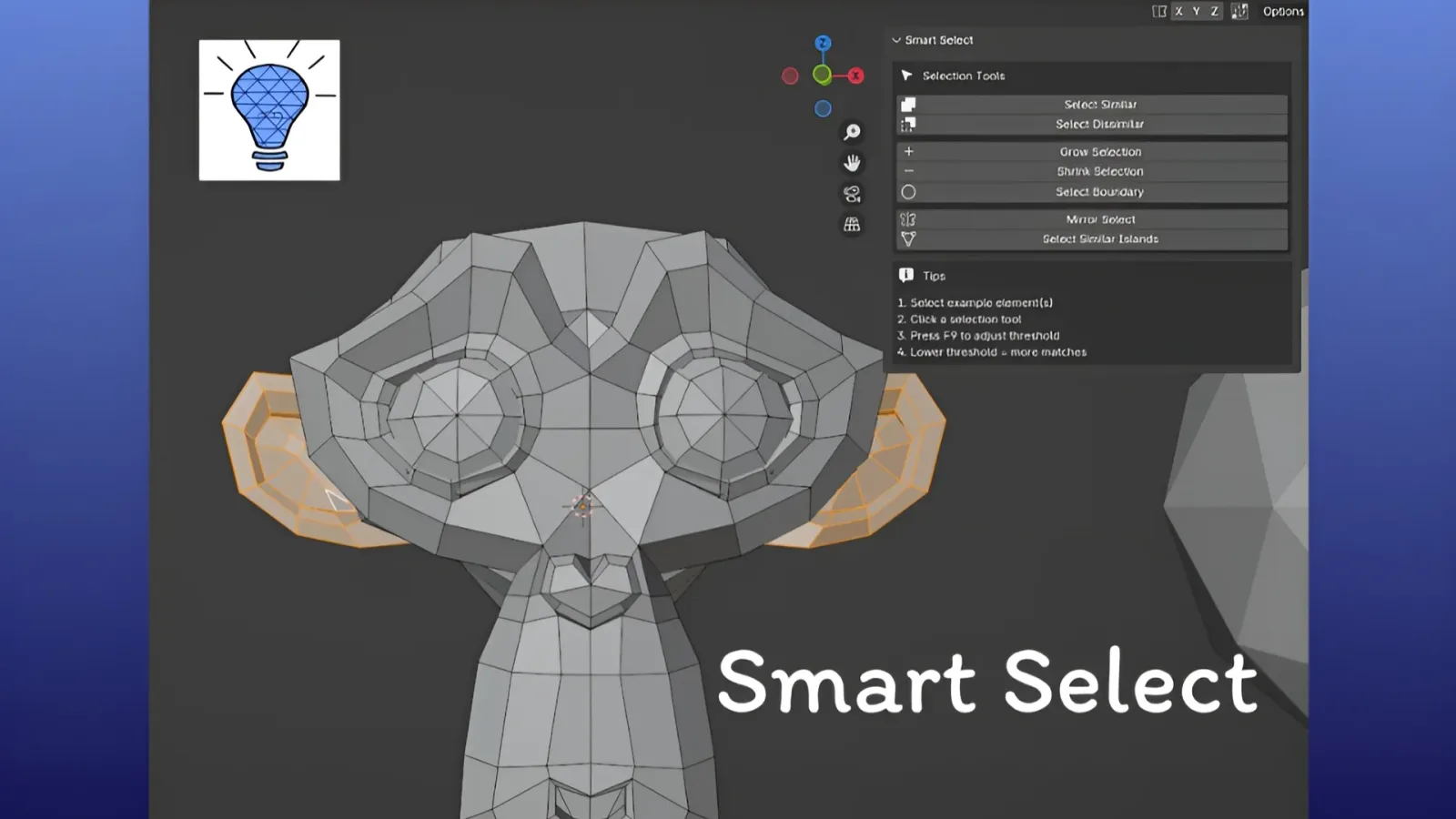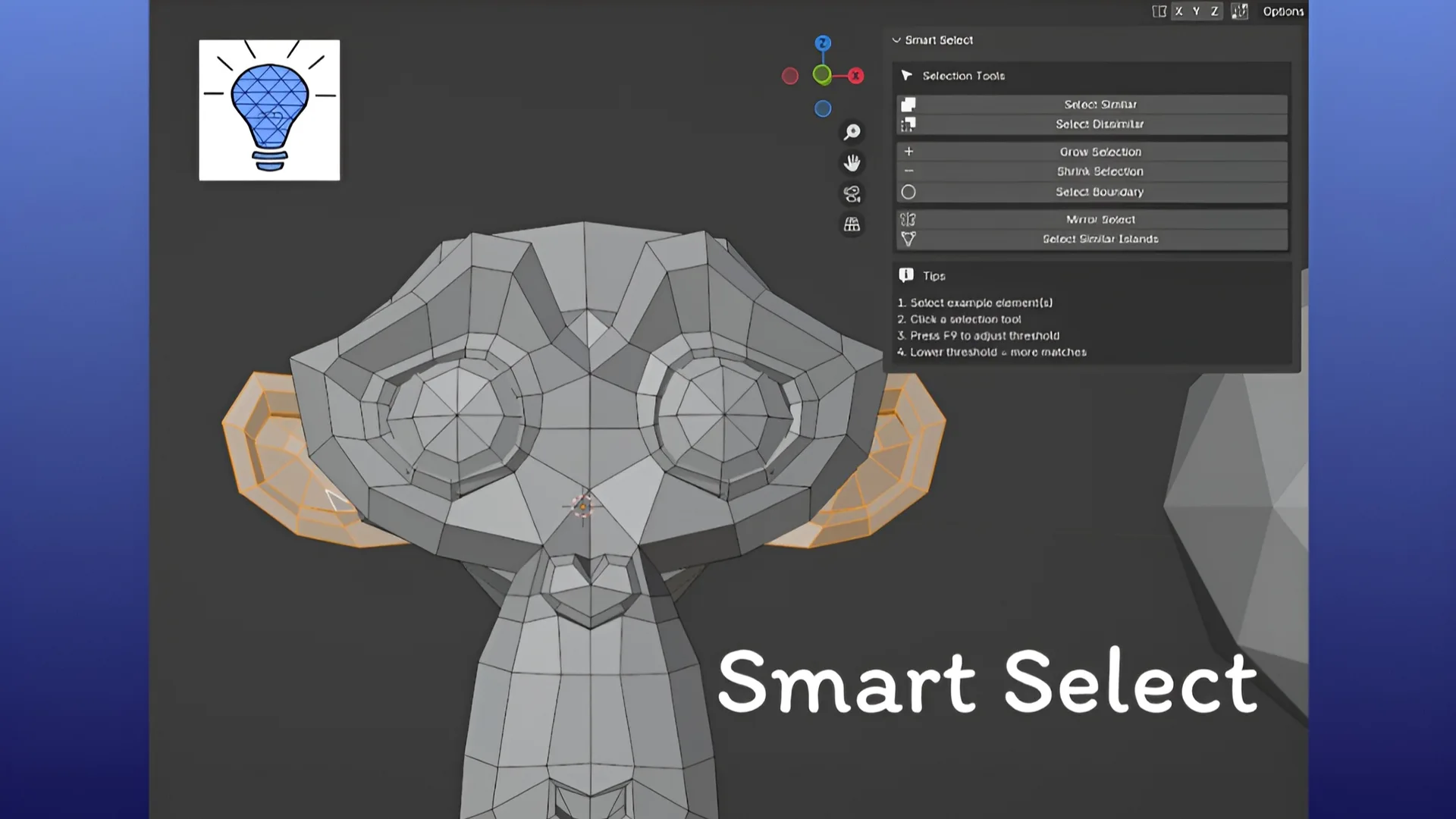
Smart Selection Propagation adds topology-based selection tools to Blender. Start with a mesh selection, then find related elements without requiring every match to have identical geometry. Its selection controls let you tune how closely mesh elements must match.
Selection operations
Use the add-on to select features similar or dissimilar to the current selection, grow or shrink a selection by similar topology, or isolate the boundary of a complex selection. It also includes tools for selecting mirrored features and similar island meshes. These operations are useful when you want to use selected geometry as a reference for finding related parts of a mesh.
How matching works
The feature description lists connected edges, edge length and angle, and face area, perimeter, and normals among the selection criteria. This lets the add-on find elements that vary slightly in shape instead of matching only identical geometry. After running an operation, press F9 to adjust the factor of selection rigor and change how closely elements must match.
Where to find the tools
In Blender, open the Smart Select menu in Edit Mode or use the operations in the right-click dropdown. A pinwheel selection is also available in the add-on's keybinds. Start from the geometry you want to match, run an operation, then adjust its rigor factor if you want to refine the result.
Check the Blender Extensions listing for current version and compatibility details. It links to the project repository and issue tracker.