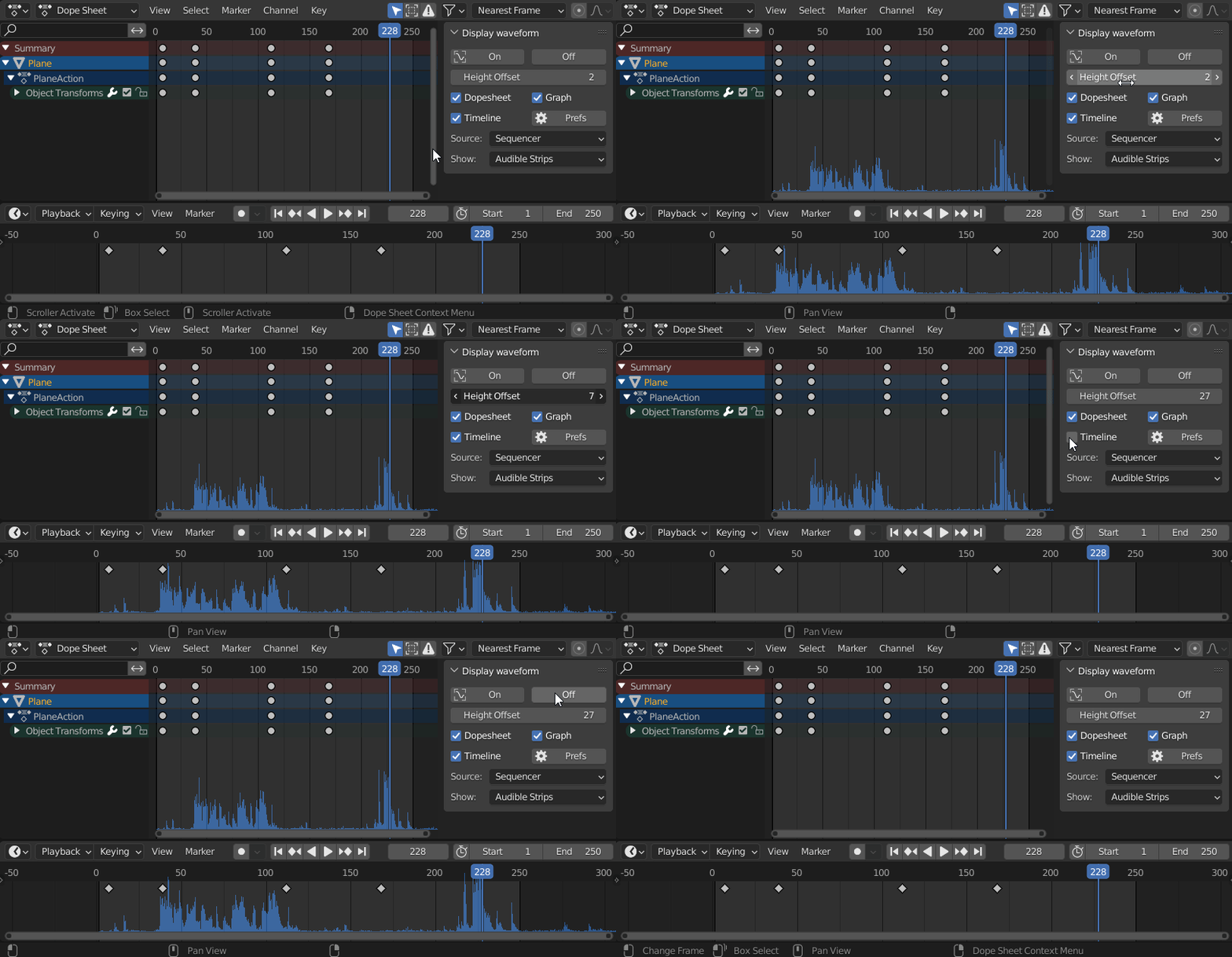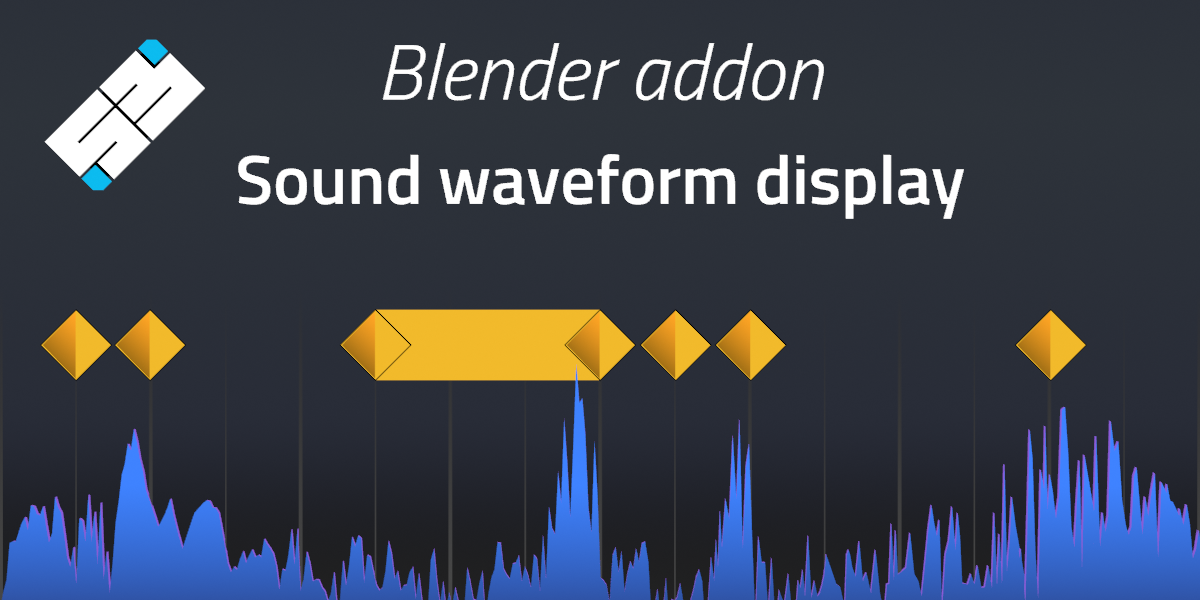
Sound Waveform Display shows audio waveforms inside Blender’s animation editors, giving animators a visual timing cue while they work. The add-on can help when syncing movement or lip-sync to sound, without needing to keep the sequencer open just to view a waveform.
Choose which sound to display
The source setting can show sound from the sequencer, from a speaker, or from all sources. Sequencer is the default. When using the sequencer, you can narrow the display to selected strips, sounds listed in the add-on’s panel, audible strips, or audio within the scene range. Selected strips and sounds in the list can include muted strips.
Use the On control to enable or refresh the display and Off to disable it. Height offset lets you adjust peak height when the waveform appears too small or too large.
Adjust appearance and detail
Preferences let you choose a waveform color and detail level: Blocky, Very Low, Low, Medium, or High. Higher detail takes more time to generate and uses more memory. Very dark color values may fall back to white.
Setup and range limits
The add-on requires FFmpeg. Its preferences explain how to obtain it if it is not already on your system path, including an automatic download and installation method. Waveform generation is slow, so the developer recommends short ranges, from a few seconds up to about one minute. For longer sequences, the scene-range or strip filters can limit which audio is displayed.
The Superhive listing specifies Blender versions 3.3 through 5.0 and a GPL license. Check the product listing and developer documentation for current details and troubleshooting.