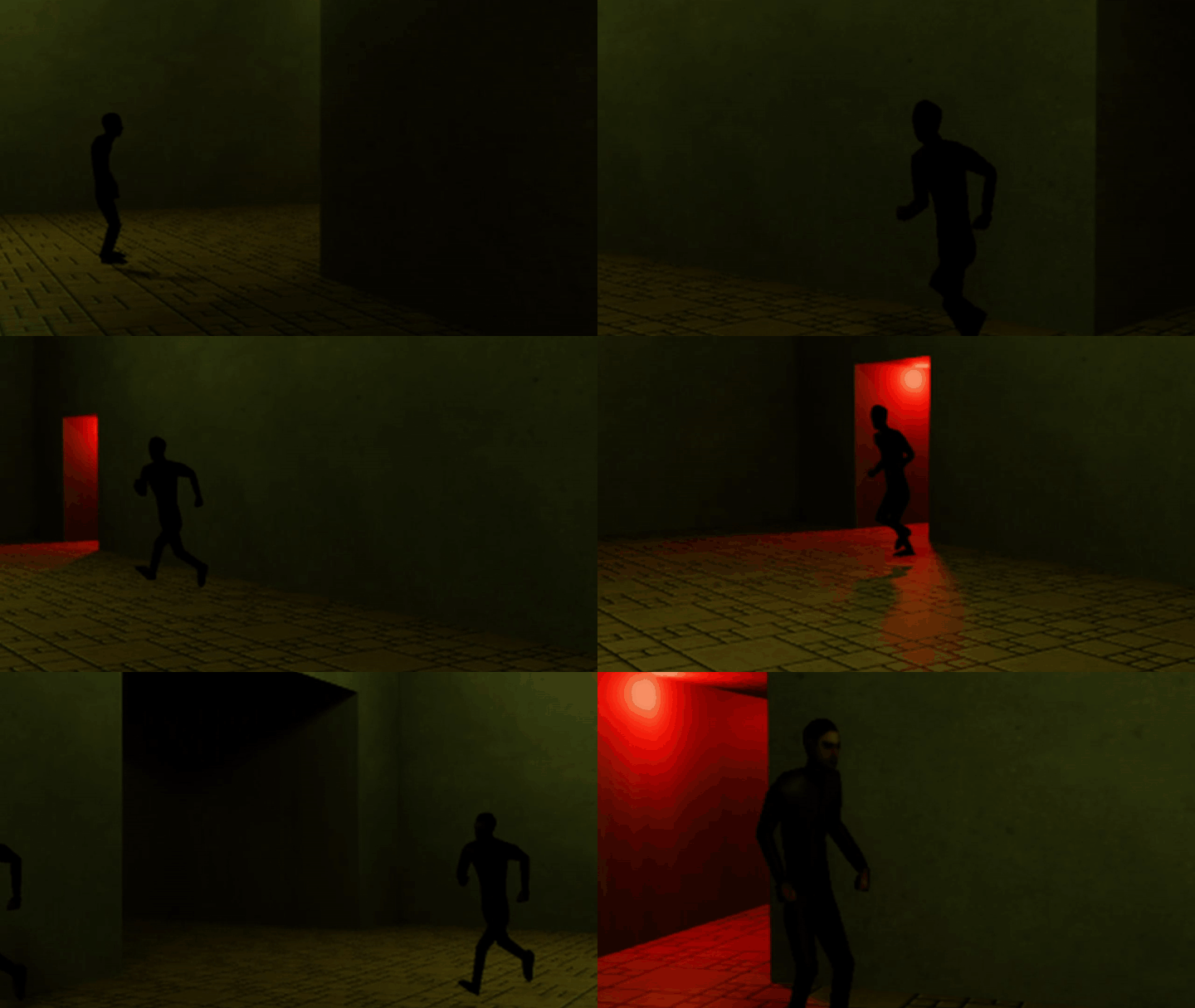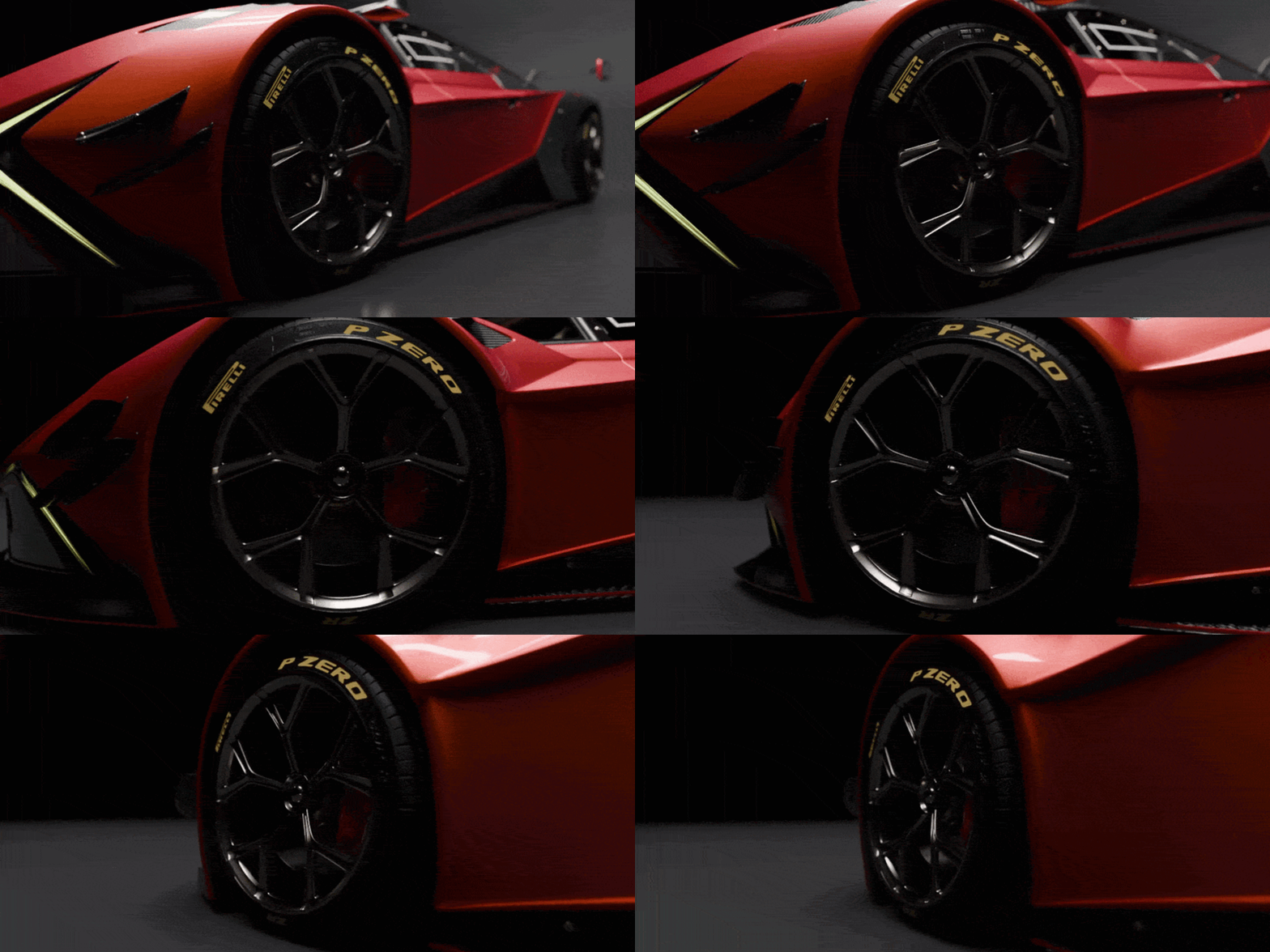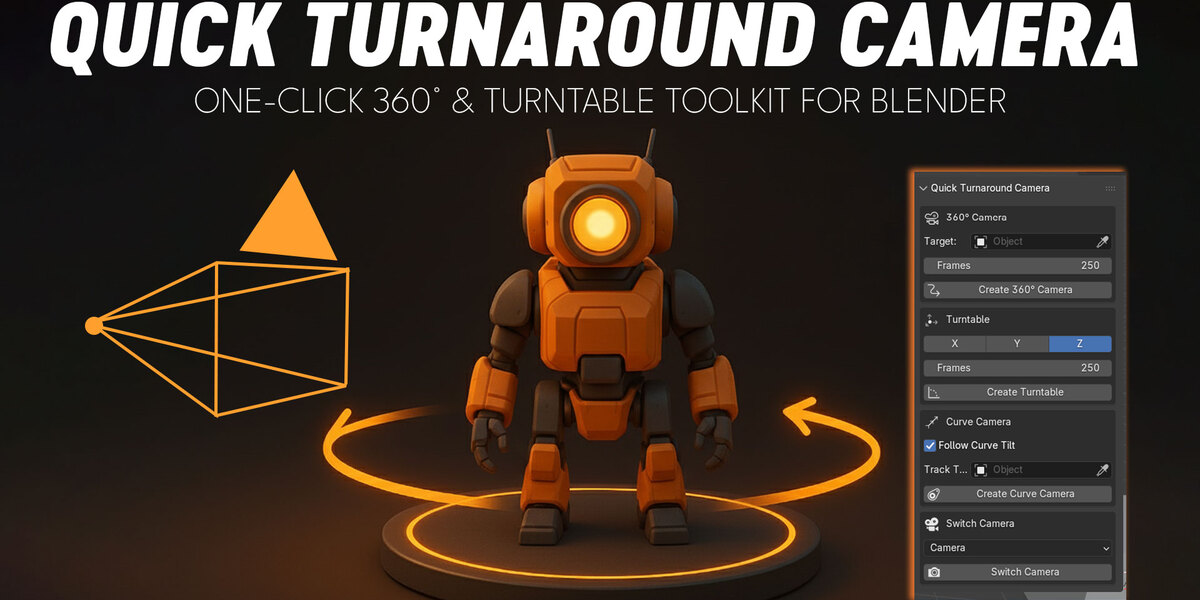
Sprites 2D ... But 3D - Dynamic 3D Billboarding is a Blender add-on for using 2D images as camera-facing sprites in a 3D scene. It can target multiple sprites at their own locations and update their facing as the camera moves. Sprites can stay separate or be grouped, with animation states such as idling, running, and attacking.
How billboarding and sprite materials work
The add-on uses images for different sides of a sprite, including image sequences for animation. In the material, inputs such as Front, Front Left, and Left specify the material or image sequence for each represented side. Alpha is used for the alpha channel. The documentation marks some values as read-only because the script adjusts them during preview or baking. Do not keyframe or remove those values from the group, and do not put nodes in them. You can set up the rest of the material as you like; the documentation says it does not have to use Principled BSDF.
Each sprite can have its own behavior. Separate sprites can react differently when the camera is between them; sprites in one group behave the same way.
Choose the variation that fits your assets
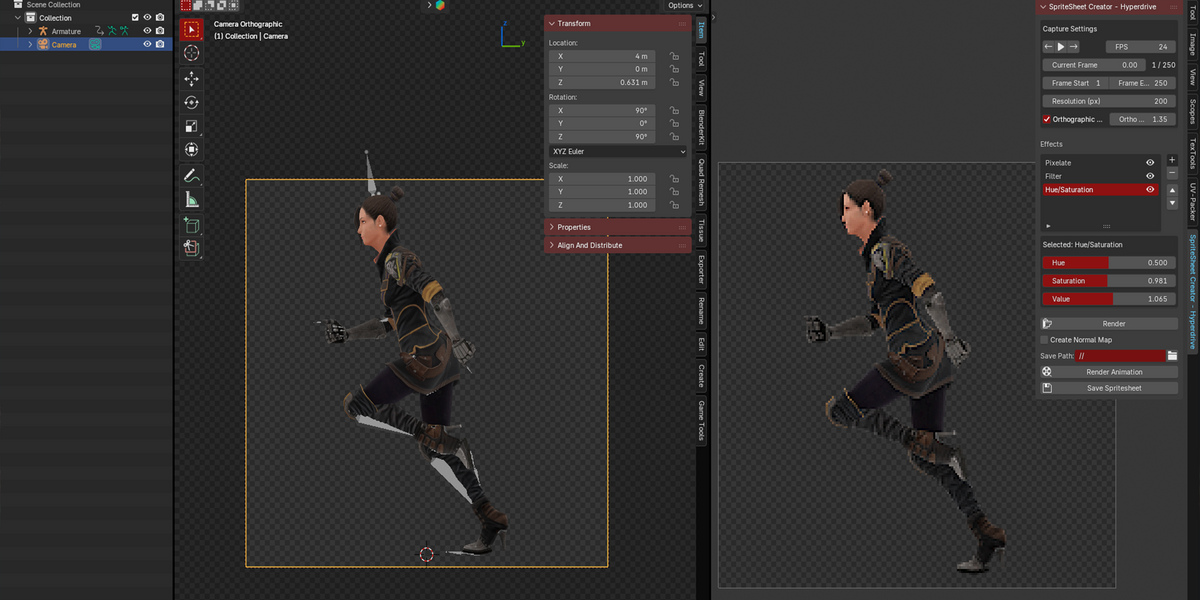
The Sprite 2D variation provides control for sprites but does not include the sprite creator. Sprite 2D + Sprite Makey Make adds tools for creating static or animated sprite sheets and making turntable renders. Sprite Makey Make is also listed separately for creating sprite sheets or turntables. If your images are already prepared, the base variation covers the documented sprite-control features. If you need to create those images in Blender, look at a variation that includes Sprite Makey Make.
Previewing and rendering
Dynamic rotation previews in real time, but the documentation says it does not appear in rendered materials until you use Bake. Baking writes the current setup as keyframes to the materials and disables live preview. Use Clear Bake to remove the bake and return to real-time preview. The Enabled setting temporarily disables Sprite 2D to help with performance; calculating multiple sprites can be computationally intensive.
Creating a turntable with Sprite Makey Make
The turntable tool renders and saves a PNG sequence from the current camera setup. Set the image count to divide a full 360-degree view into equal steps. The documented default is eight images, spaced 45 degrees apart. Sprite Makey Make can render a single frame or a frame range for animation. Check that the target stays within the camera bounds throughout the orbit.
Compatibility and documentation
The product listing names Blender versions 2.83 through 4.5 and identifies the license as GPL. Confirm the current compatibility details on the product listing before installing. The documentation describes the material setup, baking controls, and Sprite Makey Make options.