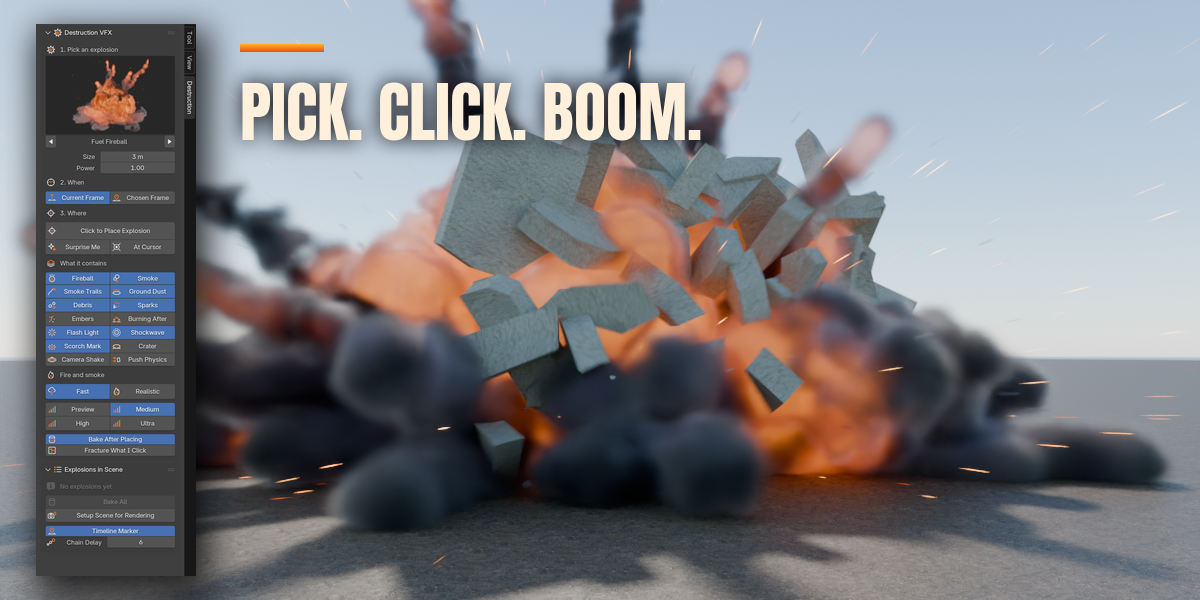
One Click Destruction VFX is a Blender add-on for placing explosions in a scene and adjusting their components afterward. Choose from 14 presets, click a point in the 3D viewport, and set the blast at the current frame or another frame. Presets include Fuel Fireball, High Explosive, Ground Burst, Missile Strike, Vehicle Explosion, Grenade, Air Burst, Mushroom Cloud, Demolition Charge, Fire Bomb, Electrical Burst, Dust Impact, Smoke Bomb, and Sci-Fi Plasma.
Choose between fast animation and Mantaflow simulation
Fast mode animates fire and smoke without a fluid simulation or bake, so the explosion appears immediately and you can scrub through the shot while timing it. It works in EEVEE and Cycles. Before rendering a single frame in Fast mode, use Cache Debris so debris and sparks appear at the right point in the animation.
Realistic mode builds and bakes a Mantaflow fire and smoke simulation. With Bake After Placing enabled, the bake starts after you place an explosion. You can also bake later with Bake or Bake All, and choose one of four quality presets from Preview to Ultra. The sidebar shows bake progress and lets you cancel it.
Adjust the blast and scene effects
Each explosion appears as one object in the Outliner and instances its own collection. Select it to change its size, power, speed, timing, duration, or included parts. Fire, smoke, dust, debris, sparks, light, and shockwave controls remain editable; the add-on rebuilds only the parts you change.
Depending on the setup, an explosion can include colored fire, smoke trails, ground dust, debris in materials such as concrete, rock, brick, metal, wood, or glass, and sparks or embers. Other options include scorch decals, a crater cut into the ground, a shockwave, flash lighting, camera shake, lingering fires, and a force field for scene objects such as rigid bodies, cloth, hair, and particles.
Fracture objects in the scene
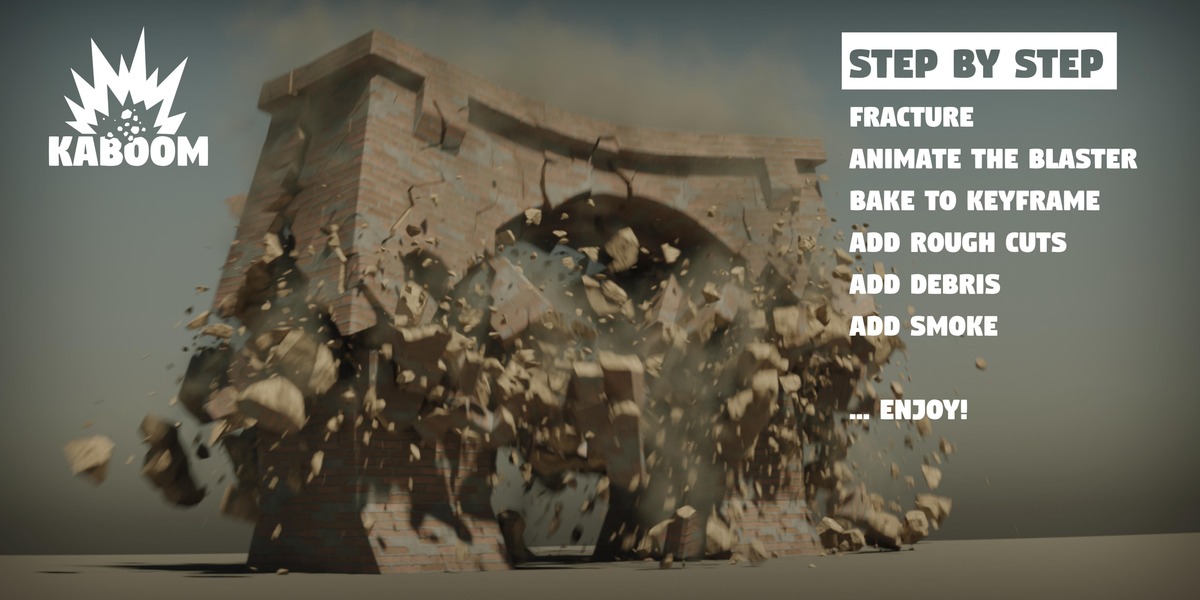
Shift-click an object while placing an explosion, or select the objects, select the explosion last, and use Blow Up Selected Objects in the Fracture panel to split them into Voronoi pieces. Choose instant keyframe motion or rigid body motion. Fractured pieces can use a matching material on their inside faces. Removing an object from the fracture list restores the original object.
Debris, sparks, and embers interact with objects that have a Collision modifier. If they need to land on the ground or set pieces, select those objects and use Add Collision to Selected.
Install and place an explosion
- In Blender, open Edit, Preferences, Get Extensions, then choose Install from Disk and select the destruction_vfx ZIP file.
- Save the blend file before placing explosions. The simulation cache is saved in a folder beside it.
- Open the Destruction VFX tab in the 3D Viewport sidebar with the N key. Choose a preset and frame, then use Click to Place Explosion and click in the viewport.
Ctrl-click can place a chain of explosions a few frames apart. Explosion at the 3D Cursor and the Shift+A, Explosion command place a blast without clicking in the viewport. Use Setup Scene for Rendering to tune EEVEE or Cycles for fire, smoke, sparks, and the shockwave. Read the installation and usage documentation or check the product listing for current details.
Blender compatibility
The marketplace details list Blender versions 4.2 to 5.2. The product description says Blender 4.2 or newer is required and lists 4.2 LTS, 4.5 LTS, 5.2 LTS, and 5.3 as tested versions. Check the current listing if you need confirmation for a specific Blender release.