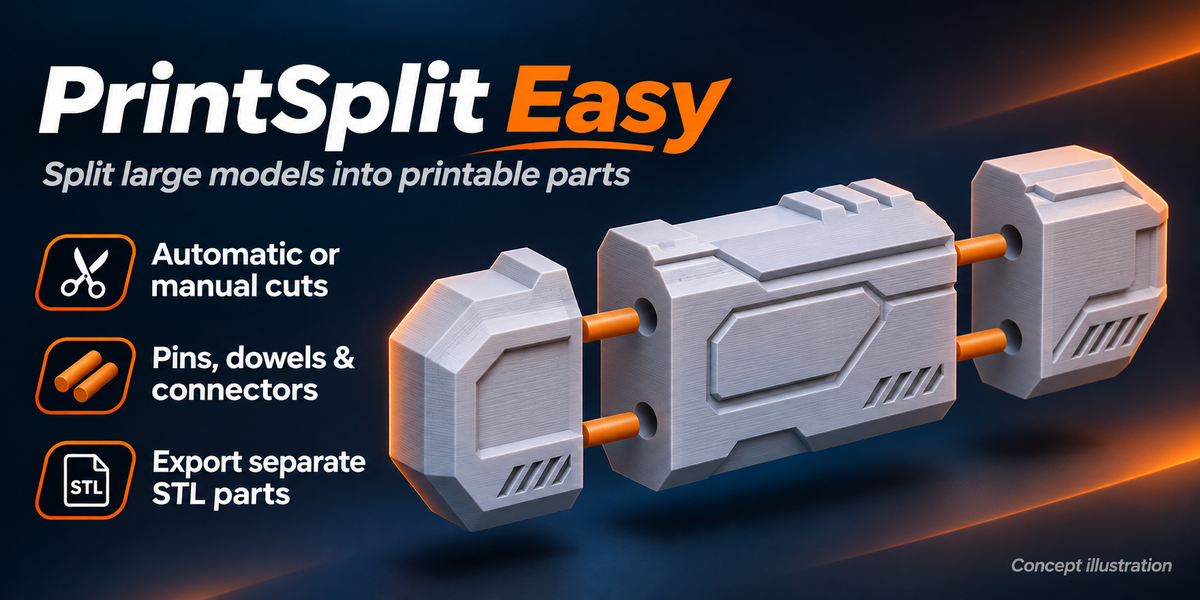
PrintSplit Easy is a Blender add-on for dividing oversized 3D models into sections that fit a printer’s build volume. It plans axis-aligned cuts, can add connectors between parts, checks mesh geometry, and exports separate STL files for inspection in a slicer.
Plan cuts around the printer
Choose a printer profile or enter custom build dimensions. Auto-fit plans cuts along the X, Y, and Z axes; an optional orientation search checks whether rotating a part by 90 degrees can help it fit. For more control, draw cuts in the viewport or adjust cutting guides. These are still flat, axis-aligned cuts, not freeform curves.
Check the model’s source units before splitting. The user guide notes that STL files commonly use millimeters while Blender scenes may use meters. PrintSplit Easy’s fit checks depend on the dimensions it reads from the model.
Choose how the parts connect
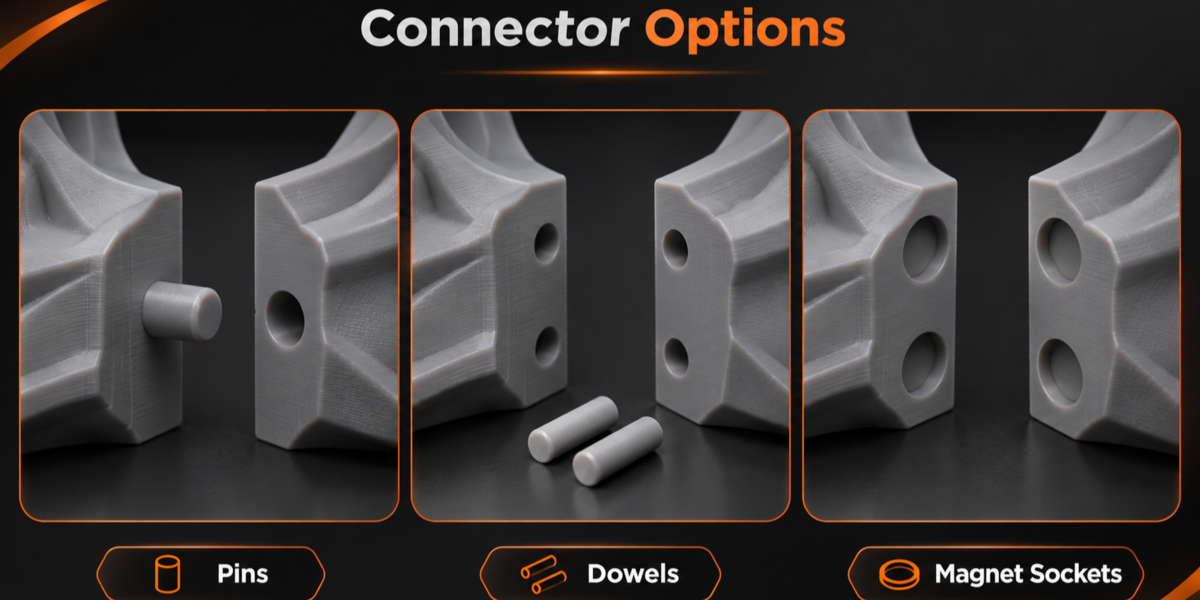
PrintSplit Easy can split a model without connectors or add one of three joint types:
- Attached pins: cylindrical pins on one part fit into matching holes on the adjacent part.
- Separate dowels: the add-on creates holes in both parts and exports connecting cylinders separately.
- Magnet sockets: matching pockets hold disc magnets for assembly.
You can adjust connector dimensions and clearances. Placement depends on the available geometry, so some joints may be skipped; the add-on reports those cases.
Check the mesh and export the parts
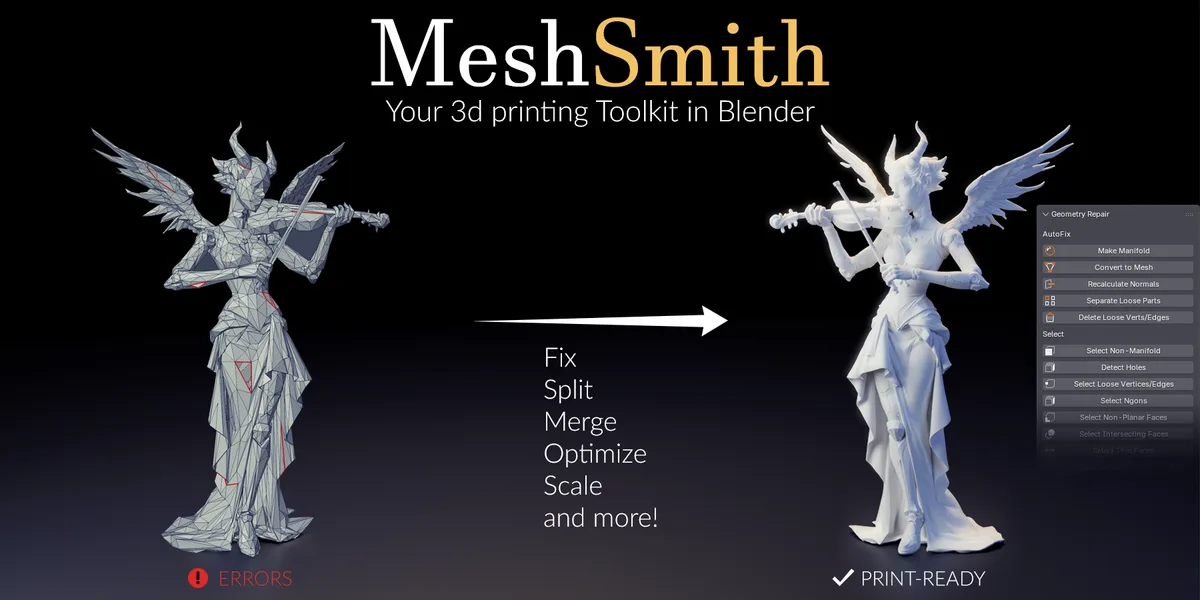
Mesh tools can identify open or invalid edges, try to close simple boundaries, and attempt automatic repair. If simpler cleanup is not enough, voxel reconstruction is available. Repair works on a copy, leaving the source model unchanged. Voxel reconstruction can alter fine details, so the guide suggests trying boundary cleanup first when those details matter.
A successful export can include an STL for each model part, separate dowel STLs when used, a CSV manifest with part information, a CSV report of connected part pairs, and an HTML assembly reference with warnings. STL coordinates are in millimeters. The manifest includes part names, dimensions, and triangle information.
What to check before printing
PrintSplit Easy works with mesh geometry and uses flat cutting planes. Damaged or complex models may need manual repair. Its basic size checks do not confirm that a part will print successfully: inspect the exported files in your slicer, check orientation and support needs, and test connector tolerances before printing a large project.
Compatibility and installation
The listing’s version field shows Blender 4.3–4.5, while its product description and user guide say Blender 4.3 or newer; the guide reports testing with Blender 4.5.4 LTS. The listing identifies the license as GPL-3.0-or-later and says external Python packages are not required.
Install the supplied ZIP through Blender’s Edit > Preferences > Get Extensions > Install from Disk menu. Enable the extension if prompted, then open the 3D Viewport, press N, and choose the PrintSplit tab. See the PrintSplit Easy user guide for installation details and the full workflow.