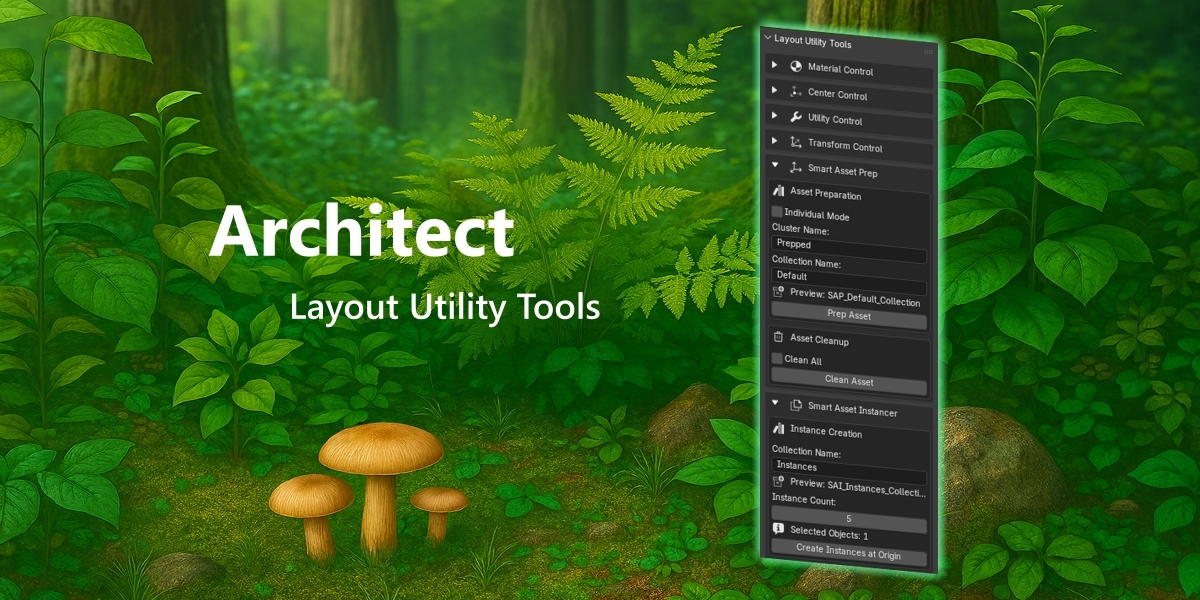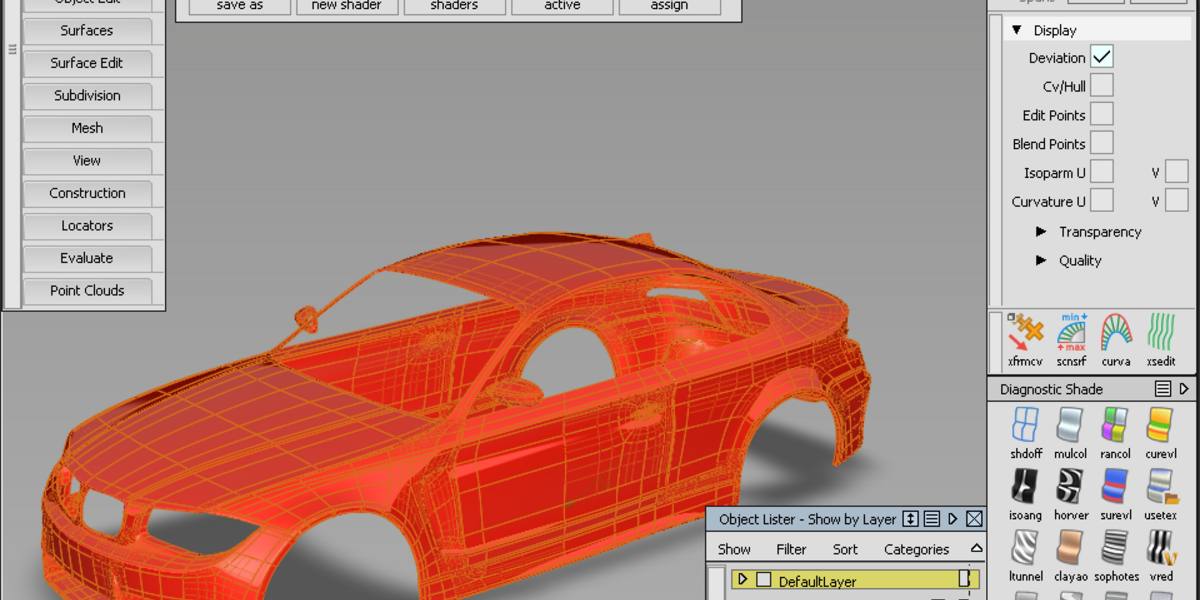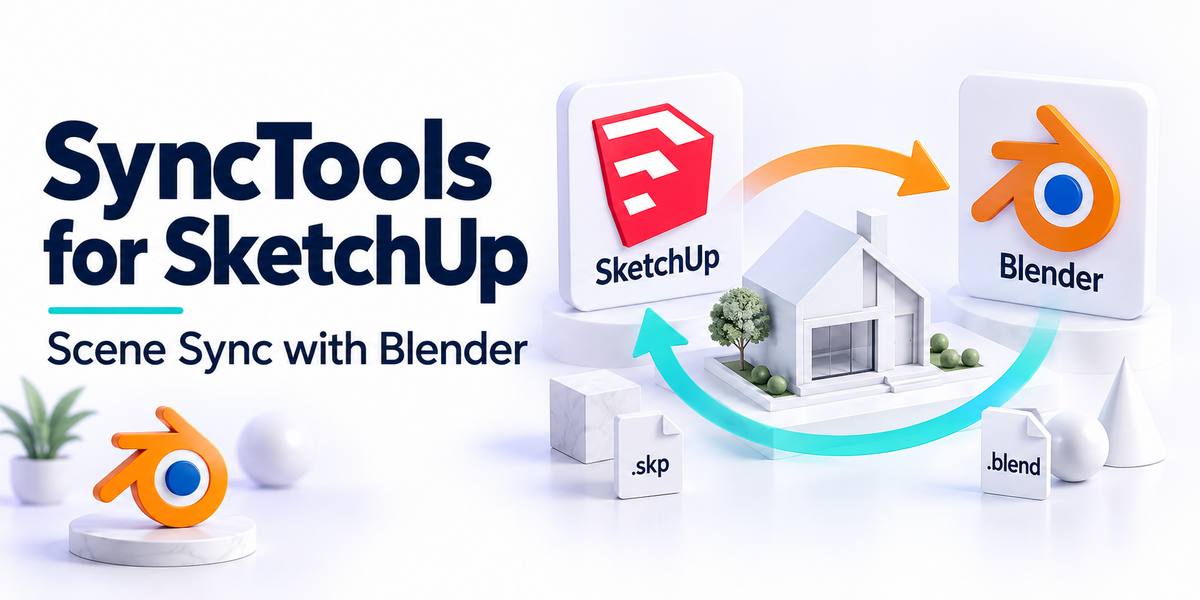
Synctools Pro For Sketchup connects SketchUp with other digital content creation (DCC) applications through an FBX-based copy-and-paste workflow. It moves assets between SketchUp models and to applications such as Blender, Maya and 3ds Max, then back again. The workflow is aimed at architects, interior designers and visualization artists who model in SketchUp and continue work in another DCC. The developer's product listing and documentation describe its supported data and setup.
What it transfers
The documentation describes copying selected objects to a cache, then pasting the most recently copied assets into another scene. The overview lists components, groups, faces, geometry, hierarchy, materials and textures. Selective transfer lets you choose which elements to include, and the default Ctrl + Shift + C and Ctrl + Shift + V shortcuts can be remapped.
- Components and groups retain their organization and hierarchy.
- Faces transfer geometry and UV coordinates.
- Materials include texture files and basic settings.
Data and unit limits
The detailed documentation notes that texture paths must remain valid, UVs may need adjustment, custom attributes may need manual migration, and layer information has partial support. Animation data, dynamic components, plugin-specific features, scene settings and render settings are listed as unsupported. Check these limits if a model depends on data beyond basic geometry, hierarchy and materials.
The product overview advertises automatic unit matching, while the documentation says original project units are retained without automatic conversion. Confirm unit behavior before moving a model between different unit systems.
Compatibility and operating systems
The overview recommends SketchUp 2022 or newer and says versions 2014 to 2021 are supported. A separate FAQ describes support as SketchUp 2021 or newer. If you use SketchUp 2014 to 2020, check the current developer listing because the pages give different support ranges. The Blender version range also differs: the details panel lists 3.6 to 5.2, while the FAQ says 3.6 to 5.1. The listing names Windows 10 or 11 and macOS 13 or later.
Installation and shared cache
- Find the Plugins directory for your SketchUp version and operating system.
- Copy the included SyncTools folder into that directory.
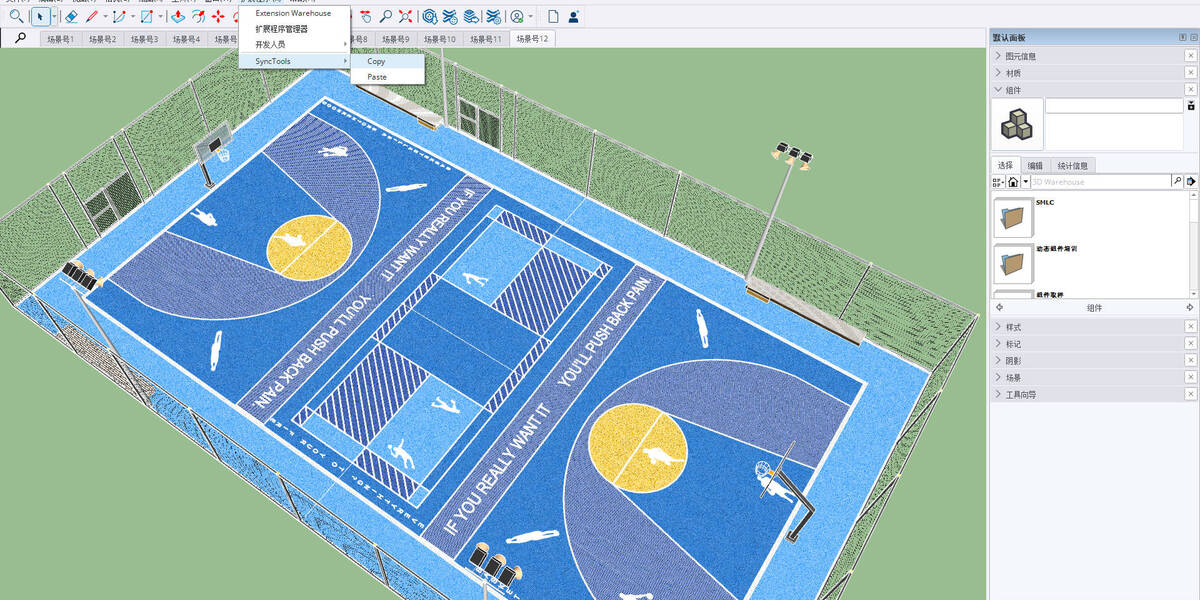
- Restart SketchUp and look for the SyncTools menu.
If the menu is missing, check the folder structure and permissions, confirm the extension is enabled in Extension Manager, and verify your SketchUp version. The product listing describes a shared cache directory for teams; the documentation says temporary exchange data is stored in the user's Documents folder and cleaned after paste. Check the installed version's cache setup before planning shared use.