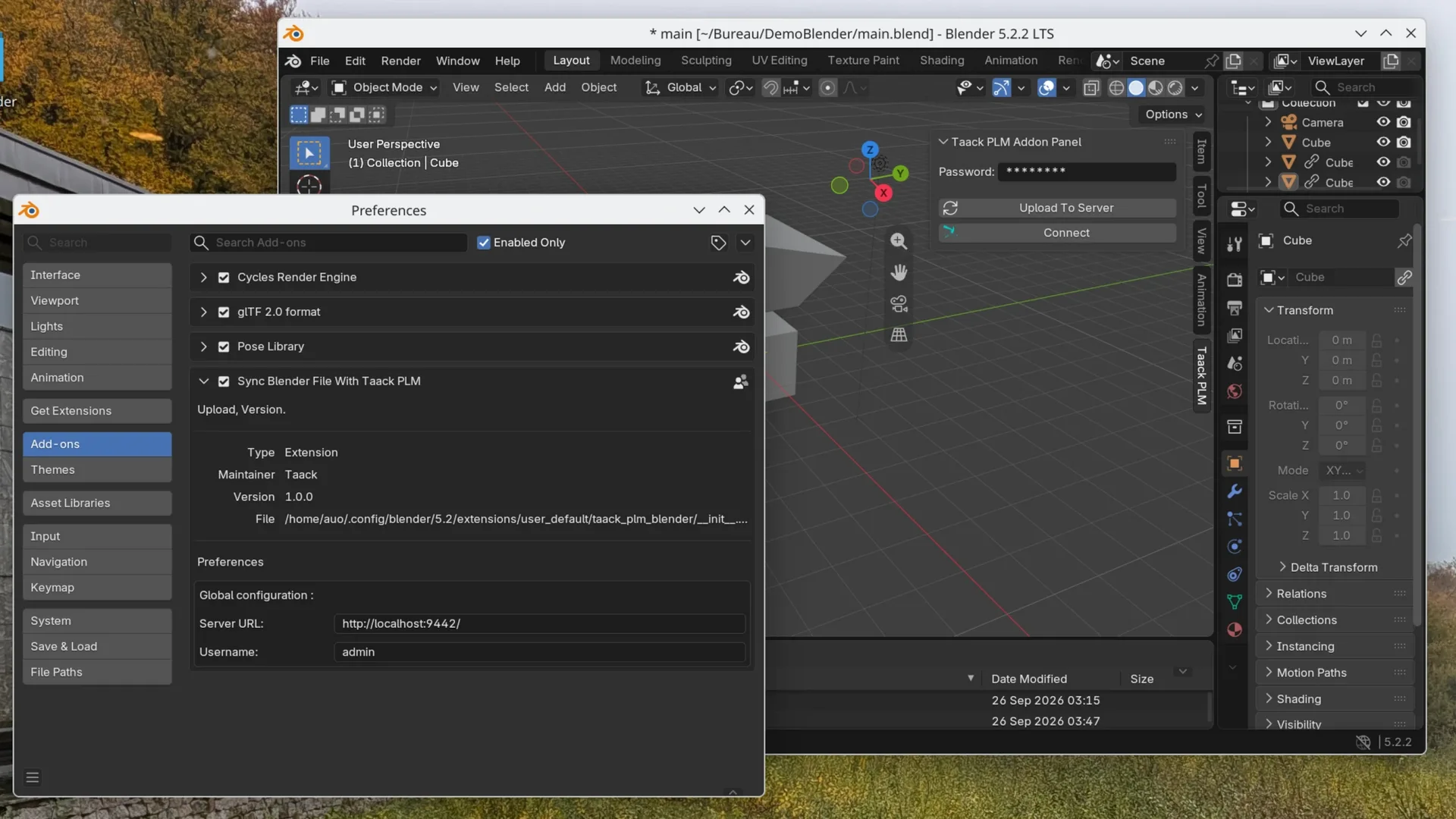
Sync Files With Taack PLM connects Blender to a Taack PLM intranet server so you can upload and sync project files from Blender. You need a server URL and account to connect. The Blender Extensions listing describes the add-on workflow and links to the Taack PLM server project.
What happens when you sync
After connecting, use the TaackPLM panel to upload or sync a Blender file. The listing says that edits should be tracked as versions at each sync, with file links updated at the same time. Its Server Details view shows a current version preview, file links, and previous versions. These details help you check which version and linked files are associated with the project.
The listing documents upload or sync from the TaackPLM panel; it does not say whether background syncing is available.
Connect Blender to Taack PLM
- Install the add-on through Blender's Add-on Manager by searching for “Taack PLM.”
- Open the add-on preferences and enter the Taack PLM server URL and main user.
- In the TaackPLM panel, enter your user password and select Connect.
- Use the Upload or sync control to send the Blender file to the server.
Ask your Taack PLM administrator for the server address and account details if you do not have them.
Prepare linked data before syncing
Linked data must be in the same folder as the main Blender file. The extension listing instructs users to pack the data, then unpack it with files written to the current directory.
Compatibility and permissions
Version 0.0.8 supports Blender 5.2 and later on Windows, macOS with Apple Silicon, and Linux. Its October 13, 2026 release note says it fixes Linux protobuf dependency loading. The add-on is licensed under GNU GPL version 3.0 or later.
The Blender Extensions permission details say the add-on reads the current model and its links for upload, and uses network access to sync with your Taack PLM server. Use it where you have access to the server and are ready to send the selected project file and linked data.