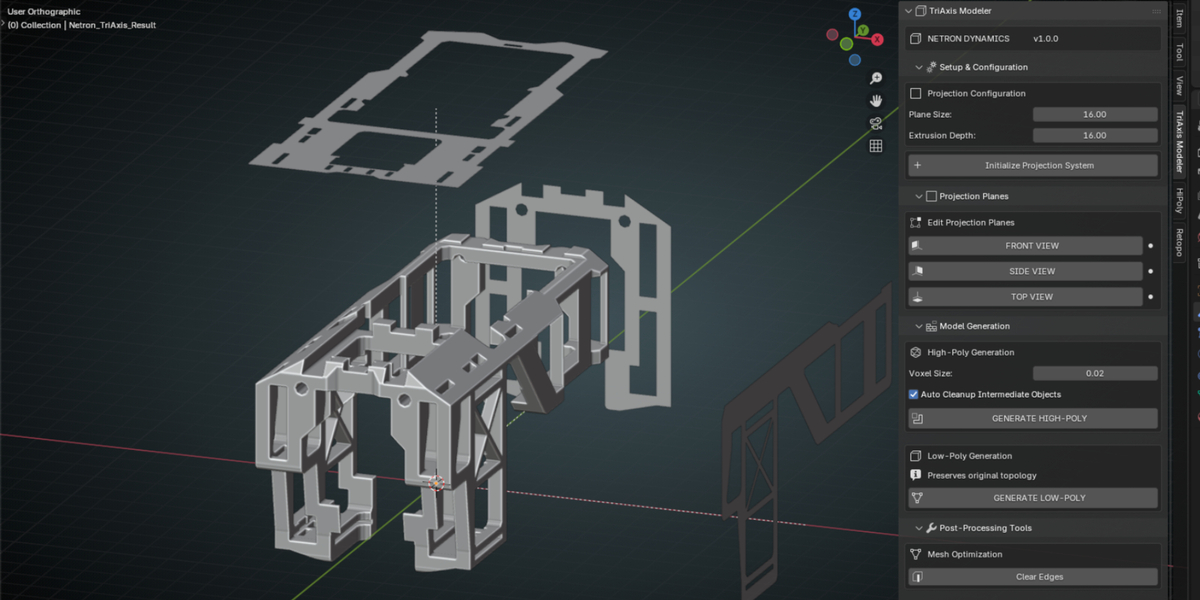
Triaxis Modeler is a Blender add-on for building a 3D mesh from drawings on front, side, and top projection planes. Initialize Projection System creates three planes; you draw silhouettes with Blender's native tools, and the add-on extrudes them into volumes before intersecting those volumes to form a mesh. This approach suits shapes that can be described from orthogonal views, such as concept mock-ups, technical product forms, and models based on elevation drawings.
From projection planes to a mesh
- With Triaxis Modeler installed and enabled in Blender 4.5.0 or newer, press N in the 3D Viewport to open the sidebar, select the Triaxis Modeler tab, and click Initialize Projection System to create the front, side, and top planes.
- Click FRONT VIEW, SIDE VIEW, or TOP VIEW, then draw each silhouette with Blender's standard edit tools: Extrude (E), Inset (I), Knife (K), and Loop Cut (Ctrl+R).
- Choose Generate High-Poly or Generate Low-Poly to create the mesh.
- Use Clear Edges if unwanted edges appear, adjust Voxel Size for high-poly detail, and enable Auto Cleanup to remove intermediate objects.
Start with simple silhouettes and generate a mesh early to check how the views intersect. The product documentation also describes using reference images behind the planes as drawing guides.
Choose a mesh mode
High-Poly Mode creates detailed meshes and supports optional voxel remeshing for organic shapes and complex intersections. The Voxel Size setting controls mesh resolution; the documentation says setting it to 0 skips remeshing. Low-Poly Mode preserves the original topology and edge flow, which suits game assets and technical models with polygon budgets. Choose based on whether you need remeshed detail or topology retention.
Shape alignment and controls
The three silhouettes need to intersect around the center of the model. If they do not, the generated mesh may be empty or missing. Check that the front, side, and top shapes overlap in 3D space, then adjust their size or Extrusion Depth. When unwanted edges appear, the documentation recommends trying Clear Edges.
The documented settings include Plane Size from 1.0 to 20.0, Extrusion Depth from 0.1 to 20.0, and Voxel Size from 0.001 to 1.0. Setting Voxel Size to 0 skips remeshing. These controls let you adjust the projection area, how far silhouettes extend, and the resolution used for voxel remeshing.
Compatibility and installation
The documentation requires Blender 4.5.0 or newer. After downloading the add-on ZIP, go to Blender's Edit > Preferences > Add-ons, click Install, select the ZIP, and enable TriAxis Modeler. The product listing records Blender 4.5 and lists Cycles and Eevee as render engines used. Any Plugins lists Triaxis Modeler as free, and Superhive identifies its license as GPL. Check the Any Plugins listing and Superhive listing for current access and license details.