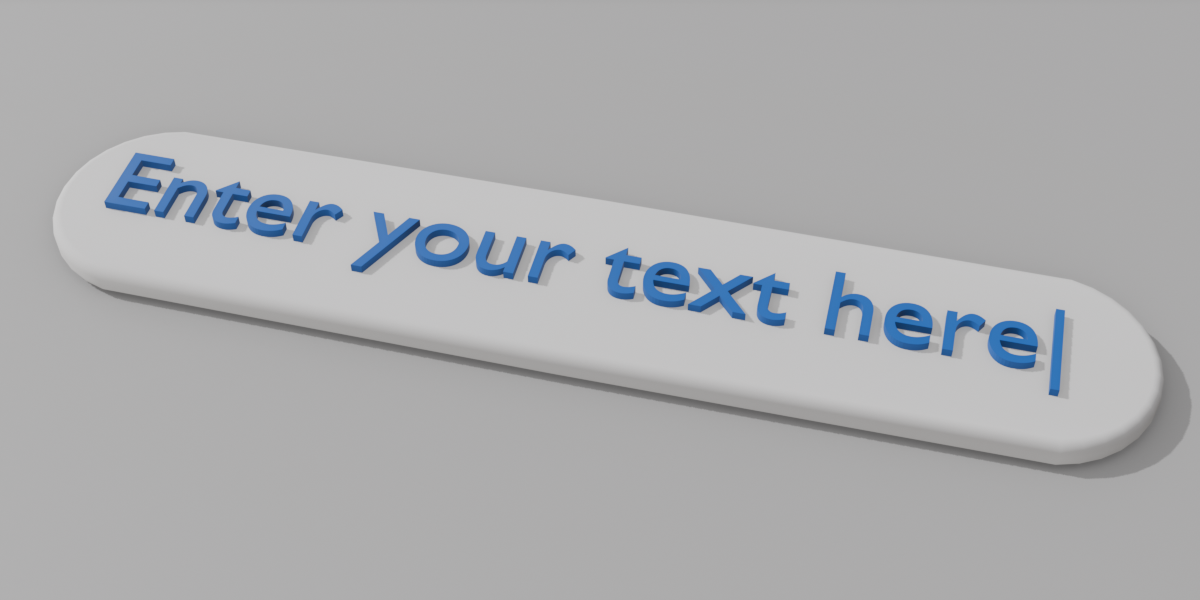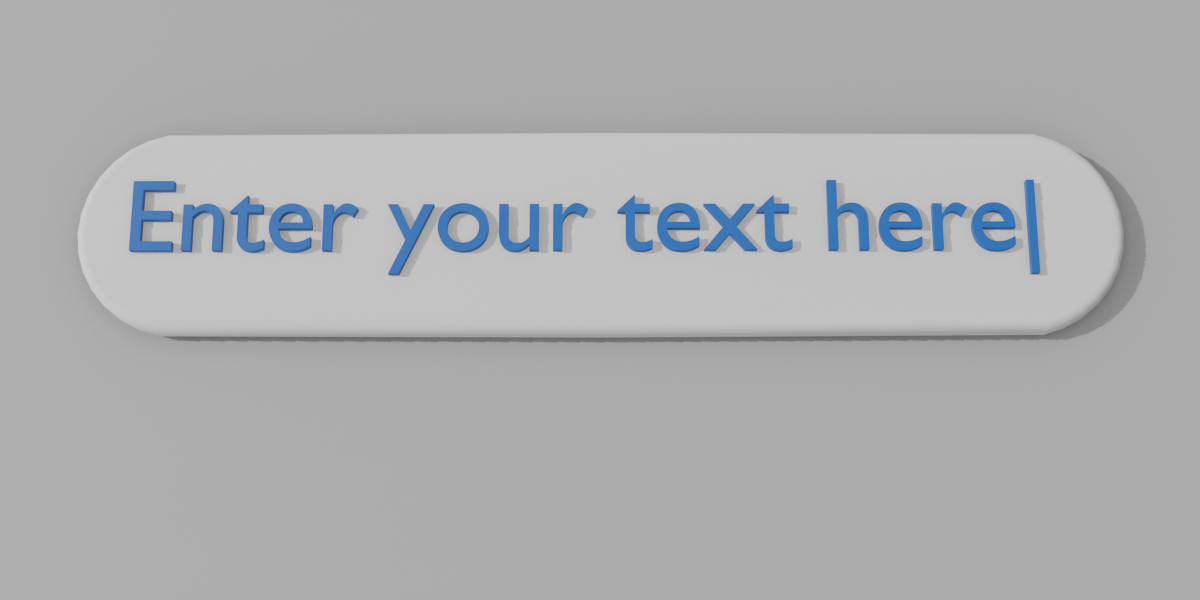
Typewriter Text Effect by nogproductions is a Blender add-on for animating text as if it were being typed. You can preview the animation in the viewport, adjust typing progress by hand, and change the blinking cursor speed from the add-on panel. The Superhive listing names Blender 4.0, 4.1, and 4.2 as supported versions and lists the license as GPL.
Control typing progress and cursor speed
The documentation describes Typing Progress as a value from 0.0 at the start to 1.0 at the end of the typing effect. Cursor Blink Speed is set in seconds.
The product listing describes an Instant Update button for changing text without restarting the effect. The documentation calls the operator Update Typing Effect and says it updates the effect based on the current progress.
Install and preview the effect
- Download the add-on ZIP file.
- In Blender, open Edit > Preferences > Add-ons, choose Install, select the ZIP file, and enable the add-on.
- Select a text object, then open the Typewriter Text tab in the
VIEW_3Dpanel. - Set the text, typing progress, and cursor blink speed. Press Play to preview the typing animation in the viewport.
Check text alignment
The product's FAQ reports that centered text can shift left and right as the cursor appears, and says the effect works perfectly when the text is left-aligned. The documentation does not give a workaround, so test alignment in your scene before building the final animation around centered text.
The documentation says Clear All clears the text and resets typing progress; the product listing says it deletes all keyframes and resets the add-on settings. If existing animation data matters, check the current documentation before using it.