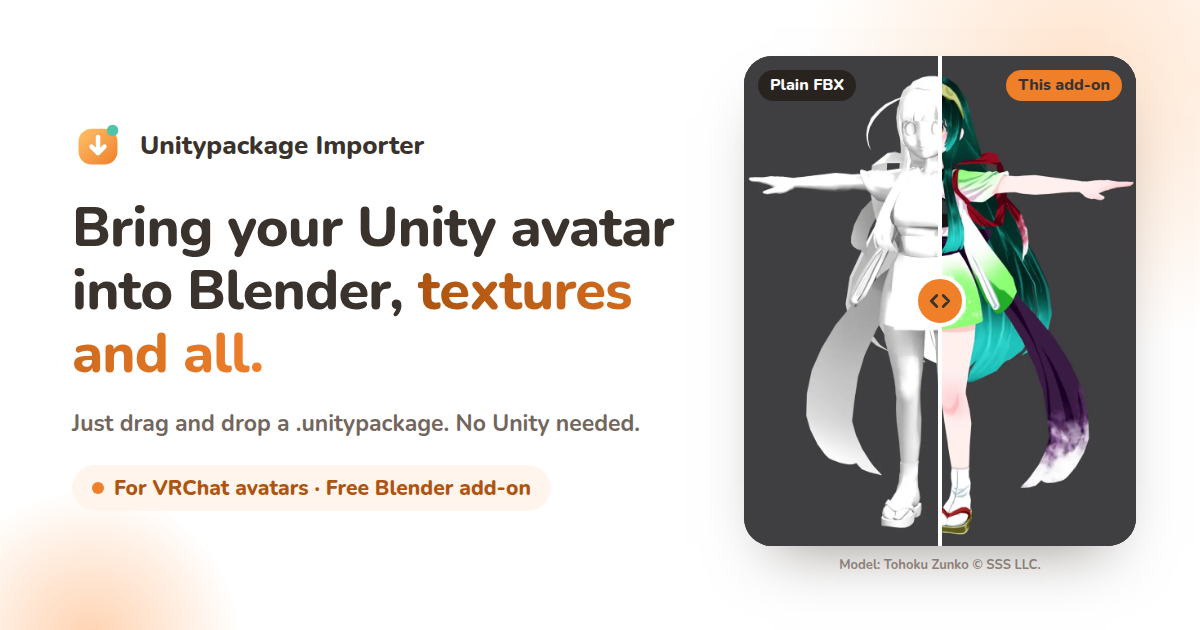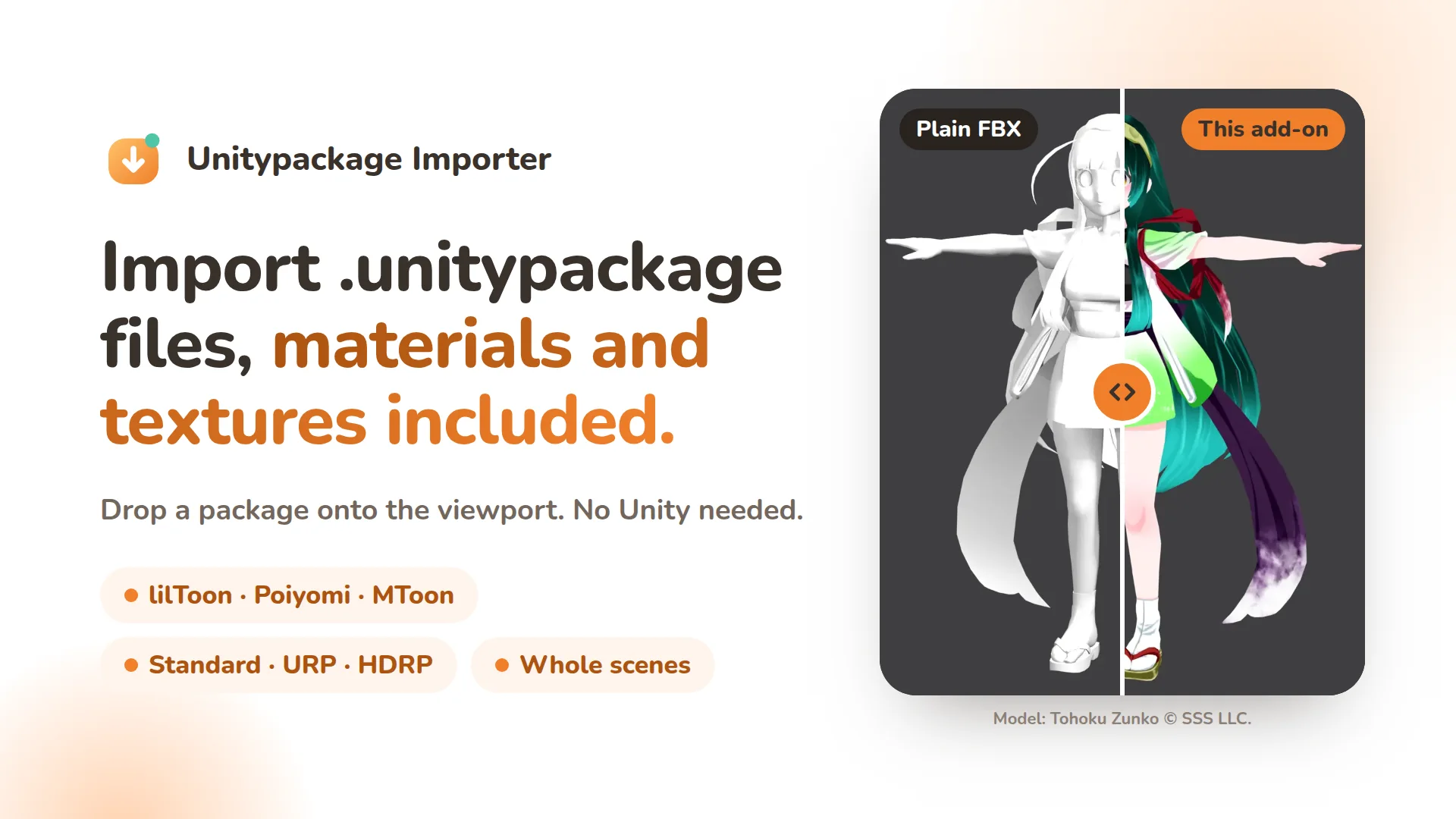
Unitypackage Importer is a Blender add-on from UTAGE that reads .unitypackage archives directly, so Unity does not need to be installed. The Blender Extensions listing identifies version 1.18.0 and Blender 4.5.0 or later.
Import selected Unity assets
Enable the add-on, then drag a .unitypackage file onto the 3D Viewport or choose File > Import > Unitypackage. Press Import in the popup, then choose Scenes, Prefabs, or Models in the next dialog and select a material mode. Auto chooses toon, PBR, or unlit based on each material's shader. Items the importer cannot read appear with a reason.
When you import a Unity scene, its models are placed as the scene specifies, along with its lights and cameras.
Models, materials, and animations
Imported meshes can retain armatures and shape keys. Supported model formats include FBX, OBJ, glTF, VRM, and Collada. VRM files are handed to the VRM add-on if it is installed; Collada support is limited to Blender 4.5.
For avatars, the add-on reads lilToon, Poiyomi, MToon, and VRChat Mobile materials. It rebuilds them as a toon node group for EEVEE or a Principled BSDF material for Cycles or EEVEE. For environments and props, it reads Standard, URP, and HDRP materials. Original Unity material values are kept as custom properties, so you can rebuild a material in another mode without the package.
Version 1.18.0 adds animation import. Package animations become NLA tracks, one per clip. FBX animation takes are split into clips using Unity import settings. Motion-only models that share a skeleton are merged into one armature carrying their clips. Generic .anim clips for shape keys, visibility, or object transforms become Actions on their target objects. The Animation option defaults to Muted, which leaves all tracks muted; Active unmutes the first track on each object, and None skips animations. Humanoid clips, Animator Controllers, and bone curves in .anim files are not imported; clips that only switch a state, with constant values or a duration of 0.1 seconds or less, are skipped.
Limits and asset terms
Shader code, C# scripts, and VRChat expression menus are not imported. Unity and Blender materials do not map one to one, so rebuilt materials may need adjustment. Many Unity assets restrict use outside Unity, so check each asset's license terms before using it in Blender.
See the Blender Extensions listing for compatibility and release details. UTAGE's documentation covers usage instructions and supported shaders.