Vertex Tool is an After Effects script for rounding corners on Bezier masks and shape paths. It replaces a selected corner with two or more new vertices, using one of 12 rounding algorithms. You can work on one vertex or apply a method to vertices across multiple selected shapes.
Choose which vertices to edit
Select a Path or Mask property, or select multiple layers that contain them, then launch the script. Choose Target: All to affect every vertex in the selection. Choose Target: One to focus on a single corner. In that mode, a target object appears in the composition; use the previous and next controls or enter a vertex number to move through the path.
Set the rounding amount
Enter the amount in pixels with Radius or relative to the shape with Percentage. When the requested value exceeds the available distance between neighboring vertices, Vertex Tool uses the minimum neighboring distance. Its Vertex Coordinates window shows the focused vertex's coordinates and in/out tangents. You can also set custom coordinates and tangents in Layer Space or Screen Space.
Animate changes and keep a restore point
To move from the original path to its rounded version, enable Animate and set the transition duration in frames. This is especially important for the step, bubble, and pinch methods, which can add three or more vertices. Without animation enabled, the transition can distort the shape.
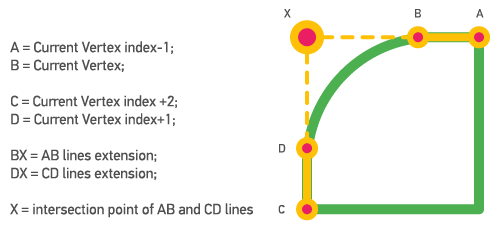
Before editing a complex path, make a copy. Store Shape Data saves vertex coordinates and in/out tangents in the shape's expression field. Restore Shape can recreate the recorded shape and keyframe. To change a rounded corner back toward a sharp point, Find Intersection Point calculates the intersection of the surrounding path lines and repositions the two vertices there.
Convert parametric shapes first
Vertex Tool works with Bezier paths. Convert parametric rectangles, ellipses, and stars before using it: open the shape layer, right-click the shape path property, and choose Convert To Bezier Path.