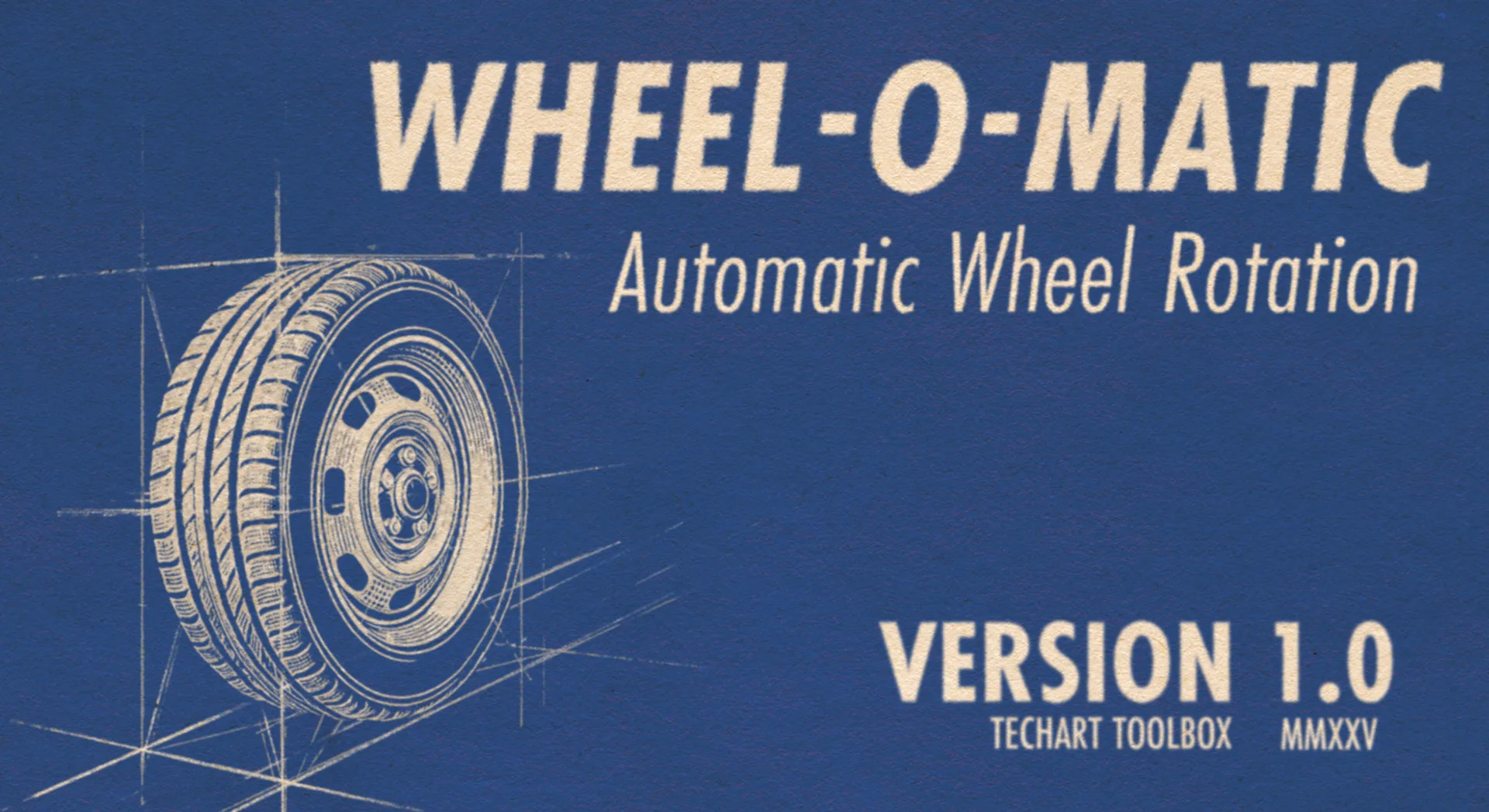
Wheel-O-Matic automates Blender wheel rotation in any direction. The developer documentation covers standalone wheels, wheels on vehicles and curves, and bone-driven setups. You run the mesh automation from the add-on tab in Blender's 3D View sidebar, then move the wheel's parent or a higher object in the hierarchy; for an unparented wheel, move its generated controller to check the result. The developer README includes separate setup instructions for mesh and bone-driven wheels.
Set up mesh wheels
Wheel-O-Matic expects each mesh wheel to rotate correctly around a single axis before automation. Its origin should be at the center, and the wheel should point along the X or Y axis. The developer's detailed setup guide also recommends aligning the wheel and vehicle with a global X or Y axis and keeping them flat on the XY plane. Applying the existing scale and rotation is optional, but the README recommends it because it can help prevent gimbal lock during complex movement.
Select the wheel objects and click Automate in the Wheel-O-Matic tab. If a wheel has no parent, the add-on creates a parent controller. Move that controller to test the rotation. When the wheel already has a parent, move the parent or an object higher in its hierarchy. Locators appear at the wheel base, with arrows showing forward and reverse directions; use them to check the setup and guide radius adjustments.
Use bone-driven wheels
For an armature setup, select the armature and enter Pose Mode. Select the pose bone that drives a wheel, choose its associated mesh in the Reference Wheel Geo picker, then click Automate. The bone should already rotate its wheel correctly around one axis. This lets the add-on work with a rig where bones control the wheel movement instead of automating mesh objects directly.
Adjust rotation and clean up
With one automated mesh wheel or bone selected, the Adjust panel exposes Rotation power and Radius. Rotation power controls the automation strength: zero stops the automatic rotation, while a negative value reverses it. Radius changes the wheel radius, and the locators help match it to the wheel size. Both values can be keyed.
The Utilities panel can clear automatic rotation or remove automation from selected wheels and bones. It also lets you show or hide locators, scale them, remove unused automation data, and refresh wheel logic if an automated wheel stops responding.
Install and check compatibility
The Blender Extensions catalog lists version 1.0.2 with Blender 4.2.0 as its minimum. For Blender 4.2 and later, the developer README points to Edit > Preferences > Get Extensions and links a GitHub file named v1.0.1, which it says to install like any other Blender add-on or extension. Its overview separately says Blender 3.0 and above, but does not explain how that broader statement applies to the cataloged 1.0.2 package. If you need an earlier Blender release, check the package-specific instructions on the Blender Extensions page before installing.