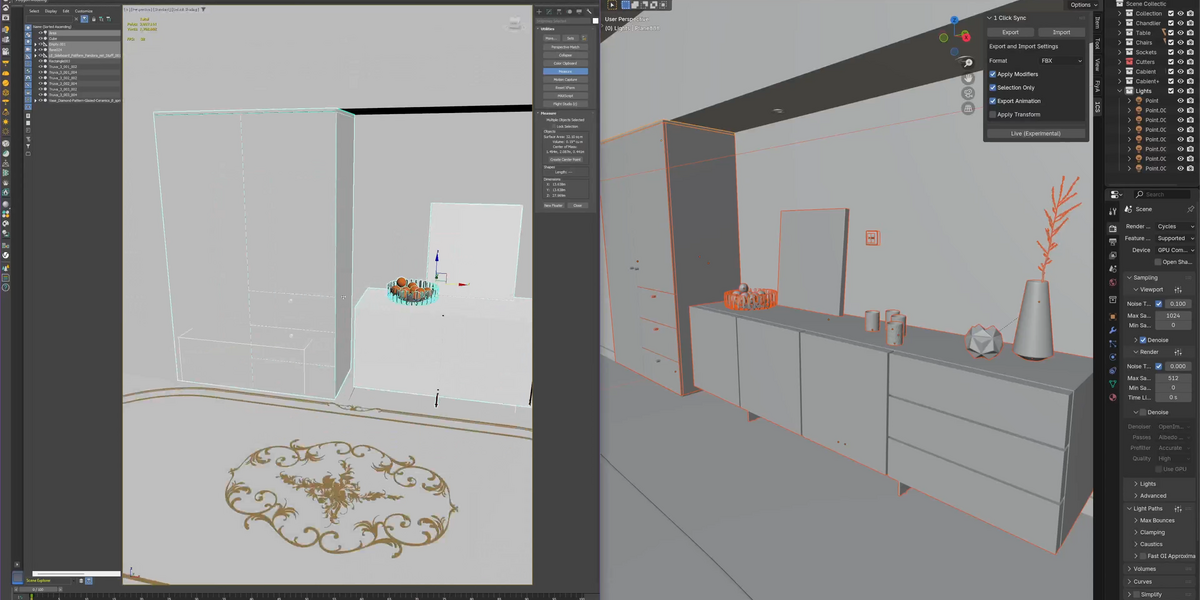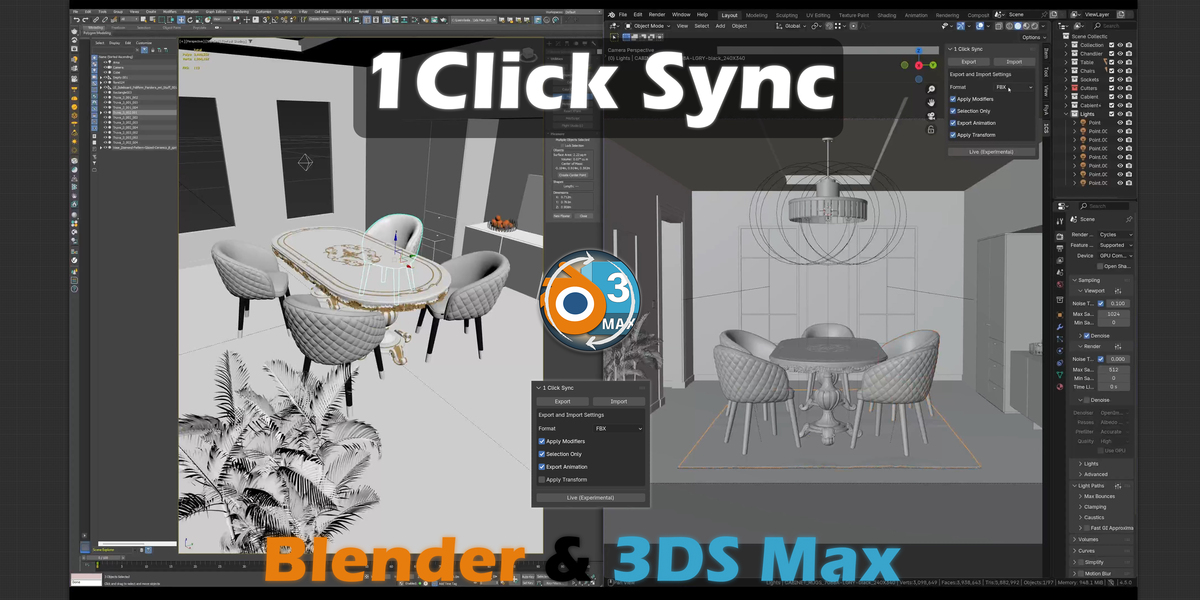
1 Click Sync is a Blender add-on for moving objects between Blender and 3ds Max. It exports from Blender to 3ds Max, imports in the other direction, and can bring V-Ray lighting setups into Blender. Transfers use FBX, Alembic or OBJ. The Superhive product listing describes the add-on, while the developer documentation covers installation and workflow details.
Move objects between Blender and 3ds Max
In Blender, Export sends objects to 3ds Max. If 3ds Max is not already open, the add-on opens it with the imported objects. Import brings objects from 3ds Max into Blender. You can choose a transfer format and adjust related settings; the product listing also names modifiers, selection exporting, animation exporting and smoothing groups among its controls.
Choose what to transfer
- Selection only sends selected objects or everything in each application.
- Apply modifiers applies modifiers in Blender or collapses them in 3ds Max. The documentation says it works with all three formats, with a limitation for Blender Alembic: it applies to a solo subdivision surface.
- Export animation controls whether animation data is exported from either application.
- Apply transform is a Blender FBX option that can help with objects that otherwise fail to export correctly, including some animated objects.
The product listing names Arnold, Cycles, Eevee and V-Ray in its render-engine field. Its feature description specifically mentions importing V-Ray lighting setups; consult the documentation for details relevant to a particular scene.
Know the live link's limits
The Live button is experimental. It sends the active object to 3ds Max and updates it after changes. To update the mesh, stay in Object Mode. The developer notes that the live link does not export normals, materials or animation data.
Check the version and scene units
The listing gives a Blender version range of 4.2 to 5.3. Its version notes assign 2.1 to Blender 4.2–4.5, 2.2 to Blender 5.0 and newer, and 2.2.2 as the latest version for Blender 5.1 and newer. Check the developer's documentation for the build that matches your Blender release.
For Alembic and OBJ transfers, match the system unit in 3ds Max to Blender's unit setting to avoid scale problems. For a scene that needs conversion, the developer suggests using Merge file instead of opening the scene and scaling it. Installation steps are included with the downloaded files; after installation, 1 Click Sync appears in Blender's N panel. If the add-on errors while enabling, the documentation suggests trying to enable it again.
The product page notes that 1 Click Export was updated and renamed to 1 Click Sync. Users of the earlier name can download the 1 Click Sync release. Superhive lists the add-on under the GPL license.