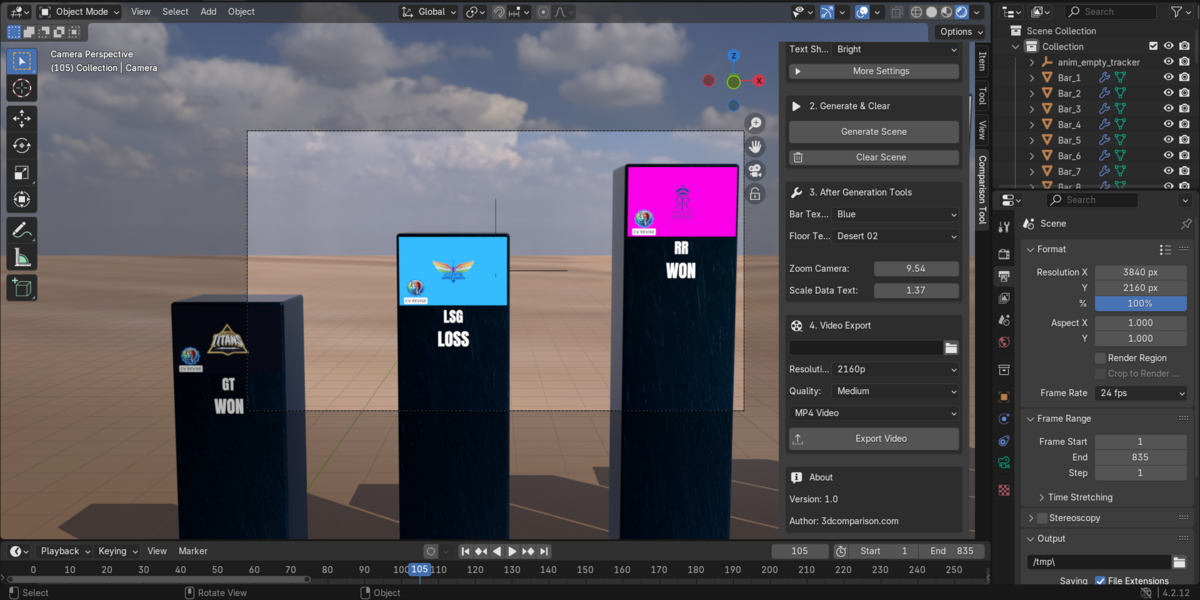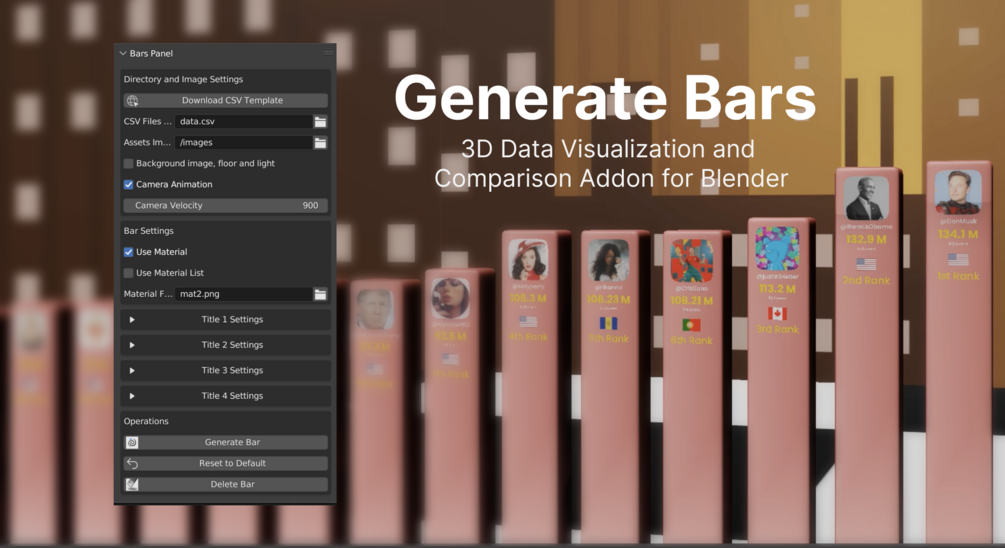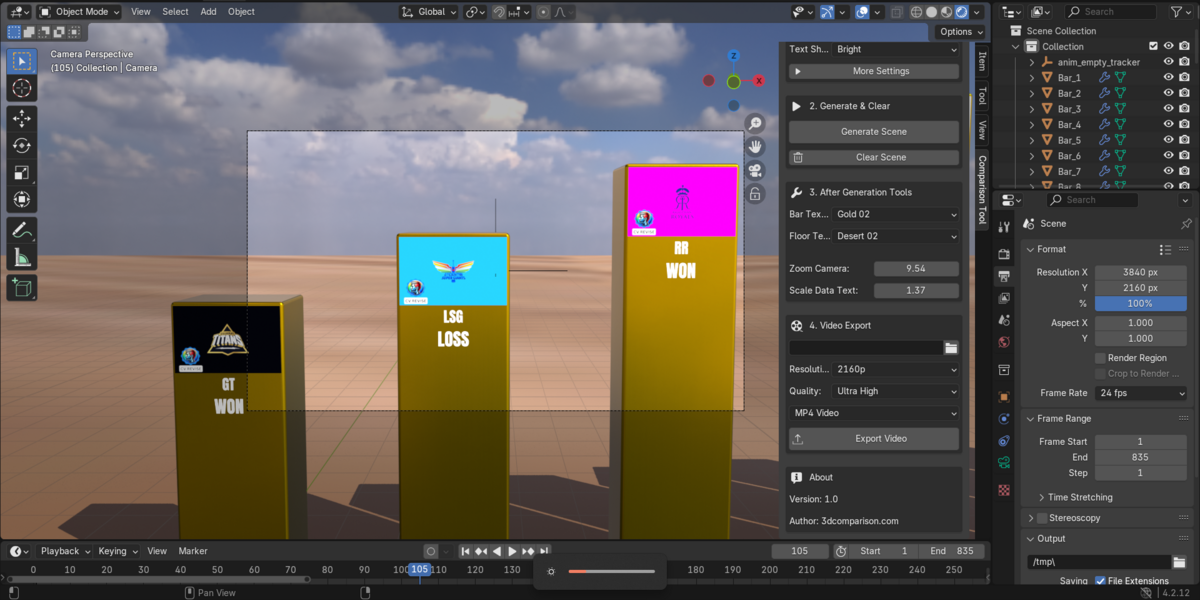
The 3D Data Comparison Addon turns CSV data into animated 3D bar chart videos inside Blender. It creates bars, text, pictures, and an animated camera, then prepares the scene for rendering. The workflow suits YouTube videos, presentations, and data explainers.
Prepare the CSV and generate a scene
The documentation calls for a header row and columns for an entity name, a numeric value that determines bar height, display text, and an image path. You can map columns in More Settings; the documented defaults are columns 2 through 5. For images, use full absolute paths. After selecting the CSV, choose Generate Scene to build the objects, materials, and camera animation.
Adjust the look and camera
Customize bar and floor textures, fonts, and HDRI lighting. The documentation lists TTF and OTF font files and custom HDRI images as options. After generation, you can adjust settings such as camera distance and display text scale without rebuilding the scene. The product listing says version 1.1 reorganized the interface into sections and added live viewport updates for settings such as fonts and HDRI files.
A protection system guards the watermark and camera objects used by the scene. The documentation says deleting, hiding, or selecting certain protected objects can trigger Clear Scene. If that happens, generate the scene again.
Render and export
The product listing names Cycles and Eevee as supported render engines. Export options include MP4 video or a JPEG image sequence, with resolution and quality choices. The documentation notes that higher quality can take longer to render.
Compatibility and installation
The marketplace listing specifies Blender 4.0 to 4.5, while the product documentation says Blender 3.0 and above. Check the current product listing or ask the developer which range applies to the version you plan to install.
The documentation describes installing the downloaded ZIP through Blender's add-on preferences without unzipping it, then enabling the add-on. It says the tool appears in the 3D Viewport sidebar under the Comparison Tool tab. See the product documentation for its CSV setup and scene controls.