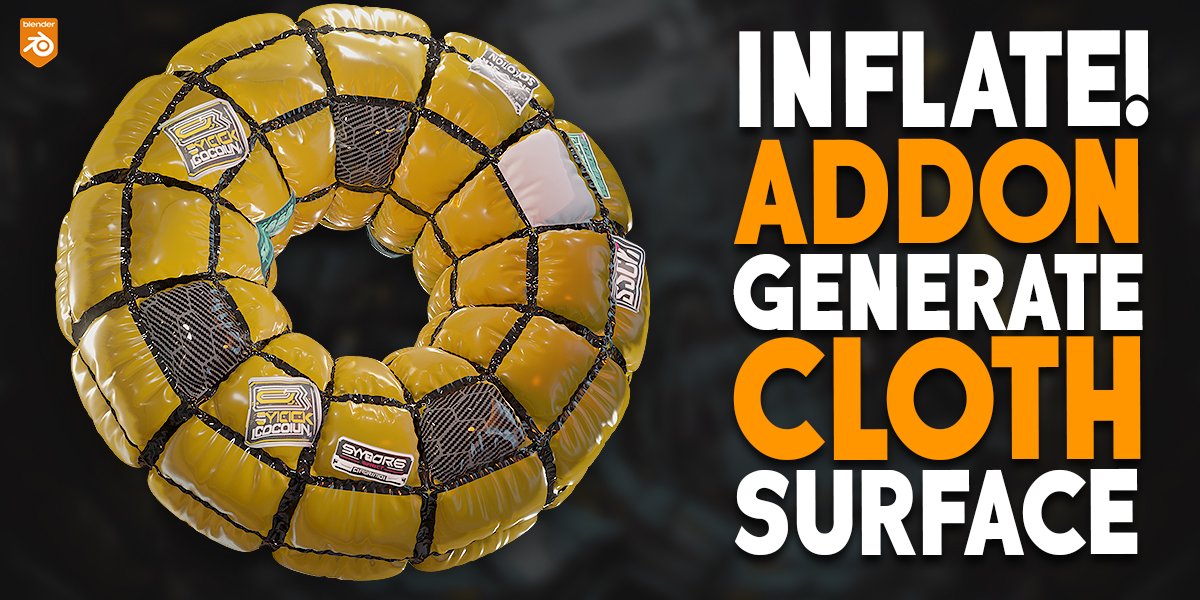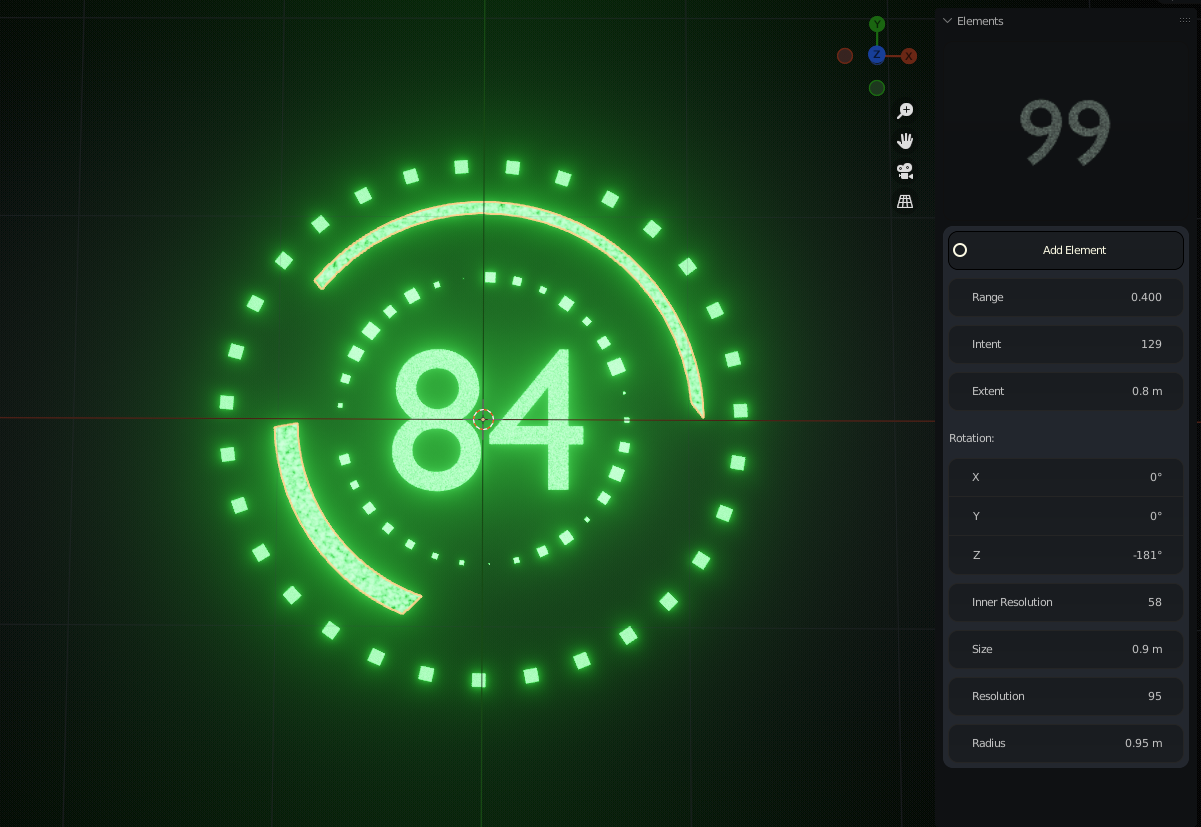
50 Procedural Generators Addon v2 is a Blender add-on for working with more than 50 procedural Geometry Nodes setups covering effects, simulations, and generators. Its 3D View sidebar can register the V2 +50 library, list setups in a dropdown, append a selected node group to the active object, and expose parameter controls under Geometry Node Settings. The seller's product listing describes the add-on and its workflow.
Load and adjust a setup
Install the ZIP through Blender's preferences, then use the add-on's panel in the 3D View:
- Go to Edit → Preferences → Add-ons → Install, select the ZIP, and enable “Ultimate Generators Bundle V2 Addon.”
- Open the “Ultimate Generators” panel in the 3D View sidebar and click “Add Asset Library.”
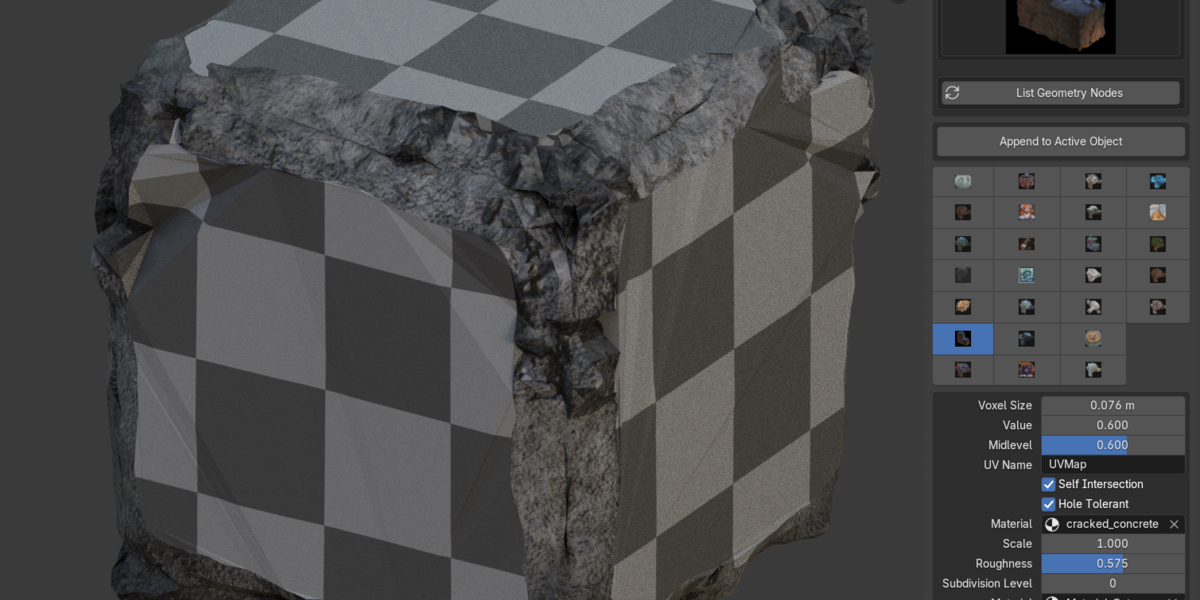
- Click “List Geometry Nodes” and choose a setup from the dropdown.
- Select an object, click “Append to Active Object,” then adjust available values under “Geometry Node Settings.”
The listing says the sidebar controls let you adjust parameters without opening the Geometry Node Editor. The individual node groups and their controls are not enumerated in the product summary, so check the seller's listing and demo to see what a particular setup includes.
What the add-on automates
The “Ultimate Generators Bundle V2 +50” is an asset library of Geometry Nodes setups and simulation presets; it requires manual registration in Blender's Asset Libraries and manual appending of node groups. The add-on provides buttons to register the library, browse setups from a sidebar, append a selection to the active object, and adjust exposed parameters there.
Blender artists working with procedural effects or simulations can append a selected setup to the active object from the 3D View sidebar.
Compatibility and license
The Superhive product details list Blender 4.0 through 5.3, the Cycles and Eevee render engines, and a GPL license. The supplied AnyPlugins summary lists Blender 4.0 through 5.0, so the compatibility records differ. Check the current seller listing for the supported Blender range before installing. The product is identified as V2.