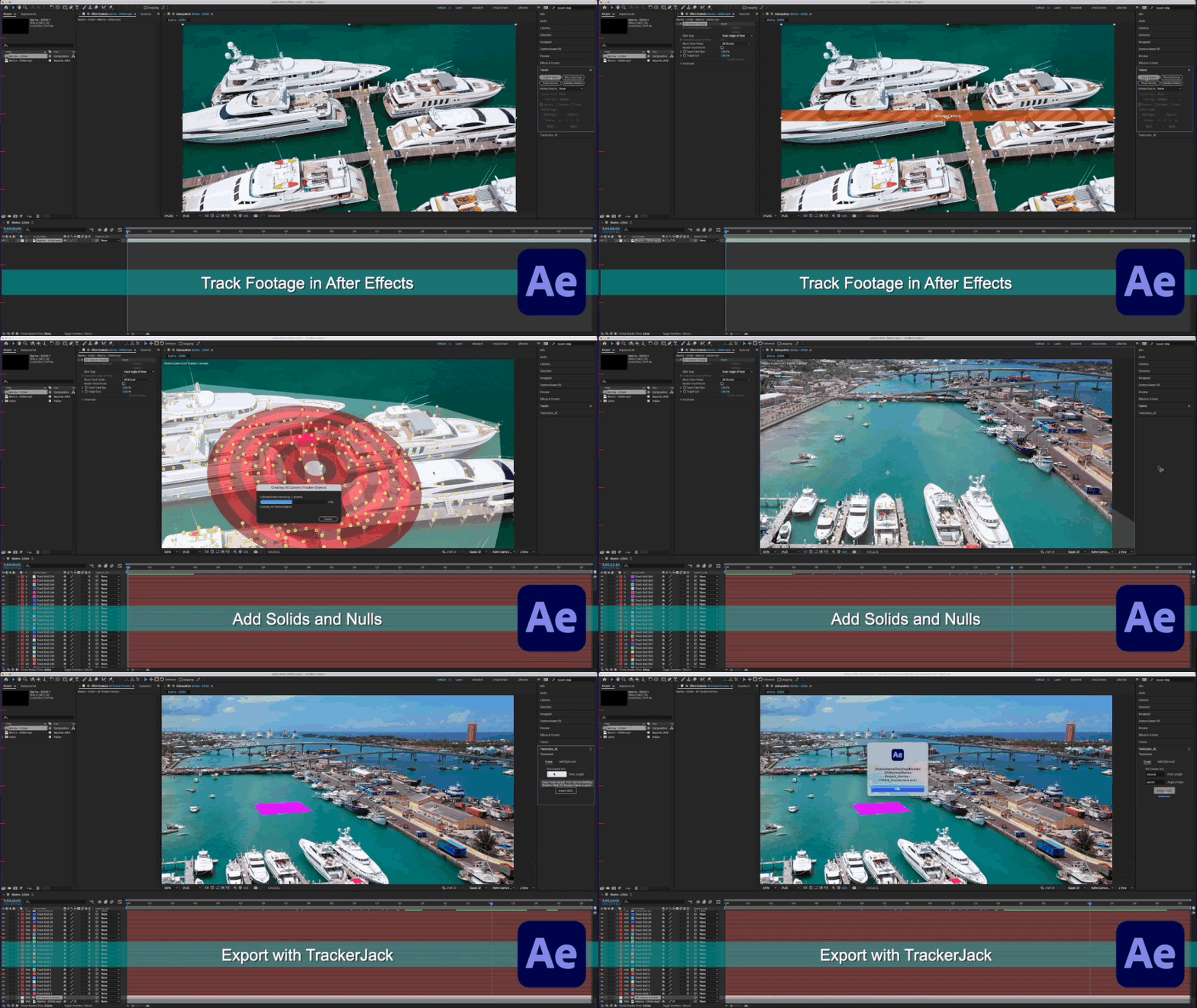
AeBlink pairs a Blender add-on with an After Effects script to transfer camera and layout data into Blender. The workflow runs in one direction, from After Effects to Blender, and carries keyframes with the scene. It suits artists who want to continue working with After Effects tracking or layout elements in Blender without rebuilding them by hand.
What transfers from After Effects
AeBlink transfers cameras with position, rotation and focal length keyframes. Solids are recreated as image planes, while nulls become Blender empties. The linked source footage can be loaded as a camera background for visual reference. Changes made in Blender are not sent back to After Effects.
How the transfer works
The available AeBlink user guide, labeled version 1.2, describes an After Effects script that writes a JSON file to a shared Transfer Folder. Blender can watch that folder and import a new scene when Auto Import is enabled. If automatic import is off, browse to the JSON file in AeBlink's Import panel, select it, then click Import. Both applications need read and write access to the same folder. The guide says imported elements are placed in a collection named Tracking Import.
Set up both applications
The guide describes installing the AeBlink add-on from Blender's Add-ons preferences, enabling it, then opening the AeBlink tab in the 3D Viewport sidebar with N. On the After Effects side, copy the script into the application's Scripts folder and restart After Effects before running it from File > Scripts. Keep the Transfer Folder setting the same in both applications; the guide says the default is an AeBlink folder in Documents.
Adjust and check an imported scene
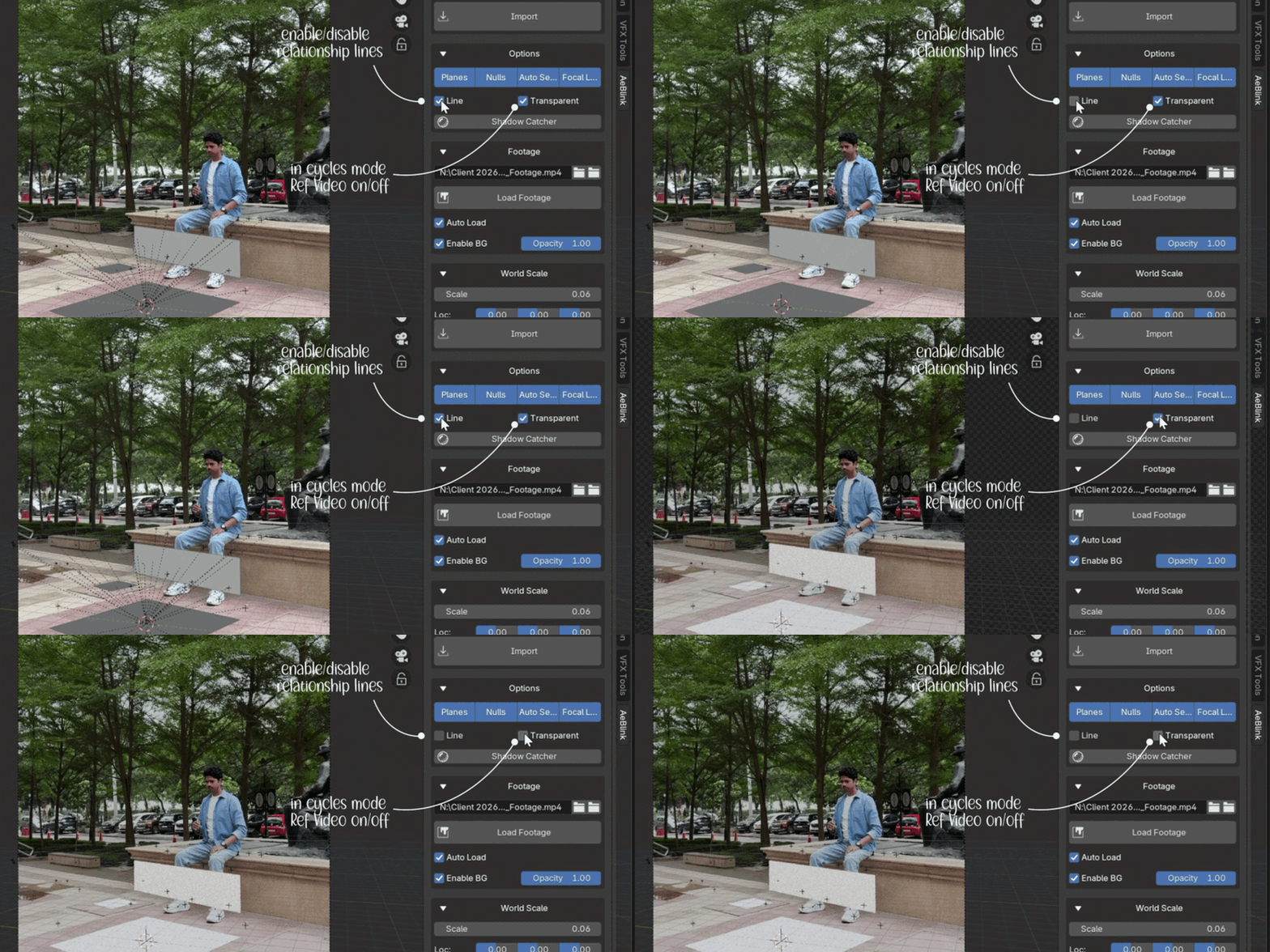
The World Scale controller can scale, move or rotate the imported scene together. A status indicator reports whether Blender is waiting, has detected a scene, imported successfully or encountered an error. Clear All removes AeBlink imports; the guide recommends using it before importing the same composition again to avoid duplicate objects. The product listing names Cycles and Eevee as supported render engines. Its Shadow Catcher toggle is for Cycles.
Version details to confirm
The V1.1 catalog entry lists Blender 4.0 through 5.1. The Superhive product listing identifies AeBlink v1.3 in its page metadata and lists Blender 4.0 through 5.3. The linked guide identifies itself as v1.2 and lists Blender 4.0 through 5.2. The v1.2 guide and v1.3 listing do not independently confirm the catalog's V1.1 range. Check the release-specific documentation before installing that version.