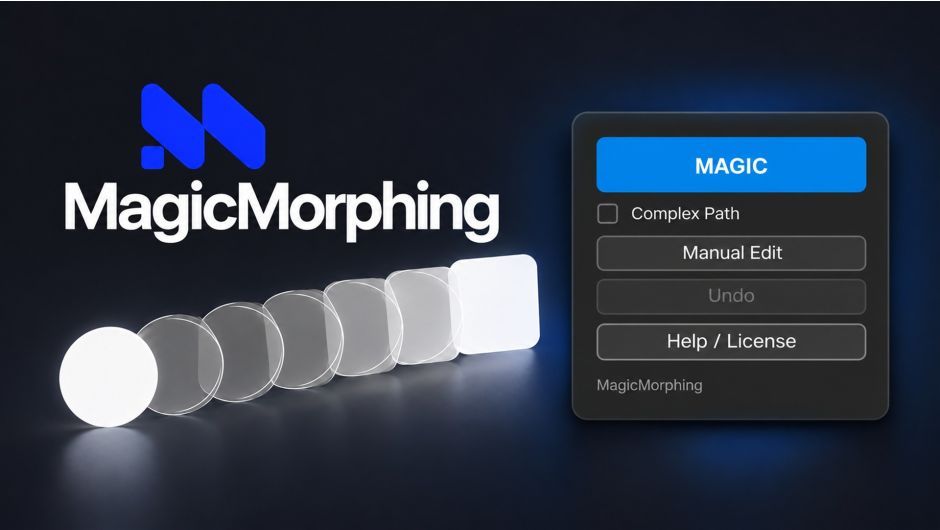
Correct path matching between keyframes
MagicMorphing is an After Effects panel for animators working with Bezier shape paths or supported mask paths. When a transition twists because corresponding vertices follow the wrong order, direction, or starting point, click MAGIC to align them. The operation keeps the keyframe outlines, timing, and easing in place.
Select at least two keyframes on the Path property; selecting only the layer is not enough. All selected paths must be consistently open or consistently closed, and feathered masks are unsupported. Preview the full transition because results depend on the shapes and their point layout. Check Trim Paths and dashed strokes too, since their appearance can change when point order or the first vertex changes.
Refine the vertex matches
Manual Edit shows numbered paths side by side. Start with an Auto Match preview, then pair vertices yourself by selecting a point on each path. You can add paired points along the contours without changing their outlines. These edits stay in a draft until you click Apply; Cancel or closing Manual Edit discards the draft.
Standard mode aims to keep point counts low and adds missing points when needed. Complex Path uses denser contour matching and can add vertices to the existing path, but it does not create extra Path properties or layers. Manual Edit has separate Undo and Redo for up to 20 draft changes. The main panel can restore up to 20 applied MAGIC or Manual Edit operations during the current panel session, though later edits to those keyframes can prevent restoration.
Compatibility and trial limits
The listed After Effects versions are 2027, 2026, 2025, 2024, 2023, 2022, 2021, 2020, and CC 2019. After installing the ZXP, open Window > Extensions > MagicMorphing. The trial processes one path with two selected keyframes per MAGIC run; a full license removes those selection limits.