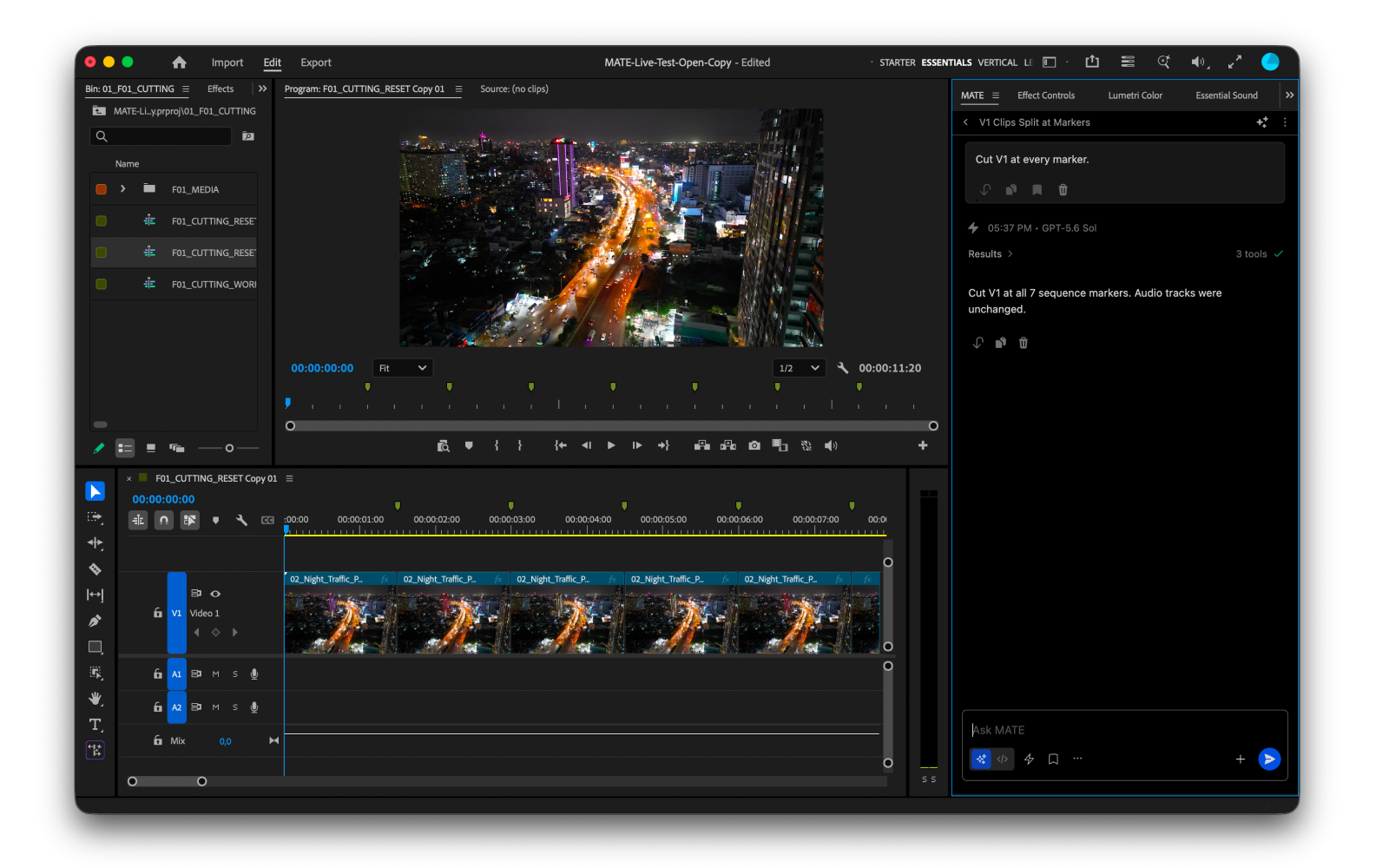
MATE for Premiere is an AI assistant that works inside Adobe Premiere Pro. Its Agent Mode can act on an open project from natural-language instructions, while Script Mode creates and manages reusable ExtendScript. It also works with files, video links, and information from connected services. Check the product listing for current compatibility, model, and trial details.
Automate tasks in an open project
In Agent Mode, you can ask MATE to cut clips at markers, trim edits, close selected gaps, move linked audio and video, or replace clips. It can also create bins, rename or move footage, read metadata, relink media, and prepare exports. The listing describes requests that combine steps, such as preparing a sequence, adding markers and captions, adjusting effects, and queuing an export. For timeline changes, describe the intended result clearly and review the project afterward.
Create and reuse Premiere scripts
Script Mode generates ExtendScript for Premiere Pro. You can inspect the code before saving or running it, then ask MATE to explain, debug, adjust, or extend an existing script. Save scripts and prompts in a library, organize them, and share them with a team. Saved scripts can be run again without another AI request, according to the product listing.
Use files and connected information
MATE can work with materials such as SRT subtitle files, CSV and JSON data, text documents, Word and Excel files, MP4 videos, and YouTube links. One example in the listing is turning a YouTube video into timed captions in Premiere. Through MCP, MATE can connect to services such as Notion and bring in briefs, shot lists, review notes, or project data for use in the editing workflow.
Who it may suit
MATE may be useful to Premiere editors who repeat project organization or timeline tasks, or who want to create scripts without writing ExtendScript by hand. Agent Mode is for requests that change or organize the open project; Script Mode is for creating code that you can inspect and reuse. The listing offers a free trial, so you can check the workflow against a real project before deciding whether it fits.
For model setup, the MATE API key guide explains how to connect a key.