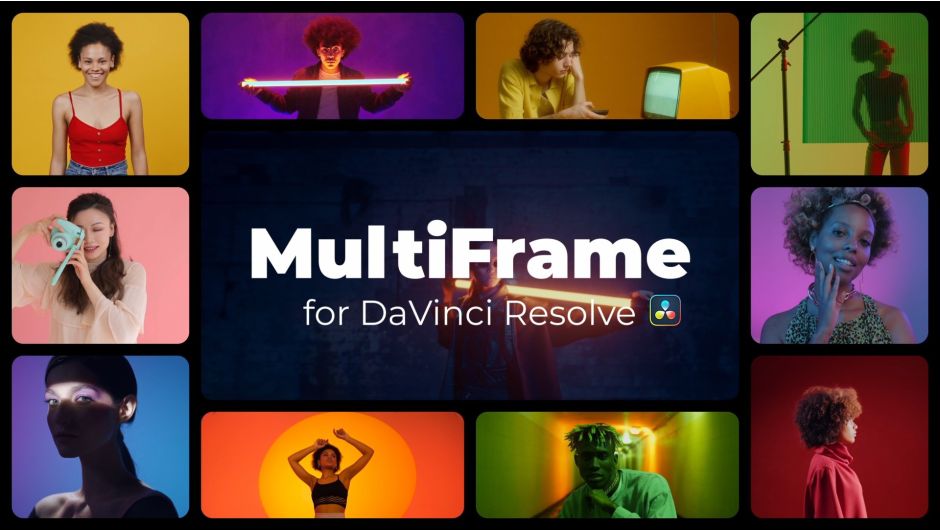
MultiFrame for DaVinci Resolve turns selected Media Pool items into editable Fusion compositions. Use it to build a full-frame treatment from one item or a multi-screen layout from as many as 50, then refine the result from the Edit page Inspector.
Build layouts from Media Pool selections
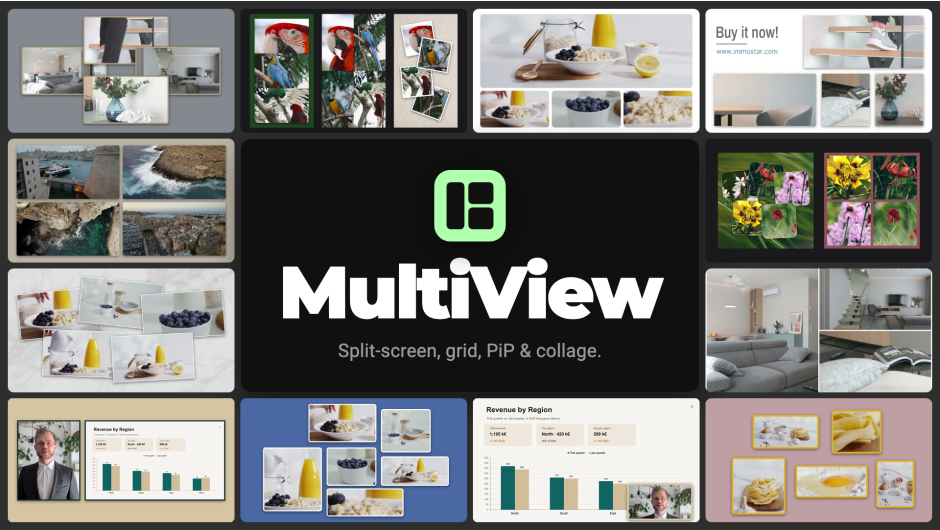
MultiFrame accepts video clips, still images, Timelines, Compound Clips, and Fusion Clips. Its responsive Auto Grid and curated layouts cover grids, split screens, hero compositions, focus treatments, and editorial or creative arrangements. The available layouts depend on the selected item count.
Layout controls include gap, padding, corner radius, background, and border. For selections of up to 11 sources, per-source Drop Zone, Pan, and Zoom settings let you adjust what appears in each frame. The result is an editable Fusion node graph, so the composition remains available for further work.
Adjust animation and framing
MultiFrame provides separate In and Out controls for Fade, Scale, Pop, and Slide animations, plus optional animation blur. These controls let editors set how a layout enters and leaves without building each movement from scratch.
Framing uses Fill, so the edges of a source may be cropped to fit its frame. MultiFrame does not mix source audio. Check and manage audio separately in the Resolve timeline when the composition needs sound.
Check Resolve compatibility and trial limits
The product listing specifies DaVinci Resolve 20 or later on Windows and macOS, including the free edition. Its separate trial supports one to three media items and has no time limit or watermark. One selected item creates a Full Frame layout; selections of two or three include Auto Grid, Stacked, and Hero layouts. The trial's item limit is lower than the full product's 50-item maximum.
When the MultiFrame creation script changes, existing compositions are not migrated. Review the product listing for current installation details and compatibility information before updating.