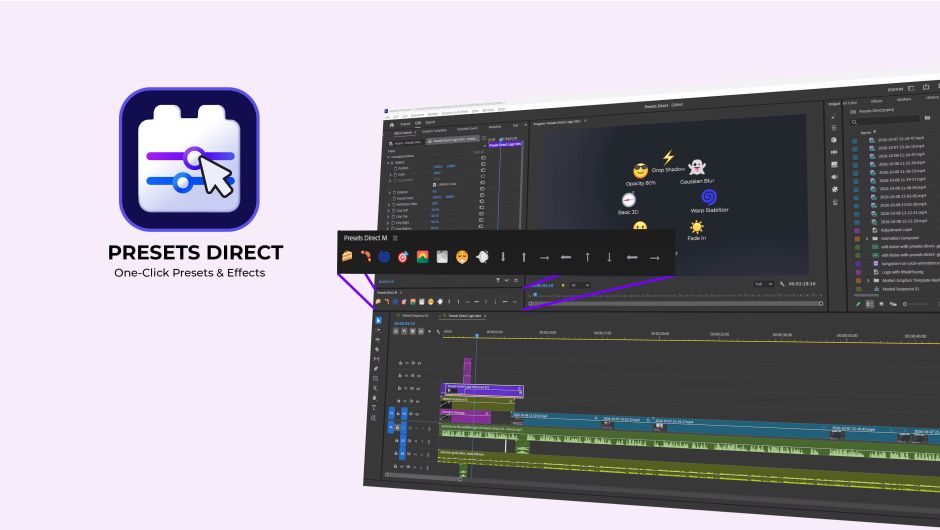
Presets Direct gives Premiere Pro editors a panel of effects, presets and transitions they can apply to selected clips with one click. Save frequently used items as favorites so you can reach them without searching through effect controls and preset folders. See the Presets Direct product listing for current product details.
Build favorites from effects, clips or presets
Use Search and Add to find a video effect, audio effect or transition and save it with its default settings. From Clip captures effects already applied to a selected clip, including their values and keyframes. You can combine several effects into one favorite. Load + imports a custom preset from a .prfpset file; a preset containing several effects can be saved as a single favorite. An Effects check identifies effects that are missing or only partly imported.
Set how effects and transitions apply
A favorite can contain one effect or a group of effects, including third-party effects installed in Premiere Pro. Reorder favorites and choose where their keyframes sit: at the clip start, at the clip end, stretched across the clip or at their original times. For a transition, select two adjacent clips to place it between them. With one clip selected, choose Start, Both or End and set the default transition length.
Organize panels and adjustment layers
Assign favorites to one of three panels to keep video effects, audio effects and transitions separate. A button reopens the panels assigned to your setup. You can rename favorites and choose an emoji for each one. The toolbar can sit horizontally at the top or vertically on the left.
When the adjustment layer button is on, video effects apply to an adjustment layer above the selected clips. You can also set an individual favorite to always use an adjustment layer. The Motion to Transform option moves a clip's Motion animation, keyframes and curves to a Transform effect, then resets Motion. With adjustment layers enabled, Transform goes onto the adjustment layer; this option can be enabled per panel in Settings.
Try the workflow
In the free trial, open the Presets Direct panel in Premiere Pro and choose Load sample favorites in Settings. Select one or more timeline clips, then click a favorite. The panel turns blue while it runs, green when the operation finishes and red with a message if it fails.