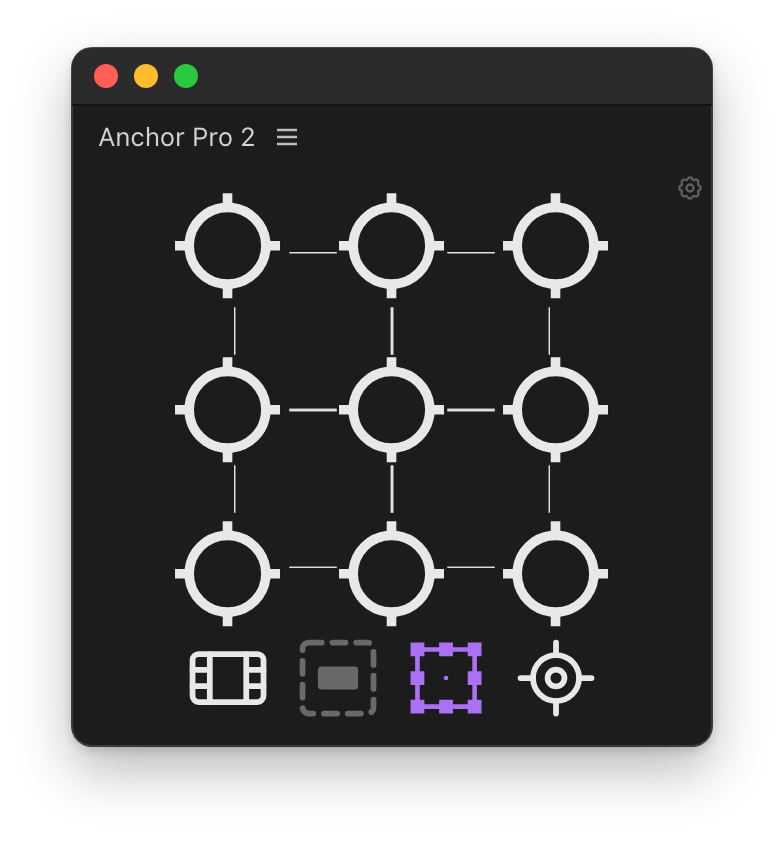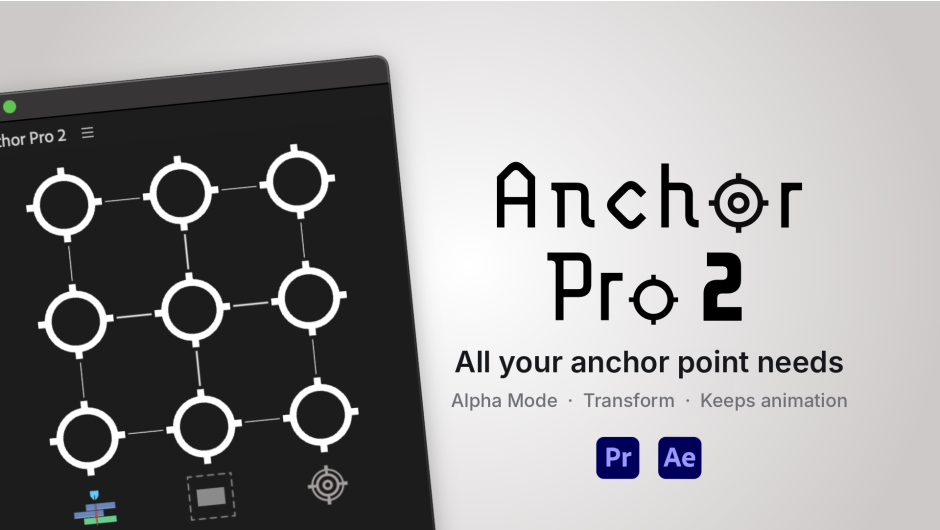
Anchor Pro 2 is a panel for changing anchor points in After Effects and Premiere Pro. Choose whether to position an anchor relative to the clip, sequence or selected clips, then click one of the nine grid points or drag to set a position between them. It suits editors and motion designers who need repeatable placement across clips or precise pivot changes on animated material.
Place anchors by visible content
Alpha Mode bases the grid on visible pixels instead of the full frame. A logo or title on a transparent background can then use the edges of its artwork as the reference. Alpha Mode can leave out transparent areas and drop shadows. Its preferences include an opacity threshold and a Drop Shadow setting.
Align clips and preserve animation
You can save the current anchor point by Alt-clicking its button. The saved value is a position in the frame. Applying it to selected clips places each anchor at that same frame position, giving them a shared point for scaling and rotation.
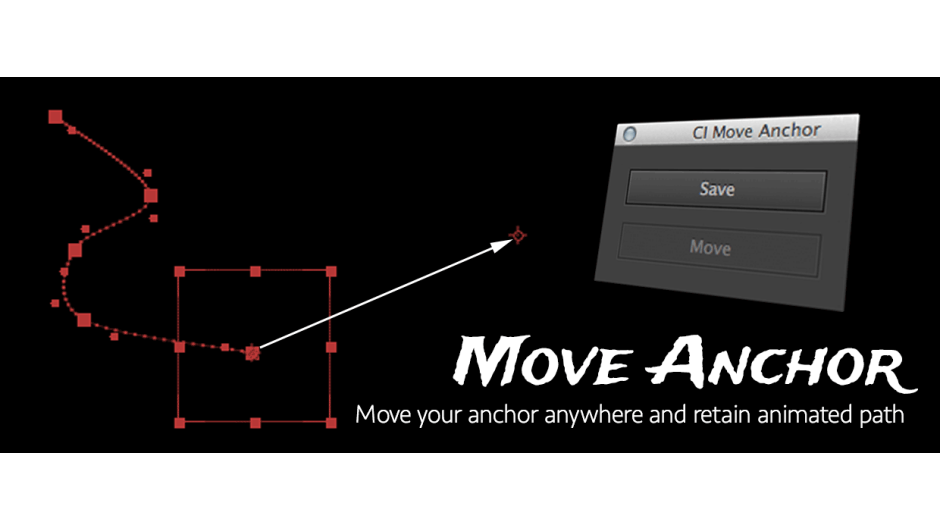
On animated clips, Anchor Pro offsets every Position keyframe by the anchor's change. The visible movement stays in the same place while the motion path shifts to follow the new anchor.
Choose what to move
The grid normally changes the Motion anchor point. Transform mode targets the anchor point of a Transform effect instead. On graphics, the anchor point moves to Vector Motion. After Effects support includes separated dimensions and 3D layers. Preferences let you assign a modifier key to each mode and set shortcuts for saving or applying a saved anchor point.
Compatibility and license
The listing includes After Effects and Premiere Pro versions 2024, 2025, 2026 and 2027. It describes Anchor Pro 2 as a one-time purchase. Its EULA grants one copy for use on one computer at a time; additional users or copies require the appropriate licenses.