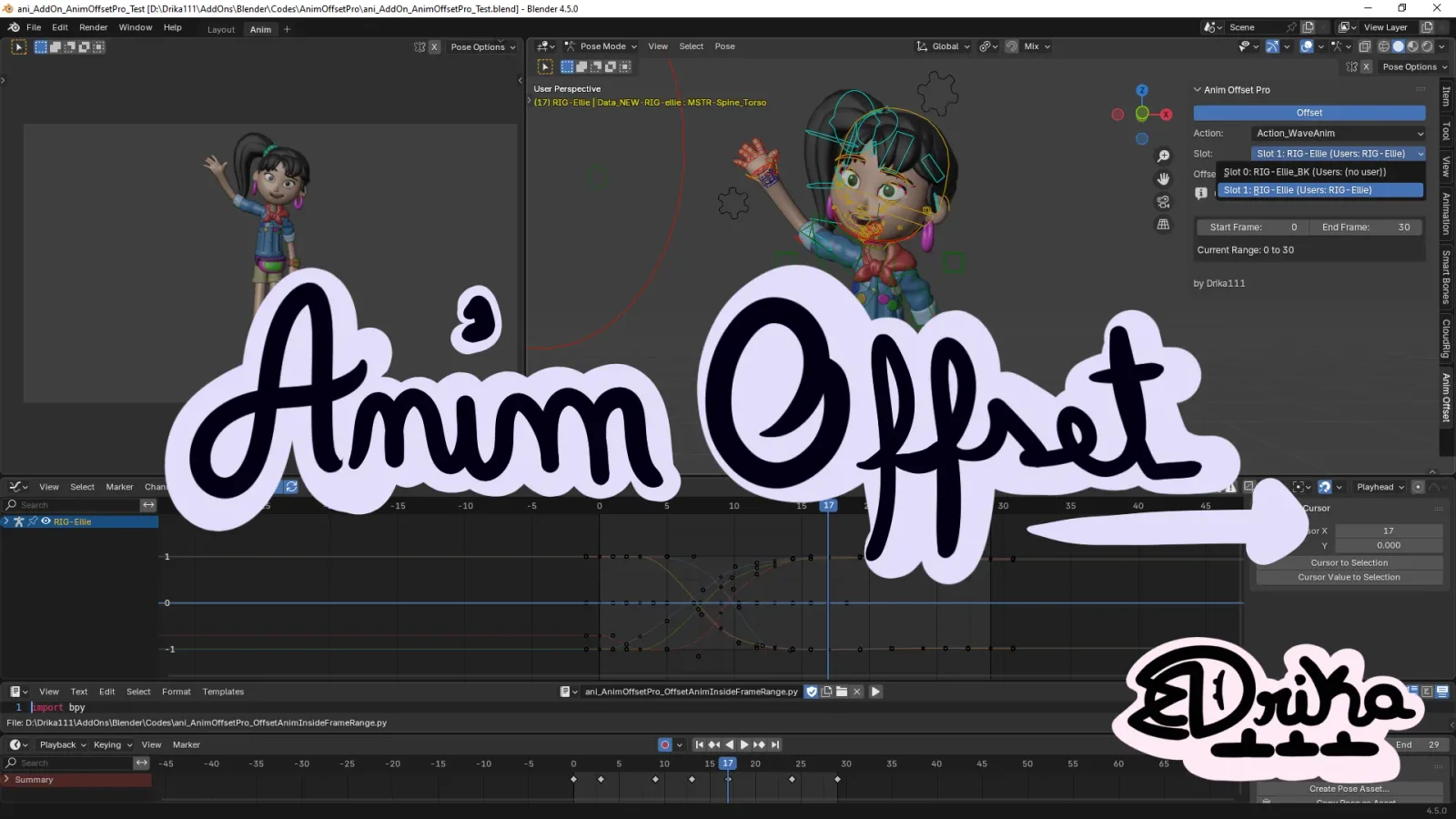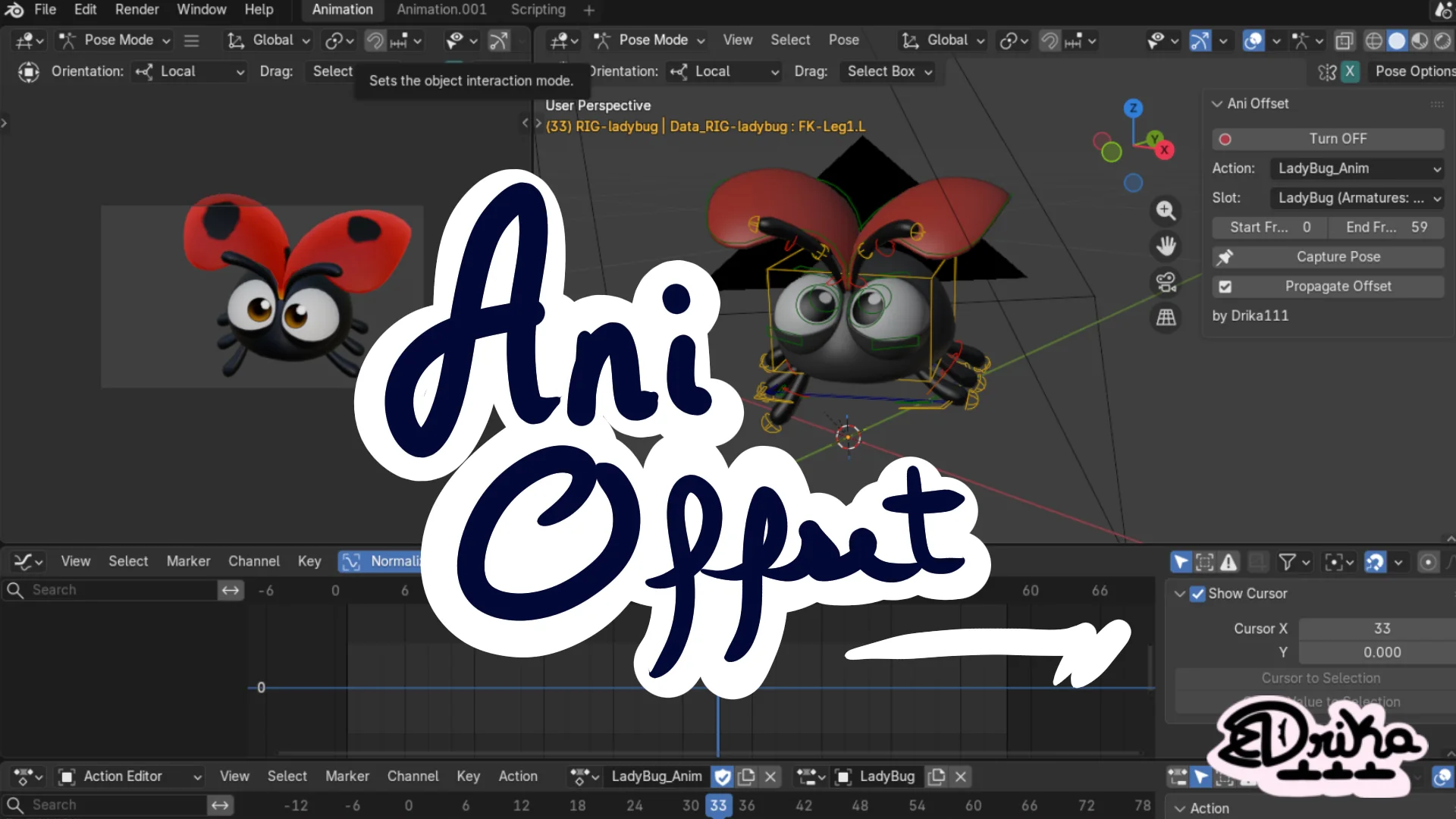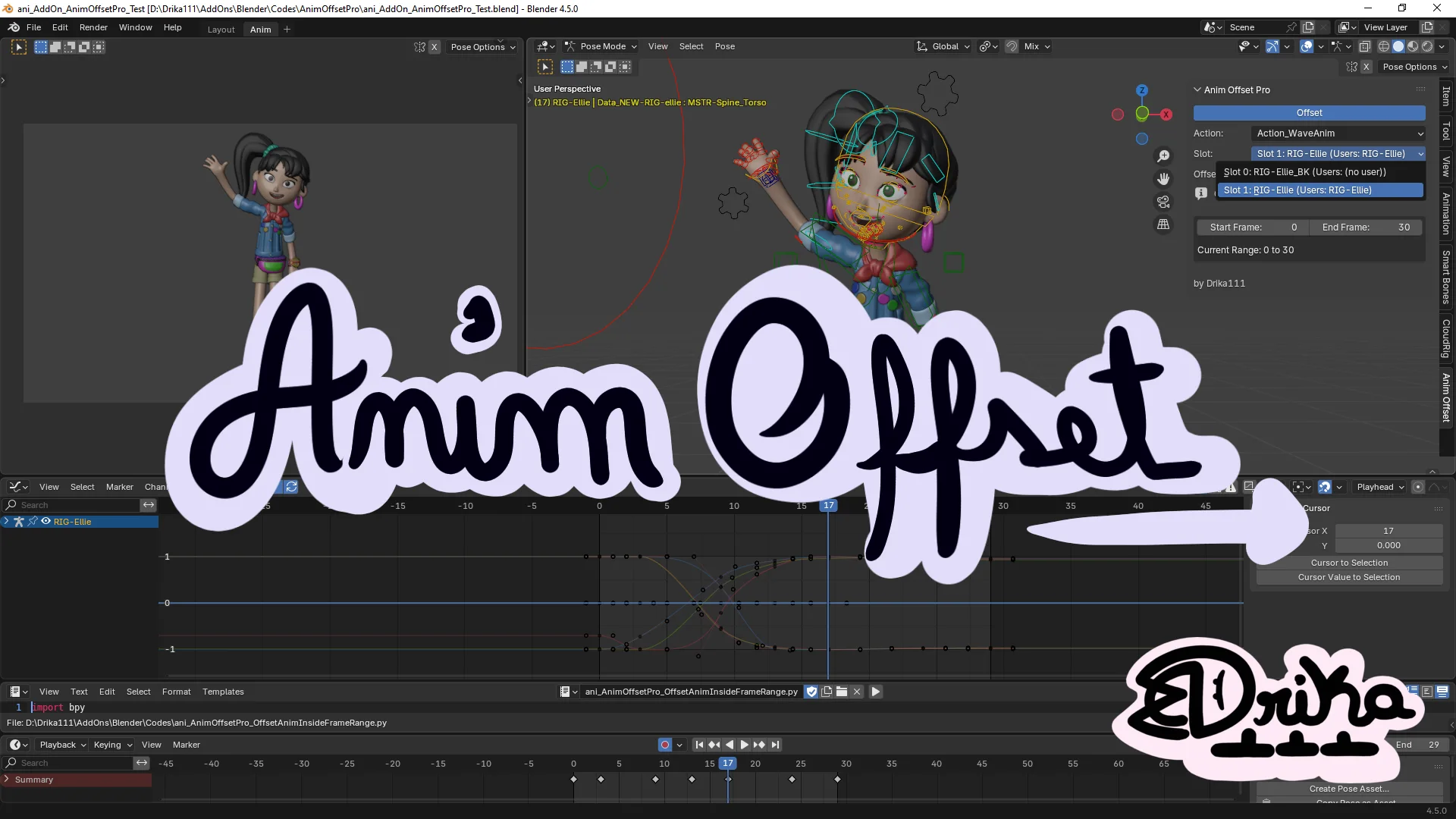
Anim Offset Pro is a Blender add-on for applying pose adjustments across multiple keyframes. It is aimed at rigged-character animation: select an Action Slot and frame range, then make the pose change in the 3D Viewport. The add-on propagates that change across the chosen frames, avoiding the need to repeat the same adjustment at each one.
Apply an offset to a frame range
Start with the rig you want to edit. The controls are in the 3D Viewport side panel while the rig is in Pose Mode:
- Select the rig and switch to Pose Mode.
- Open the add-on’s side panel and choose an Action.
- Select the corresponding Action Slot.
- Enter the start and end frames for the range.
- Click Offset, then make the pose transformation in the viewport.
The selected Action Slot and frame boundaries determine where the change is applied. Check both before clicking Offset, especially when the file has several actions or slots.
Action Slots and undo
The Action Slot dropdown shows each slot’s users to help distinguish them. Choose the slot that contains the animation you intend to change, then set a range that covers the relevant keyframes.
While an offset is active, undo the operation with Ctrl+Z twice. The first undo reverses the pose edit; the second removes the offset propagation.
Compatibility and current details
The Blender Extensions catalog lists Blender 4.4.0 as the minimum version. Check the Anim Offset Pro listing for the current release and compatibility details before installing.