Animation Library Export & Import Clips gives Blender animators a place to keep object and rig actions for reuse. Export a selected action to a dedicated library folder, browse the saved clips, preview their motion, and paste a clip into the current scene. The workflow is suited to animation that recurs across shots, including character gestures and episodic or cartoon production.
Reuse actions without rebuilding them
Save an object or rig action when you want to use that motion again. Clip categories can have their own icons, which helps make a larger archive easier to scan. Video previews let you check a clip before importing it, so you can choose the motion that fits the shot.
For example, an animator can keep a blink or smile with other facial motion, then retrieve it for another scene. Hand gestures and other partial actions can be handled through saved bone sets, which lets the import target a chosen group of bones.
Browse, preview, and place clips
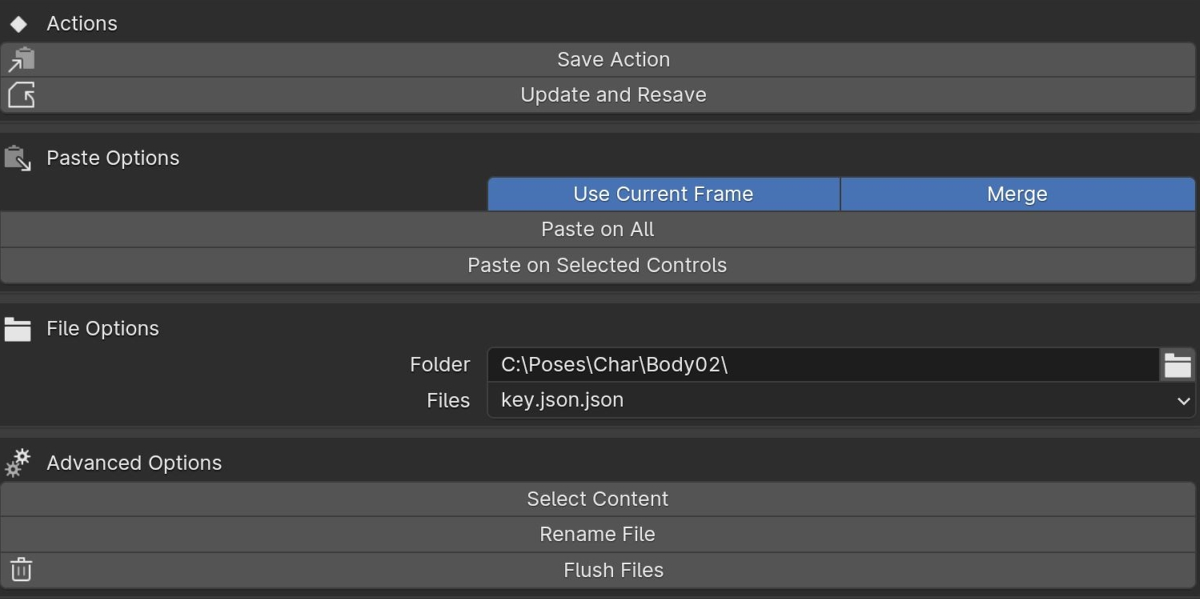
The add-on's workflow moves from exporting an action to choosing how it will be applied:
- Export the selected object's or rig's action to the library folder.
- Browse the archive and preview clips to find the motion you need.
- Select the target rig and, for bone clips, use Pose Mode; choose a saved bone set when needed.
- Paste the action into the scene. Use the Location property to place a saved animation on the timeline as an InPlace action.
Target a bone set
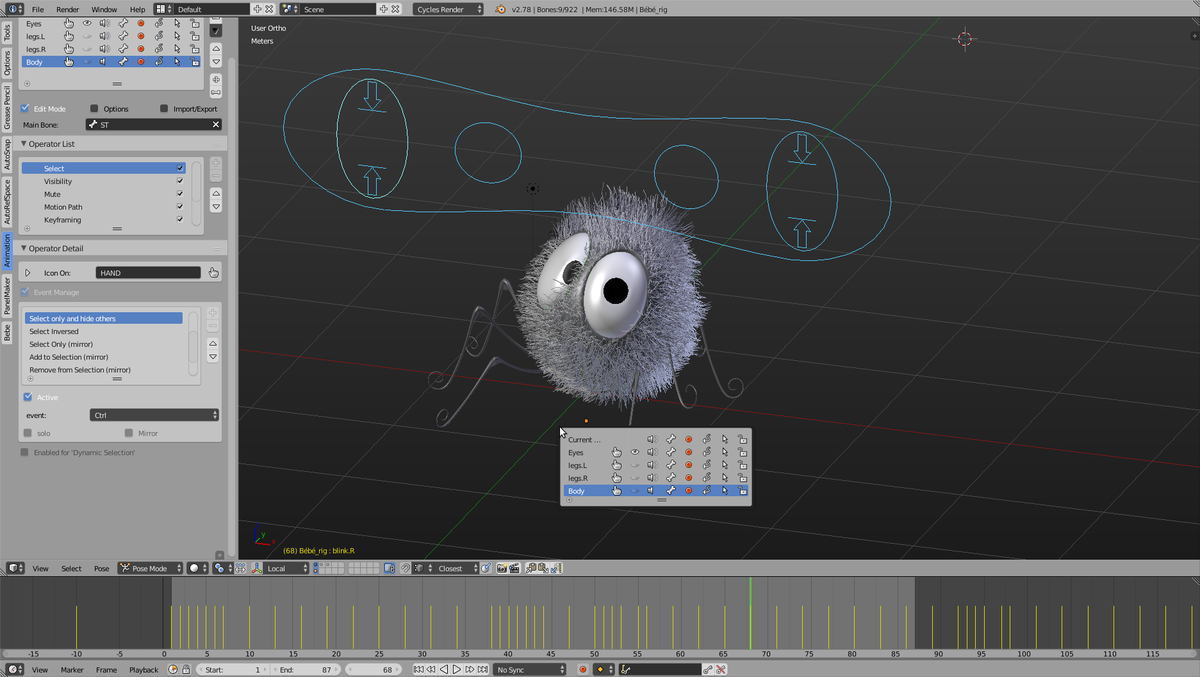
Create and save bone selection sets for parts of a rig such as hands, faces, or limbs. The add-on lets you select a saved set from its pie menu with Alt+1, then use Filter by Set to choose which bone group receives the imported animation. This is useful when reusing a partial clip, such as a blink or hand gesture, instead of applying motion to every bone.
Before import, the add-on validates animation data and is designed to target active rigs in Pose Mode.
Mirror compatible rigs
Mirror Paste can flip an action across a symmetrical rig when its bone names use supported left and right conventions, including .L and .R, _L and _R, or Left and Right. Check that your rig's naming fits one of these conventions before relying on a mirrored clip.
Install the add-on
Install the provided ZIP through Blender Preferences and enable Animation Library Export & Import Clips. Then open the Anim Lib panel in the 3D Viewport sidebar to browse the archive and work with clips.