Animation Tools is a Blender add-on that gathers keyframe timing, curve cleanup, pose operations, and viewport helpers in one panel. Its tools work on selected keys, objects, or bones, so the relevant selection and frame range matter for many operations.
Keyframe timing and curve editing
- Push Keyframes shifts selected keys along individual F-curves by a chosen interval, pushing them forward from the current frame or pulling them back toward it. Keys before the current frame stay unchanged, and an upper threshold can limit the affected range.
- Move Keyframes places selected keys on the current frame or a specified frame. Add Keyframe Value adds a chosen value to selected keys.
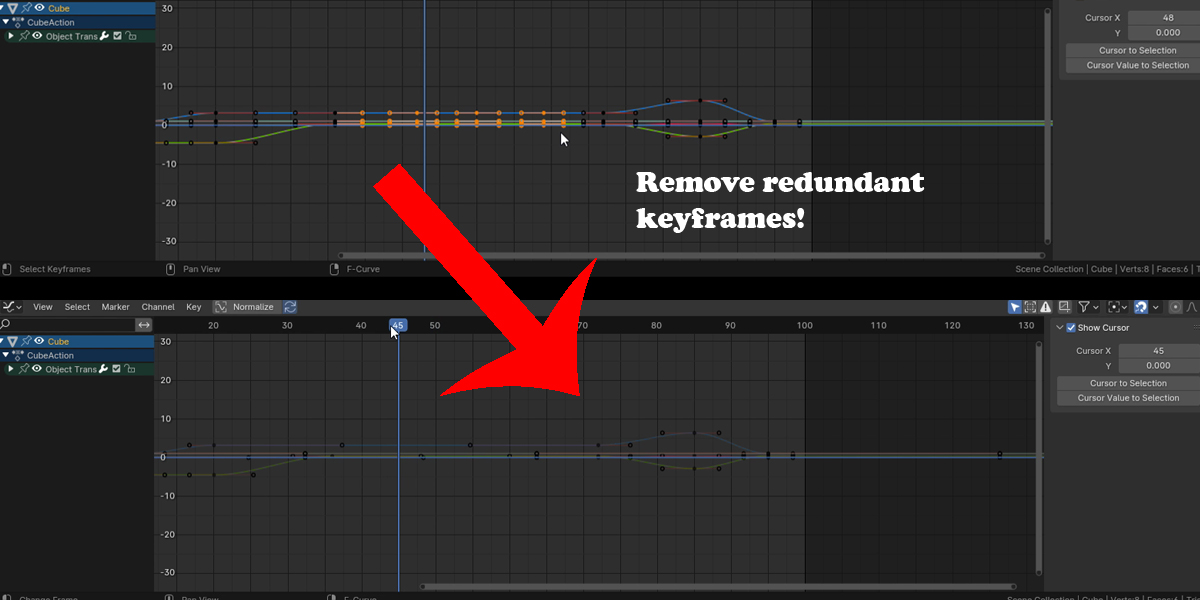
- Clean Keyframes removes extra keys from runs that all have the same value, keeping the first and last. A toggle can also run Blender's built-in decimate function.
- Set Keyframe Interval creates keyframes for a selected object or bone at the chosen spacing. Version 1.01 adds an interpolation dropdown for the created keys.
- Loop Selected repeats selected keyframes a chosen number of times. The loop's first frame overwrites the selection's last frame, so those frames should match for a proper loop.
- Select all Curves selects an object's or bone's F-curves, keyframes, and handles from the viewport. The product notes that several tools need all curves selected to work properly.
Pose and viewport tools
- Copy Bone Position copies a selected bone's position from the current frame across a chosen range. Keyframe all Bones adds keys to selected bones on every frame where any of them already has a key.
- Reset Bones returns selected bones to their default position. Flip Pose mirrors the pose when all bones are selected and their names use correct left and right suffixes.
- Constrain Objects to Bones lets you assign a mesh object, select a target bone in Pose Mode, and apply the constraint.
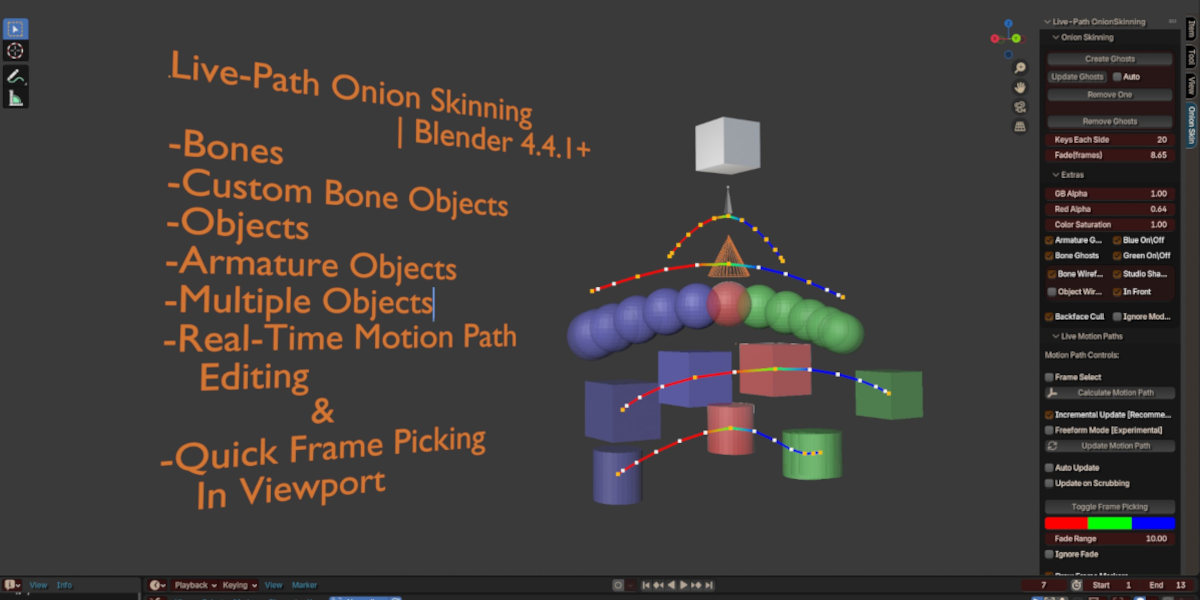
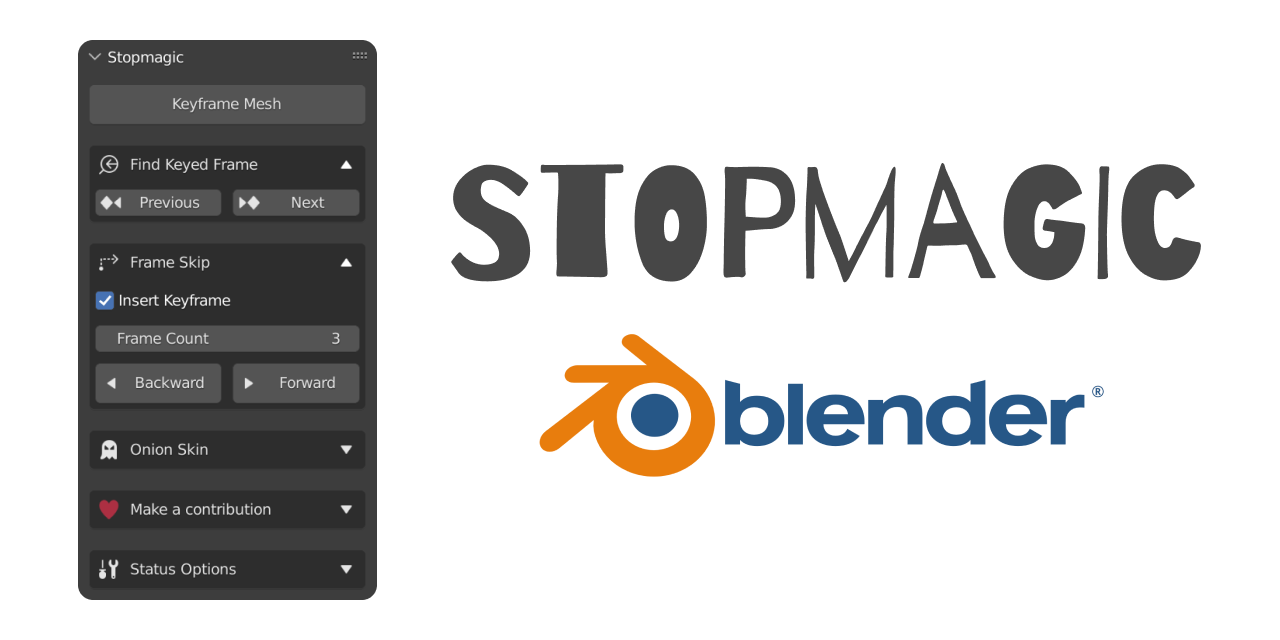
- Motion Paths gives access to Blender's built-in motion path tools. Onion Skin sets the number of frames shown before and after a mesh pose and lets you change their colors. Detailed objects or a wide frame range may affect viewport performance.
Access and fit
The panel is available in the 3D Viewport and, since version 1.01, the Graph Editor. Many functions are also in a pie menu opened with the e hotkey in Object or Pose Mode; you can change that hotkey in the add-on preferences.
Animation Tools may suit Blender animators who regularly adjust keyframes or poses and want these operations gathered in one place. Before using Flip Pose, check the rig's side suffixes. When using Onion Skin, reduce the frame range if viewport performance becomes an issue.
See Animander's Superhive product page for the product listing and current compatibility details.