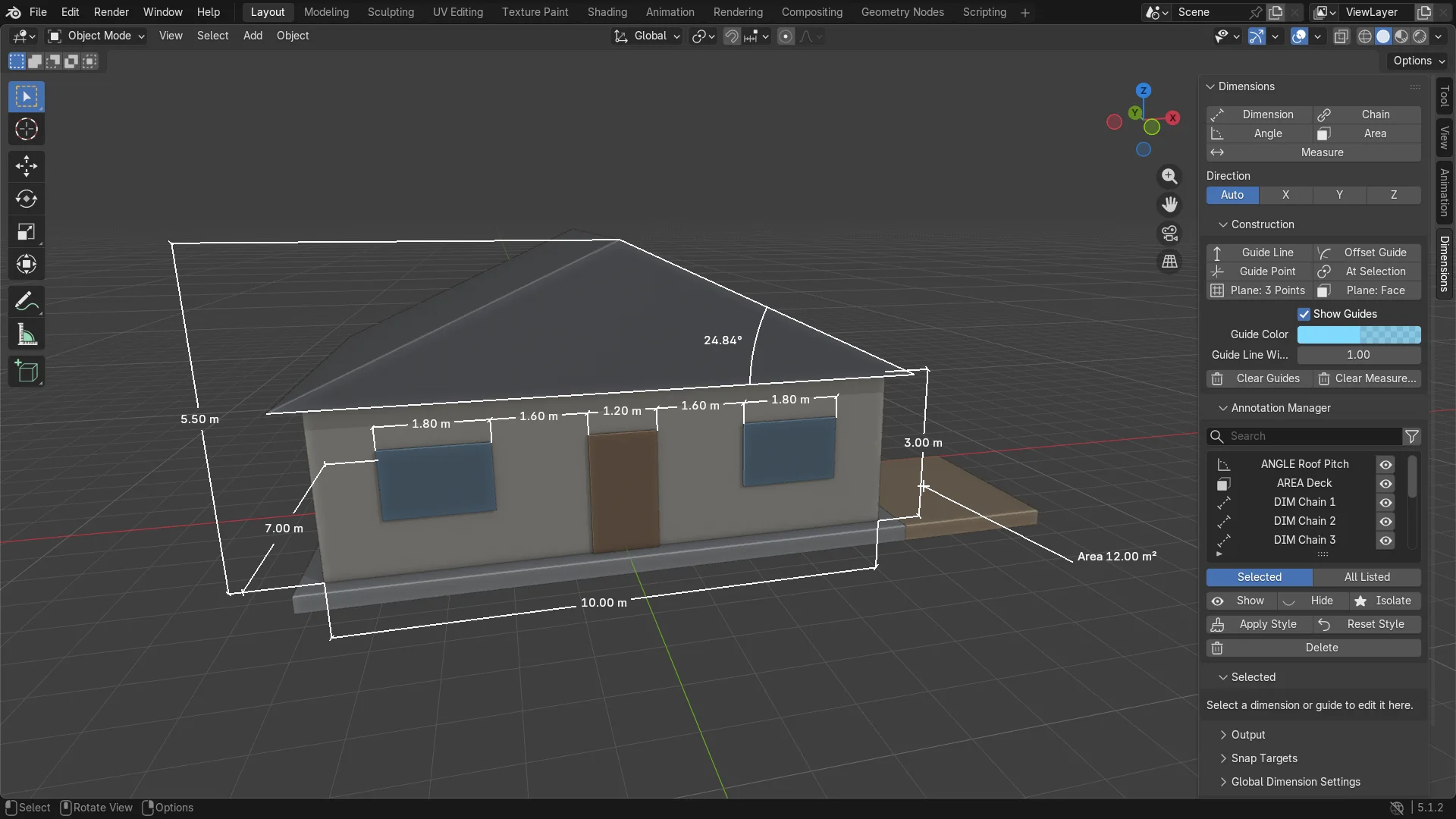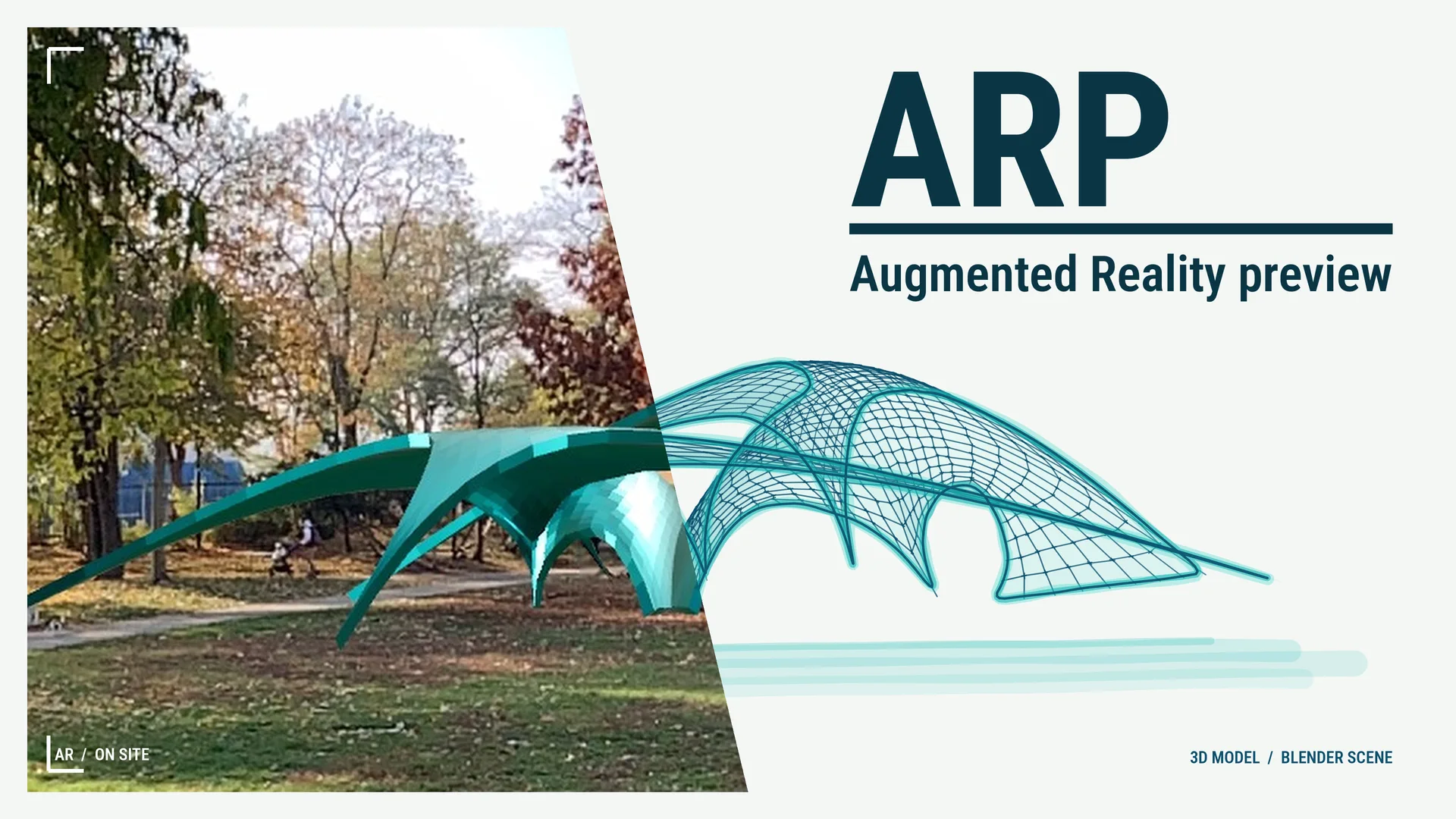
AR Preview lets you view a Blender scene at 1:1 scale in augmented reality on an iPhone or iPad. It exports the scene as a USDZ file and uses a QR code to open the model in iOS AR Quick Look, so you can check the scale of architectural or product models in a real space.
How to preview a scene
- In Blender's 3D Viewport sidebar, open the ARP tab and click View in AR. The add-on exports the scene and starts a small local web server on your computer.
- Scan the QR code in the panel with the iPhone camera. The model opens in AR Quick Look, which is built into iOS; no phone app installation is needed.
- After changing the model in Blender, click Update AR. The page on the phone reloads with the new version, then reopen the AR view.
Controls for the exported model
- Merge Meshes exports a merged temporary copy, with one draw call per material. It leaves the Blender scene unchanged.
- With Merge Meshes off, collection and Geometry Nodes instances export as USD instances.
- Lock Scale disables pinch-to-scale in AR to keep the model at 1:1 scale.
- The panel shows the triangle count and warns when it exceeds a set limit.
- Save USDZ saves the file to a chosen folder, such as one used for AirDrop or Files.
- Assign Grey Material applies a plain grey material to selected objects. The change is undoable.
Compatibility and network requirements
AR Preview 1.1.1 requires Blender 4.5.0 or later. The viewing device must be an iPhone or iPad with ARKit support, using an A9 chip or newer, and Safari. The listing names iPhone 6s and iPhone SE or later as examples. Android is not supported because AR Quick Look is iOS-only.
The phone and computer need to be on the same local network, and Allow Online Access must be enabled in Blender under Preferences > System > Network. The local server starts only after you click View in AR and stops when you click Stop Server or close Blender. While it is running, any device on that network can open its address and download the exported model. The add-on says it sends no data to the internet. On Windows, allow Blender on private networks if the firewall prompts you, or the phone cannot connect.
Installation and support
The Blender Extensions listing provides the package, compatibility details and version history. For local package installation, see Blender's Install from Disk instructions. The listing links to the developer's public issue tracker.