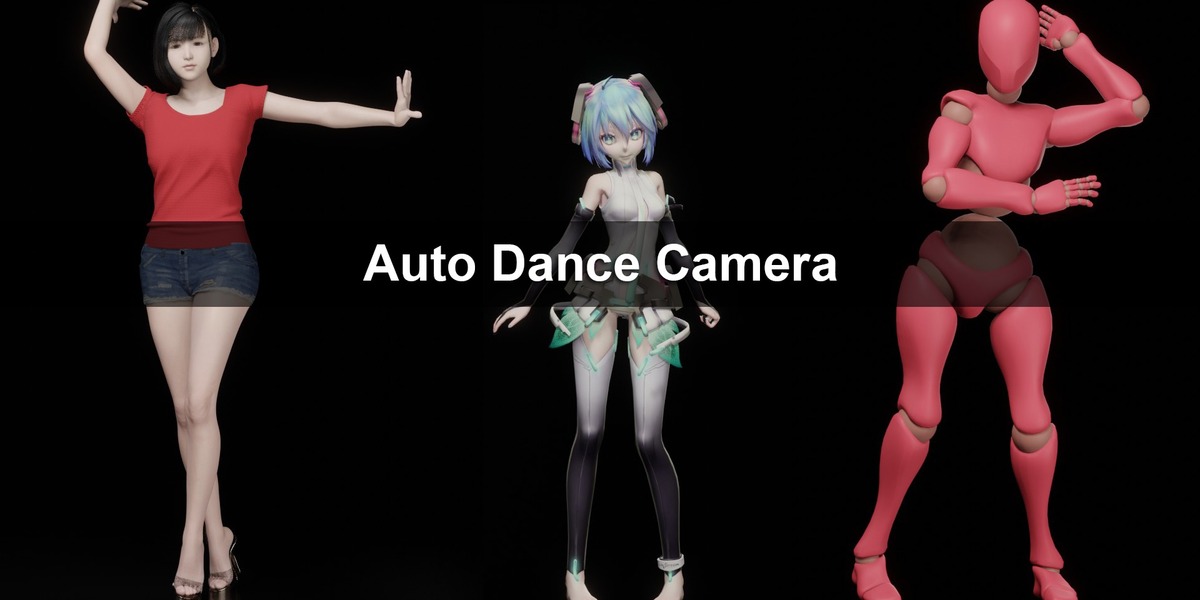
Auto Dance Camera is a Blender add-on by xianran that generates camera motion for character animations. For a dance animation that runs thousands of frames, select the character’s armature and click Generate to create a moving camera and make it active. The Superhive listing names add-on version 2.4.3 and Blender versions 3.0–5.0; its documentation says the latest version supports Blender 5.x.
How camera generation works
The add-on draws from 540 possible shot combinations. Auto Dance Camera checks the character’s pose, chooses a fitting shot, and generates its length. Available framing includes full, medium, lower-body, and close-up shots. You can allow fixed or directional rotation and camera movement such as zooming, panning, and moving up. The add-on tries to keep the character’s eyes near the upper third of the frame.
Eye position is checked at the first and last frame of each shot, rather than on every frame. A character that moves out of frame and back quickly within one shot may not be tracked in time. The product documentation suggests regenerating the affected shot or frame range when that happens.
Rigs, framing, and revisions
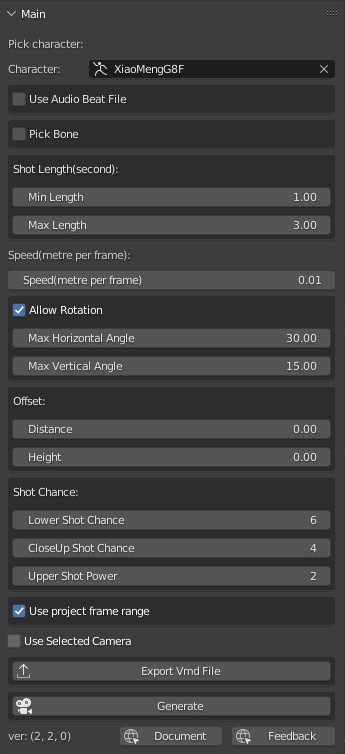
Built-in rig support covers Daz, CC3, MMD, Rigify, and Mixamo. For other rigs, select Pick Bone and choose the required bone names. For Mixamo models or other imports without applied transform rotation, select the armature and apply its rotation before using the add-on.
Shot length is set in seconds and converted to frames using the project’s frame rate. You can adjust minimum and maximum shot lengths, camera speed, rotation, offsets, and the chance of lower-body or close-up shots. For non-dance motion, use longer shot lengths. To revise only part of a result, select the camera, enable Use selected camera, set a frame range, and generate again. Existing motion in that range is replaced, while motion outside it can be retained.
Beat matching, export, and setup
On Windows 64-bit only, a separate Audio Beat utility can extract melody beats from a song into a reusable .npy beat file. Load that file in the add-on with Use Audio Beat File enabled, then generate the camera motion. The documentation describes this extraction as audio filtering, not AI-based vocal isolation. Because the built-in audio filter may not isolate vocals well for some tracks, the developer suggests separating the vocals with an external tool, then selecting the vocal file or both vocal and music files in Audio Type.
Auto Dance Camera can export camera motion to .vmd for MMD and .duf for Daz Studio. The export controls also work with other Blender cameras, not only cameras created by the add-on. To install it, use the downloaded ZIP, enable Auto Dance Camera in Blender’s add-on list, then open its panel from the viewport’s N-panel.
The developer’s GitHub repository is for documentation and issue tracking; it does not contain the add-on code. Check the current Superhive listing for the download and compatibility details before installing.